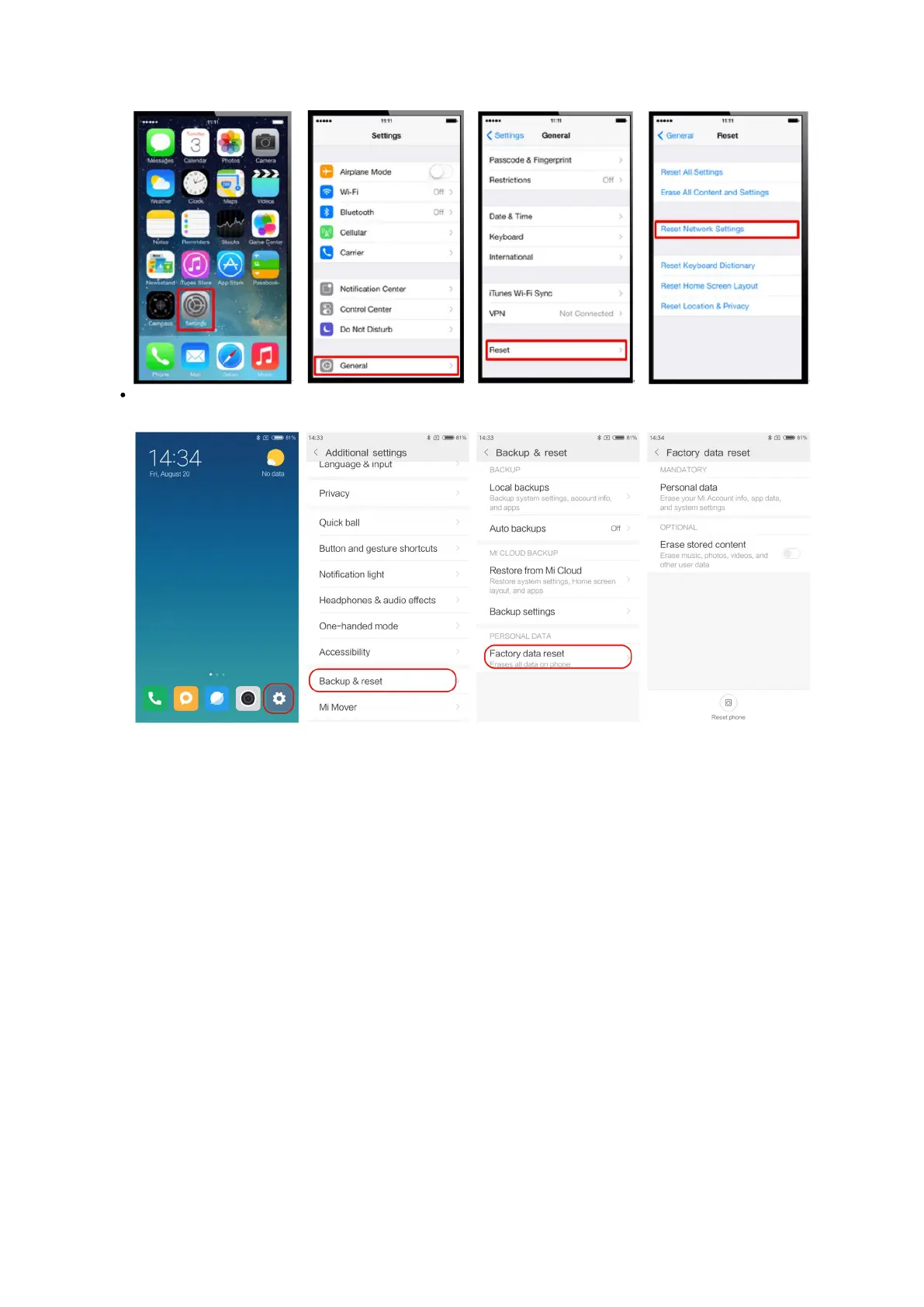
If the device used is an Android device, please follow these steps to reset and reconnect to the LiBackpack Wi-Fi (Settings->System-
>Reset->Network settings reset; steps may vary with make and model):
What should I do when ‘Unable to connect’ popup appears during data collection?
The appearance of this popup is most likely to be caused by Wi-Fi interference. This does not affect the data collection process. Check the
Wi-Fi connection. Reboot the Wi-Fi on the UI device if the problem remains, and then reconnect to the LiBackpack Wi-Fi.
What should I do when I cannot open the copied data?
Please ensure that:
1. The USB flash drive is formatted to a single NTFS sector;
2. The drive was not unplugged until the process bar reaches 100% and the notice to unplug the drive appears on the display.
To reformat the flash drive to NTFS or exFAT format, please follow these steps:
1. Plug in the USB disk.
2. Open “This PC”
3. Right-click the disk, and select Format…
4. Select the “File system” as NTFS or exFAT and click “Start”.
What should I do when the copy process bar remains at 99% for a long time?
This is likely to occur when large quantities of data are being copied. You should wait for the message that file transfer is completed before
removing the USB drive or shutting down the system to avoid data loss and/or damage to the drive.
Does LiBackpack come with a point cloud post-processing tool?



 To Next Page