Model G0922 (Mfd. Since 07/20)
-43-
Updating Firmware
Tools Needed Qty
Windows Computer with Grizzly Winware ......... 1
USB Type B Cable ............................................ 1
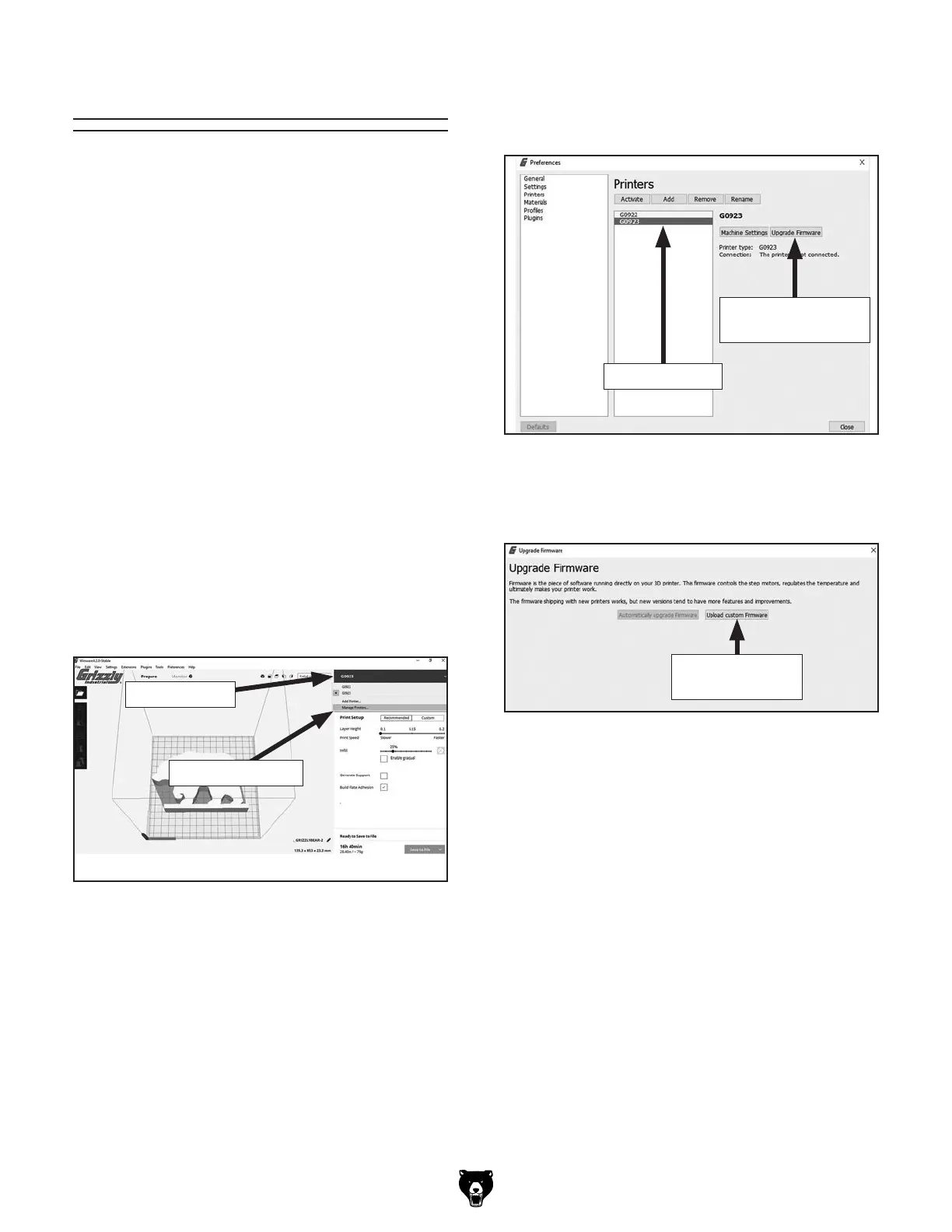
4. Highlight correct printer, then select Upgrade
Firmware (see Figure 66). Upgrade Firmware
window will open.
5. Select Upload Custom Firmware (see Figure
67). A file selection window will open.
6. Within file selection window, navigate to
.HEX file downloaded in Step 1. Highlight file
and select "Open." A progress bar will show
installation progress.
7. Once installation is complete, disconnect
printer from computer.
Figure 67. Upgrade Firmware window.
Figure 66. Printer preferences window.
List of Printers
Upgrade Firmware
Button
Upload Custom
Firmware
3. Open Grizzly Winware software, select active
printer, then navigate to "Manage Printers"
(see Figure 65). Printer preferences window
will open.
Figure 65. Active printer menu.
Manage Printers
Active Printer
To update firmware:
1. On computer, download latest firmware
update from www.grizzly.com.
Note: Firmware files will have the ".HEX" file
extension.
2. Connect printer to computer using type B
USB cable.
If essential operating updates are made to the
G0922 firmware, the updated firmware will be
available at www.grizzly.com on the G0922 prod-
uct page.


 To Next Page