Mini-X Installation, Setup & User Manual GRT Avionics
Revision A9 53
Section 6: Optional Moving Map & HSI
6.1 Moving Map Overview
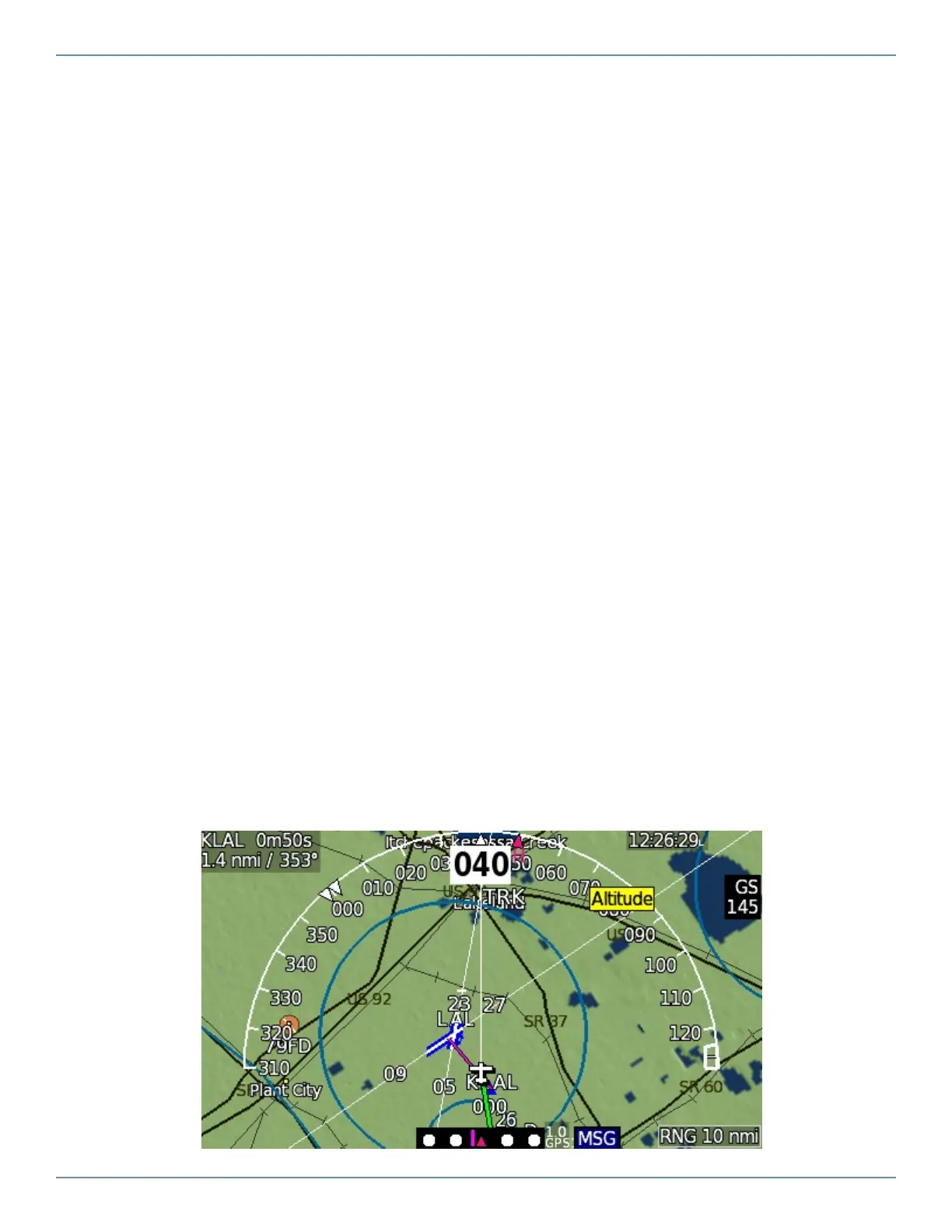
When equipped with the optional Moving Map/HSI software, the Mini features a set of moving
map screens, including an HSI to assist with GPS navigation and VOR/LOC tracking if a nav radio
is connected. To access the Moving Map screen from the PFD, press the MAP softkey.
Each view of the map provides the following features:
Aeronatuical features- Airports, airspaces, fixes, and navaids. When zoomed in, runways are
displayed as individual strips with labeled extended runway centerlines.
Topographical features- Cities, towns, major roads, borders, rivers, lakes, obstacles and terrain.
Terrain can be color coded as a visual proximity warning.
Airplane symbol- Represents your present GPS position and track.
Range/Zoom- Turn the knob to zoom in and out.
Compass rose/Heading arc- Magnetic compass reference: 180° arc or 360° compass rose.
Path Line- Thin white line represents either present heading or present ground track as set in
the Moving Map setup menu and radiates forward from the airplane symbol (Track-Up view only).
Flight Plan Course Lines- Magenta is the active leg; all others are white. See Flight Planning &
Navigation.
Heading Bug Course Line- Green course line that appears when the EFIS is set to navigate in
HDG mode.


 To Next Page