14
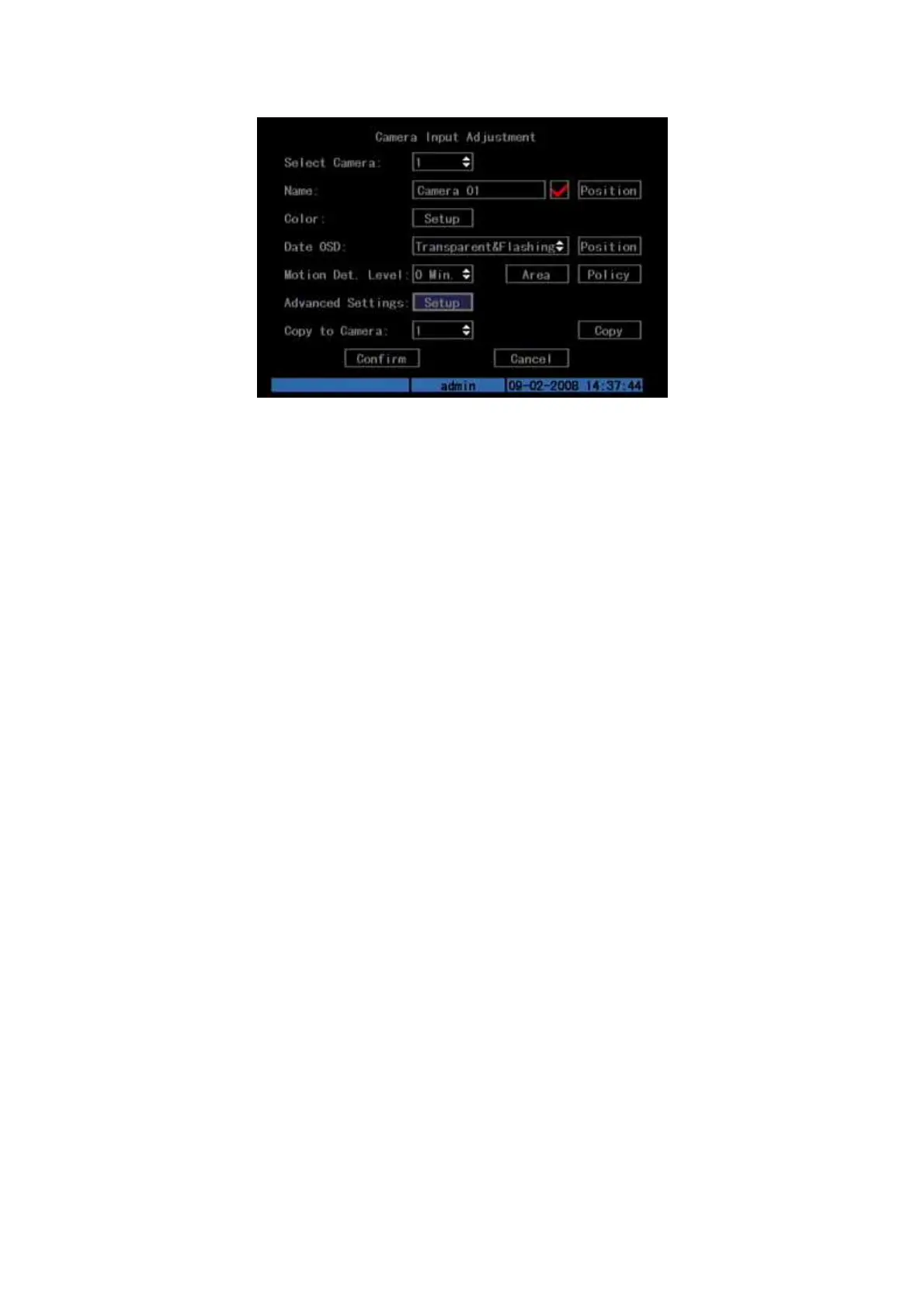
Fig. 3.4 Camera input adjustment
Each menu contains different kinds of items. There is a small rectangular frame
named “Active Frame” which is pointing to the selected item. This “Active Frame”
can be moved by direction keys (
[↑][↓][←][→])
. There are several kinds of menu items
as follows:
1. Check Box: Provides two options, “” means enable and “×” means disable.
You can use [ENTER] or [EDIT] key to switch over.
2. List Box: Provide more than 2 options. Only one of them can be selected.
After pressing [EDIT] you can use [↑] and [↓] to select one option. For
example, on the right side of “Select Camera”, there is a list box for you to
select one camera.
3. Edit Box: This is for you to input characters. Press[EDIT]key to enter the
edit status, you can input text there:
a) Press[A]key to select number, upper case, lower case or symbols;
b) Use
[→]
and
[←]
keys to move cursor;
c) Use[EDIT]key to delete the character in front of cursor;
d) Press [ENTER] to save & [ESC] to exit without saving.
4. Button: Trigger a special function or enter the next sub-menu. For example,
press “Policy” button to enter the sub-menu. Press [Confirm] to save
parameters and return to main menu. Press [Cancel] button to cancel and
return to main menu. The button in grey means it can be operated only after
being enabled.
How to exit menu
Press [PREV] key to exit menu and return to preview mode.



 To Next Page