27
Crop Image
Crop your photos to show and save a specic portion of an image or to highlight certain focal points.
The Crop feature lets you zoom in on an image and then save that part of the image as a new photo.
Note: Only photos on the SD Card can be cropped.
1. Press Menu Button.
2. Press Right/Left button to select the Crop icon .
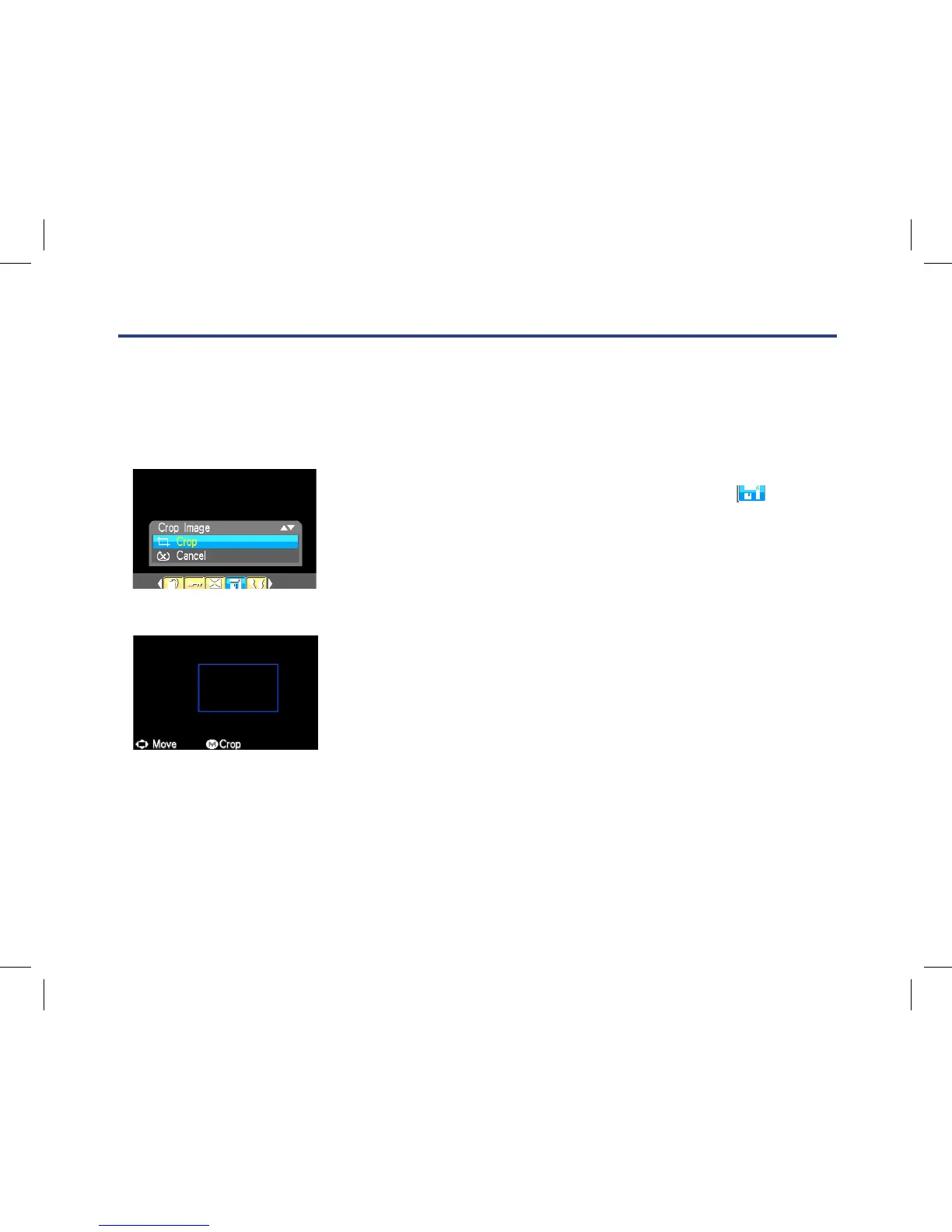
3. Press Up/Down button to select Crop or Cancel.
4. Press Menu Button.
5. A blue crop rectangle appears on the
photo in the LCD screen.
6. Press W or T button to determine the size of the area to crop.
7. Press Up/Down/Right/Left button to navigate the area of the
photo you wish to crop.
8. Press Menu button to conrm and save the crop or press
Left Button to exit.
9. A Saving screen appears before the cropped photo is saved
as a new photo to your memory card.
4. Press Menu Button to confirm.
5. A Delete confirmation message appears.
6. Press Up/Down button to select “Yes” or “No”.
7. Press Menu Button to confirm and delete the image(s).
Caution: 1.You cannot delete files that are locked.
2. If you choose the ‘All’ option, all the unprotected photo images on your SD card will be deleted.
This process is irreversible and all your images will be lost forever unless you have saved them
or downloaded them to your computer previous to the deletion.
Crop Image
Crop your photos to show and save a specific portion of an image or to highlight certain focal points. The Crop
feature lets you zoom in on an image and then save that part of the image as a new photo.
Note: Only photos on the SD Card can be cropped.
1. Press Menu Button.
2. Press Right/Left button to select the Crop icon .
3. Press Up/Down button to select Crop or Cancel.
4. Press Menu Button.
5. A blue crop rectangle appears on the photo in the LCD screen.
6. Press W or T button to determine the size of the area to crop.
7. Press Up/Down/Right/Left button to navigate the area of the photo you wish to crop.
8. Press Menu button to confirm and save the crop or press Left Button to exit.
9. A Saving screen appears before the cropped photo is saved as a new photo to your memory card.
Print
Your camera allows you to print the photos with printer. The operation as below:
1. Select a photo you want to print.
2. Press Menu button.
4. Press Menu Button to confirm.
5. A Delete confirmation message appears.
6. Press Up/Down button to select “Yes” or “No”.
7. Press Menu Button to confirm and delete the image(s).
Caution: 1.You cannot delete files that are locked.
2. If you choose the ‘All’ option, all the unprotected photo images on your SD card will be deleted.
This process is irreversible and all your images will be lost forever unless you have saved them
or downloaded them to your computer previous to the deletion.
Crop Image
Crop your photos to show and save a specific portion of an image or to highlight certain focal points. The Crop
feature lets you zoom in on an image and then save that part of the image as a new photo.
Note: Only photos on the SD Card can be cropped.
1. Press Menu Button.
2. Press Right/Left button to select the Crop icon .
3. Press Up/Down button to select Crop or Cancel.



 To Next Page