32
Install PhoTags Express Software
NOTE: Make sure that your camera is not connected to the computer.
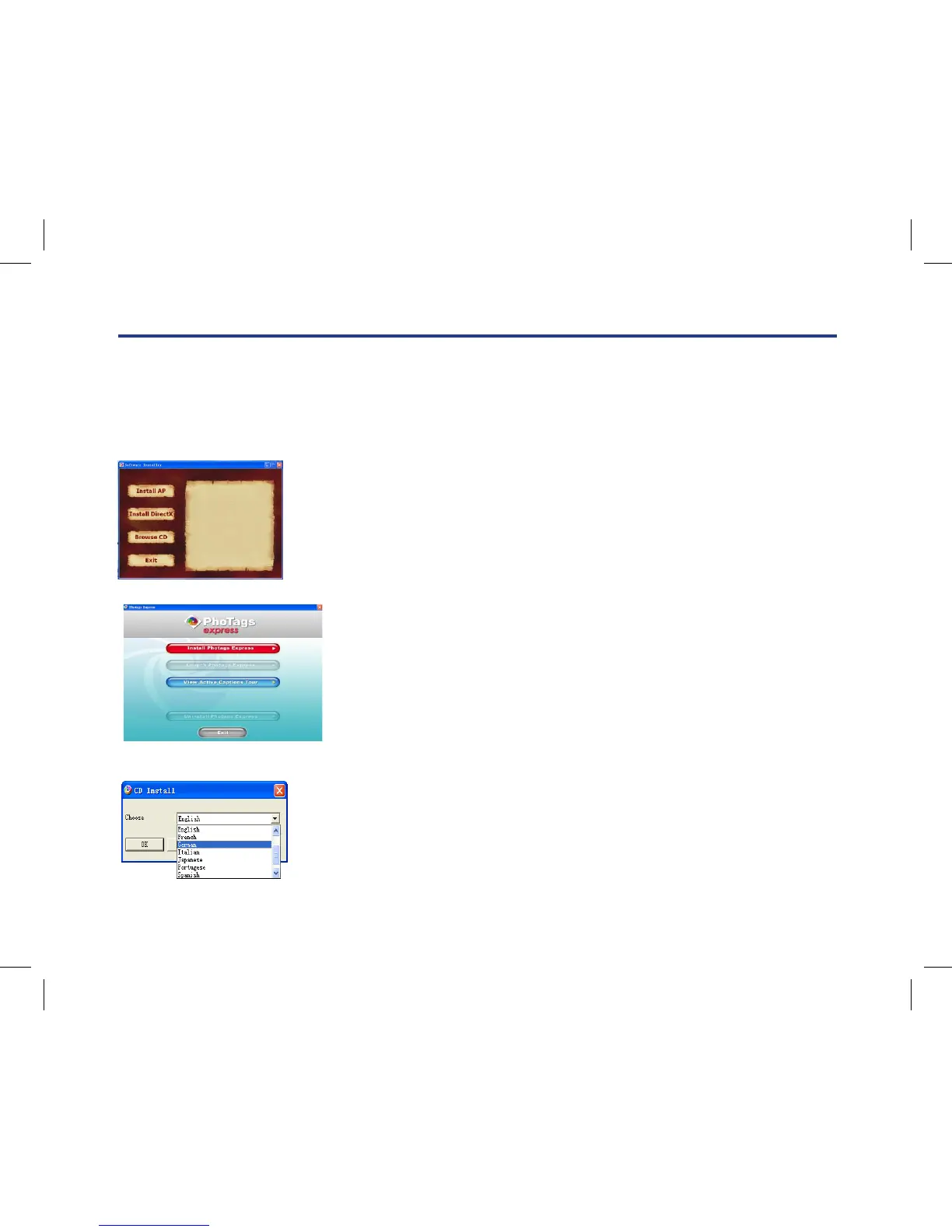
Insert software CD to your computer. After a few seconds, there will be shown an installing main window
on the screen.
You can “install AP”, “Install DirectX”, “Browse CD”, and “Exit” in this installing main window.
Install Photags Express
Click on the “Install AP” to start installing process. The language window will
be shown on the screen and you can choose the language you want to use.
And then the installer window will be shown as below.
After you click “Install Photags Express” button, there will be showing
some windows that help you to nish
the installing. You are only required to follow the description and click
the buttons that it’s defaulted by the software.
NOTE: Make sure that your camera is not connected to the computer.
Insert software CD to your computer. After a few seconds, there will be shown an installing main window on
the screen.
You can “install AP”, “Install DirectX”, “Browse CD”, and “Exit” in this installing main window.
Install Photags Express
Click on the “Install AP” to start installing process. The language window will be shown on the screen and you
can choose the language you want to use.
And then the installer window will be shown as below.
NOTE: Make sure that your camera is not connected to the computer.
Insert software CD to your computer. After a few seconds, there will be shown an installing main window on
the screen.
You can “install AP”, “Install DirectX”, “Browse CD”, and “Exit” in this installing main window.
Install Photags Express
Click on the “Install AP” to start installing process. The language window will be shown on the screen and you
can choose the language you want to use.
And then the installer window will be shown as below.
NOTE: Make sure that your camera is not connected to the computer.
Insert software CD to your computer. After a few seconds, there will be shown an installing main window on
the screen.
You can “install AP”, “Install DirectX”, “Browse CD”, and “Exit” in this installing main window.
Install Photags Express
Click on the “Install AP” to start installing process. The language window will be shown on the screen and you
can choose the language you want to use.
And then the installer window will be shown as below.



 To Next Page