12
Operating the menus
Image Size
The image size and quality settings determine the number of photos can be saved and the amount of
memory required for each photo. The higher quality photo will take the more memory. The image size
and quality will also aect the maximum size you can print your photo eectively. To set the Image size:
1. Press Menu button.
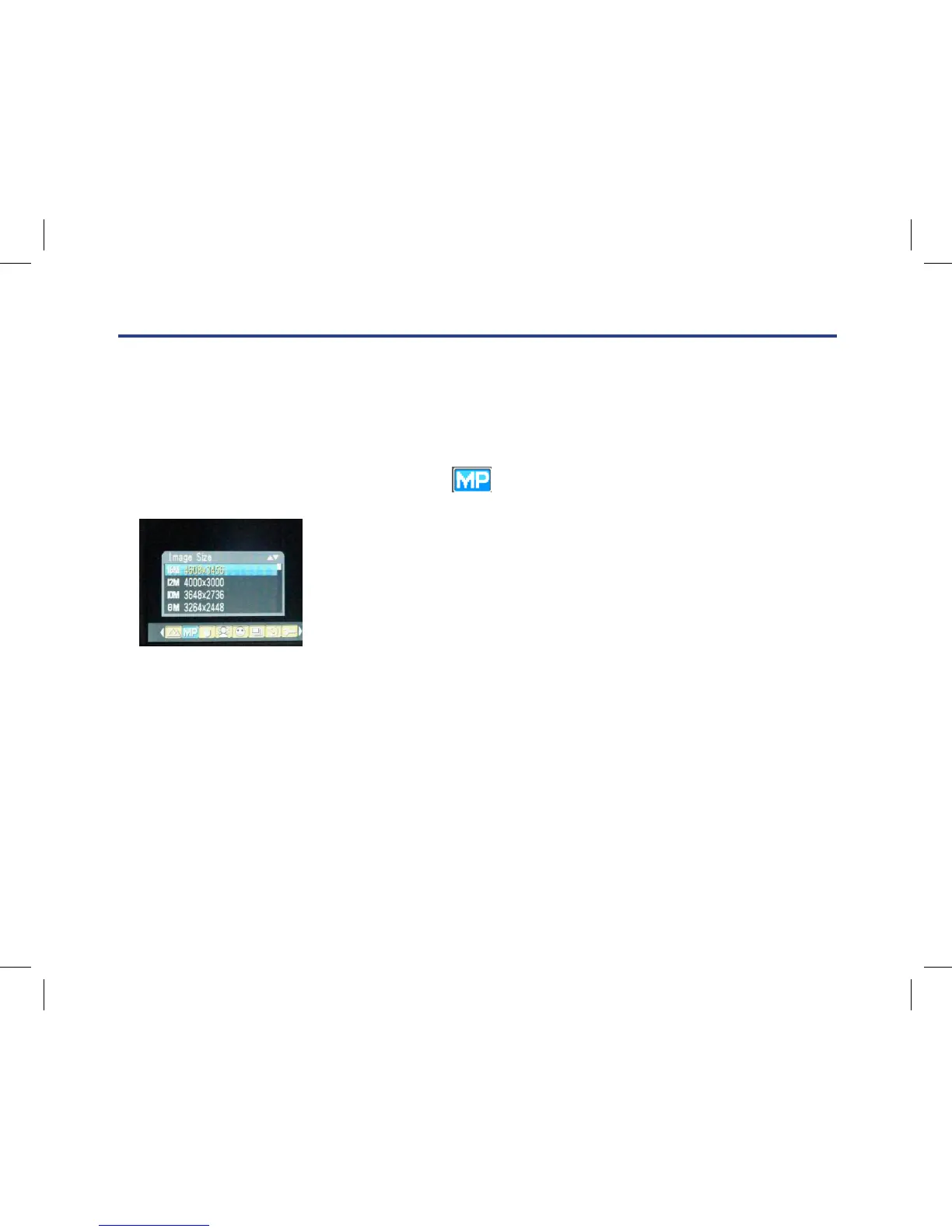
2. Press Right/Left button to select icon , the function menu as below:
3. Press Up/Down button to select an image size per your request.
4. Press Menu button to conrm. The image size icon will show on the LCD screen.
4. Press Up/Left/Right/Down button to select the scene and press Menu to confirm.
Image Size
The image size and quality settings determine the number of photos can be saved and the amount of memory
required for each photo. The higher quality photo will take the more memory. The image size and quality will
also affect the maximum size you can print your photo effectively. To set the Image size:
1. Press Menu button.
2. Press Right/Left button to select icon
, the function menu as below:
3. Press Up/Down button to select an image size per your request.
4. Press Menu button to confirm. The image size icon will show on the LCD screen.
Anti-Shake
4. Press Up/Left/Right/Down button to select the scene and press Menu to confirm.
Image Size
The image size and quality settings determine the number of photos can be saved and the amount of memory
required for each photo. The higher quality photo will take the more memory. The image size and quality will
also affect the maximum size you can print your photo effectively. To set the Image size:
1. Press Menu button.
2. Press Right/Left button to select icon , the function menu as below:
3. Press Up/Down button to select an image size per your request.
4. Press Menu button to confirm. The image size icon will show on the LCD screen.
Anti-Shake



 To Next Page