9
Camera Mode
After you turn on your camera, icon will appear on your LCD screen, indicating your camera is on
Camera Mode.
Taking Photos
You can compose your shot using LCD screen. Hold the camera steady and press the shutter button to
take photo. There will be a short delay while the camera saves the photo to memory.
After each photo is shot (when the camera returns to icon mode) the numbers of photos left to
shoot at this resolution will be displayed on the LCD screen.
When the camera’s Internal memory is full, the LCD screen will display “Memory Full--Insert an SD
memory card to transfer and take more photos!” when you attempt to press Shutter button to take
photo, now you need to download these photos to PC or delete them for taking more photos,
alternatively you can insert an SD memory card for expanding the memory.
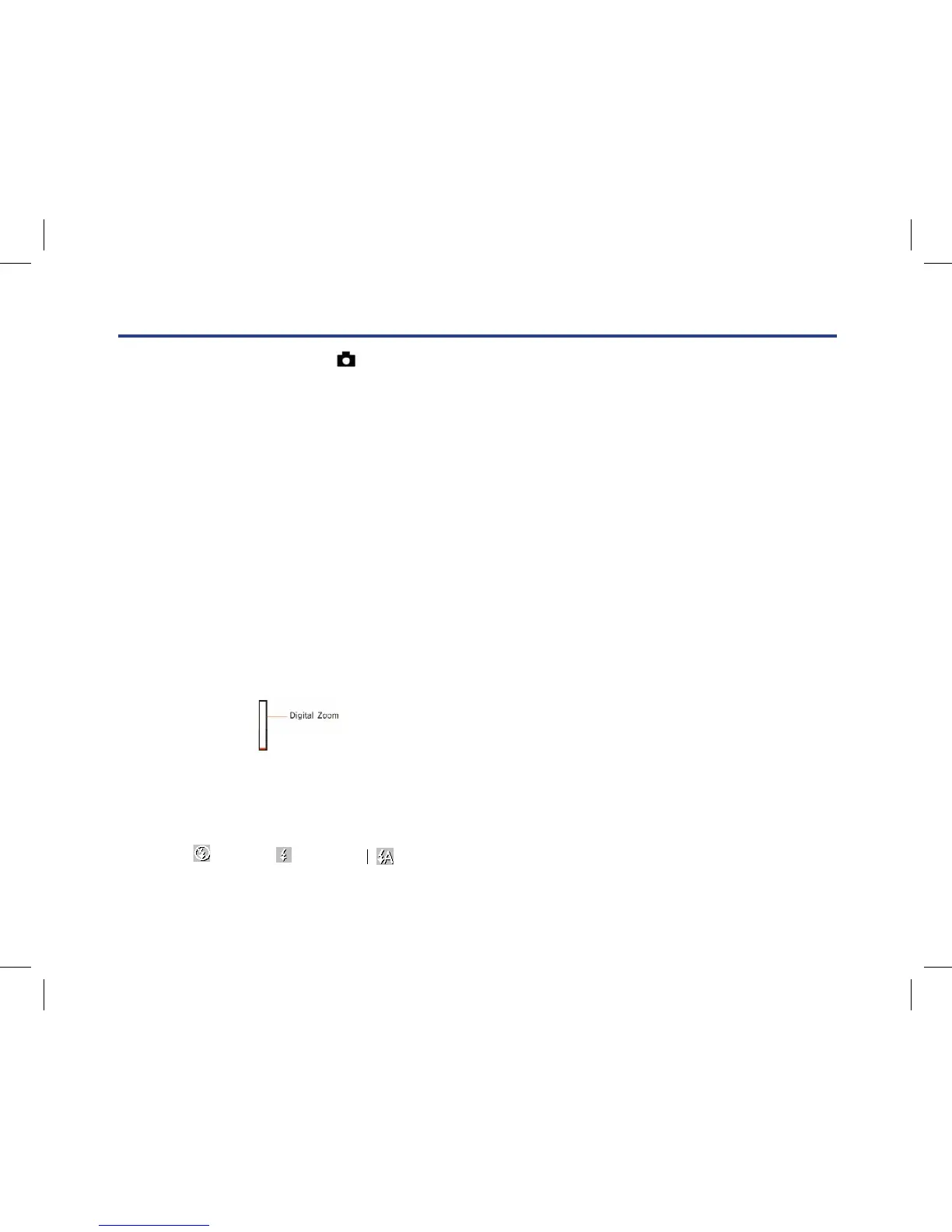
Digital Zoom
You can magnify your subject up to 4 times using the digital zoom. Press T button to zoom in on the
object and press W button to zoom back out.
The following icon will appear on your LCD screen.
Flash
In low light conditions it is best to use the built-in ash. You can also use the ash to compensate for
backlight
Camera Mode
After you turn on your camera, icon will appear on your LCD screen, indicating your camera is on Camera
Mode.
Taking Photos
You can compose your shot using LCD screen. Hold the camera steady and press the shutter button to take
photo. There will be a short delay while the camera saves the photo to memory.
After each photo is shot (when the camera returns to icon mode) the numbers of photos left to shoot at this
resolution will be displayed on the LCD screen.
When the camera's Internal memory is full, the LCD screen will display “Memory Full--Insert an SD memory
card to transfer and take more photos!” when you attempt to press Shutter button to take photo, now you need
to download these photos to PC or delete them for taking more photos, alternatively you can insert an SD
memory card for expanding the memory.
Digital Zoom
You can magnify your subject up to 4 times using the digital zoom. Press T button to zoom in on the object
and press W button to zoom back out.
The following icon will appear on your LCD screen.
Flash
In low light conditions it is best to use the built-in flash. You can also use the flash to compensate for backlight
conditions.
No Flash, Force Flash, Auto Flash,
To set the flash:
The flash can only be used when the camera is in Far mode .
1. Press Flash/Up button.
2. Press Flash button until the icon appears again. This will turn off the flash function. This is the
default flash setting.
3. Press Flash button again for the icon to appear on the LCD screen. This means the flash function
has been "forced on" (manual flash).
If the flash is not ready, LED will light up and the icon will flash repeatedly- wait until the flash is
ready before taking a photo.
4. Press Flash button until the icon appears on the LCD screen. This will activate the automatic flash.
Note: A “ low battery” warning will appear on the LCD screen if there is insufficient battery power to operate
the flash.
Macro/Far shooting
The camera has the function that capture object in very near distance or very far distance per your request.
Macro shooting: slide the Macro/Far switch to position which is on the left side of the camera near to the
USB slot, until icon appears on the LCD screen, it indicates the macro shooting is on.
Far shooting: slide the Macro/Far switch to position which is on the left side of the camera near to the USB
slot, until icon appear on the LCD screen, it indicates that the far shooting is on.
Note: The camera is by default in Far shooting mode.
Camera Mode
After you turn on your camera,
icon will appear on your LCD screen, indicating your camera is on Camera
Mode.
Taking Photos
You can compose your shot using LCD screen. Hold the camera steady and press the shutter button to take
photo. There will be a short delay while the camera saves the photo to memory.
After each photo is shot (when the camera returns to icon mode) the numbers of photos left to shoot at this
resolution will be displayed on the LCD screen.
When the camera's Internal memory is full, the LCD screen will display “Memory Full--Insert an SD memory
card to transfer and take more photos!” when you attempt to press Shutter button to take photo, now you need
to download these photos to PC or delete them for taking more photos, alternatively you can insert an SD
memory card for expanding the memory.
Digital Zoom
You can magnify your subject up to 4 times using the digital zoom. Press T button to zoom in on the object
and press W button to zoom back out.
The following icon will appear on your LCD screen.
Flash
In low light conditions it is best to use the built-in flash. You can also use the flash to compensate for backlight
conditions.


 To Next Page
 Loading...