35
Download Photos to your PC
Turn on your camera; connect your camera to the computer correctly
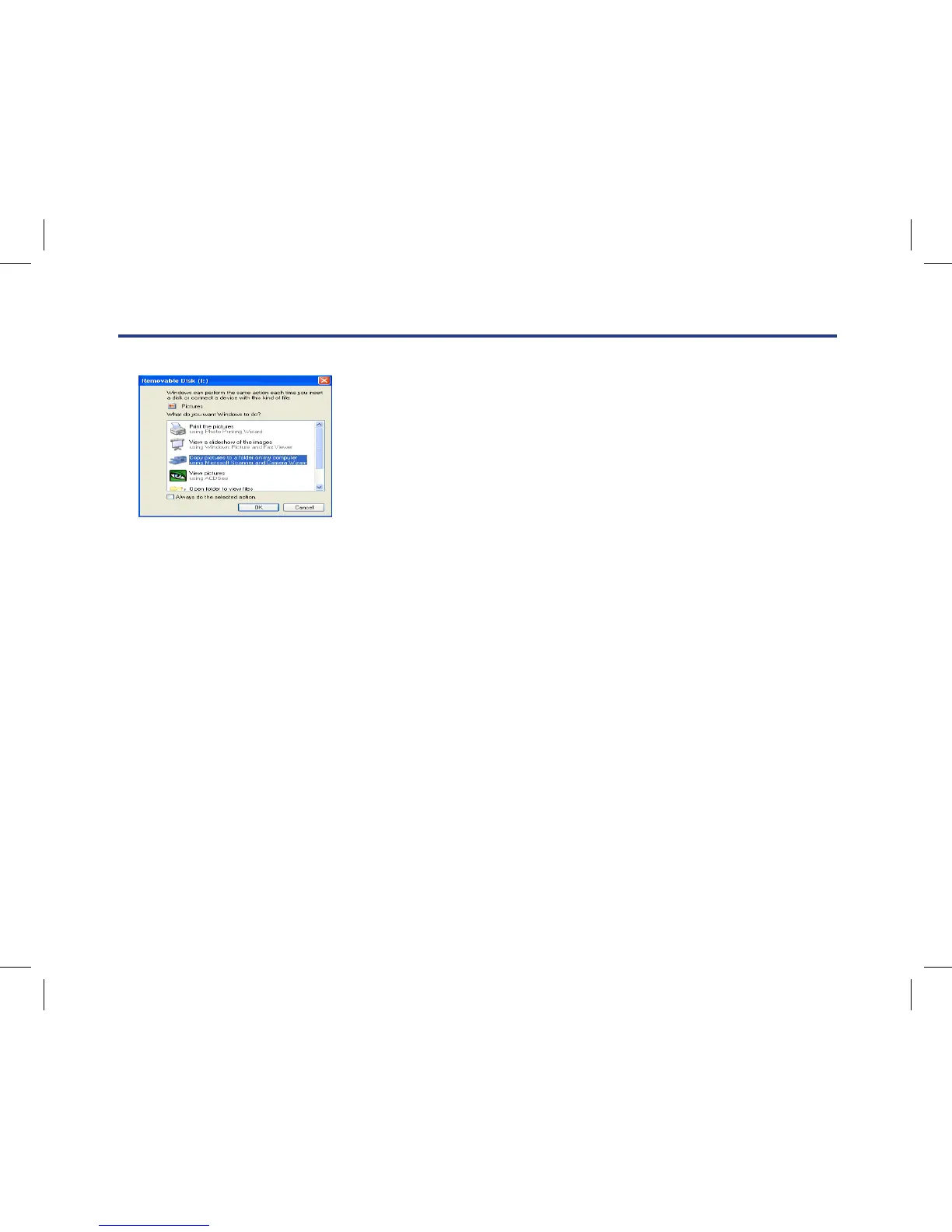
with USB cable, a “MSDC” will show on the LCD screen. The screen of PC
will be shown a window (Removable Disk H :) as below:
NOTE: Now you can copy the photos to your computer with two
methods as below:
1. Download photos directly from windows
Choose “copy pictures to a folder on my computer” on the Removable
Disk (H:) window.
After you click “OK”, there will be shown some windows on the screen
step by step, you are only required to follow the description and click
the buttons that are defaulted by the system to nish transferring.
Or you can:
1. Click on the START button in Windows.
2. Click on the MY COMPUTER Icon on the desktop.
3. Your memory card will appear as a REMOVABLE STORAGE DEVICE.
4. Click on the REMOVABLE STORAGE DEVICE to view the images. The images are stored in the
subfolder called DCM100.
5. You can now copy and paste the images to any directory you choose.
Turn on your camera; connect your camera to the computer correctly with USB cable, a “MSDC” will show on
the LCD screen. The screen of PC will be shown a window (Removable Disk H :) as below:
NOTE: Now you can copy the photos to your computer with two methods as below:
1. Download photos directly from windows
Choose “copy pictures to a folder on my computer” on the Removable Disk (H:) window.
After you click “OK”, there will be shown some windows on the screen step by step, you are only required to
follow the description and click the buttons that are defaulted by the system to finish transferring.
Or you can:
1. Click on the START button in Windows.
2. Click on the MY COMPUTER Icon on the desktop.
3. Your memory card will appear as a REMOVABLE STORAGE DEVICE.
4. Click on the REMOVABLE STORAGE DEVICE to view the images. The images are stored in the
subfolder called DCM100.
5. You can now copy and paste the images to any directory you choose.
3. Download photos using Photags Express



 To Next Page