36
Download photos using Photags Express
Double click the Photags Express icon
Double click the Photags Express icon
on the desktop to launch the application.
Click the “Get Photos” button on the main window.
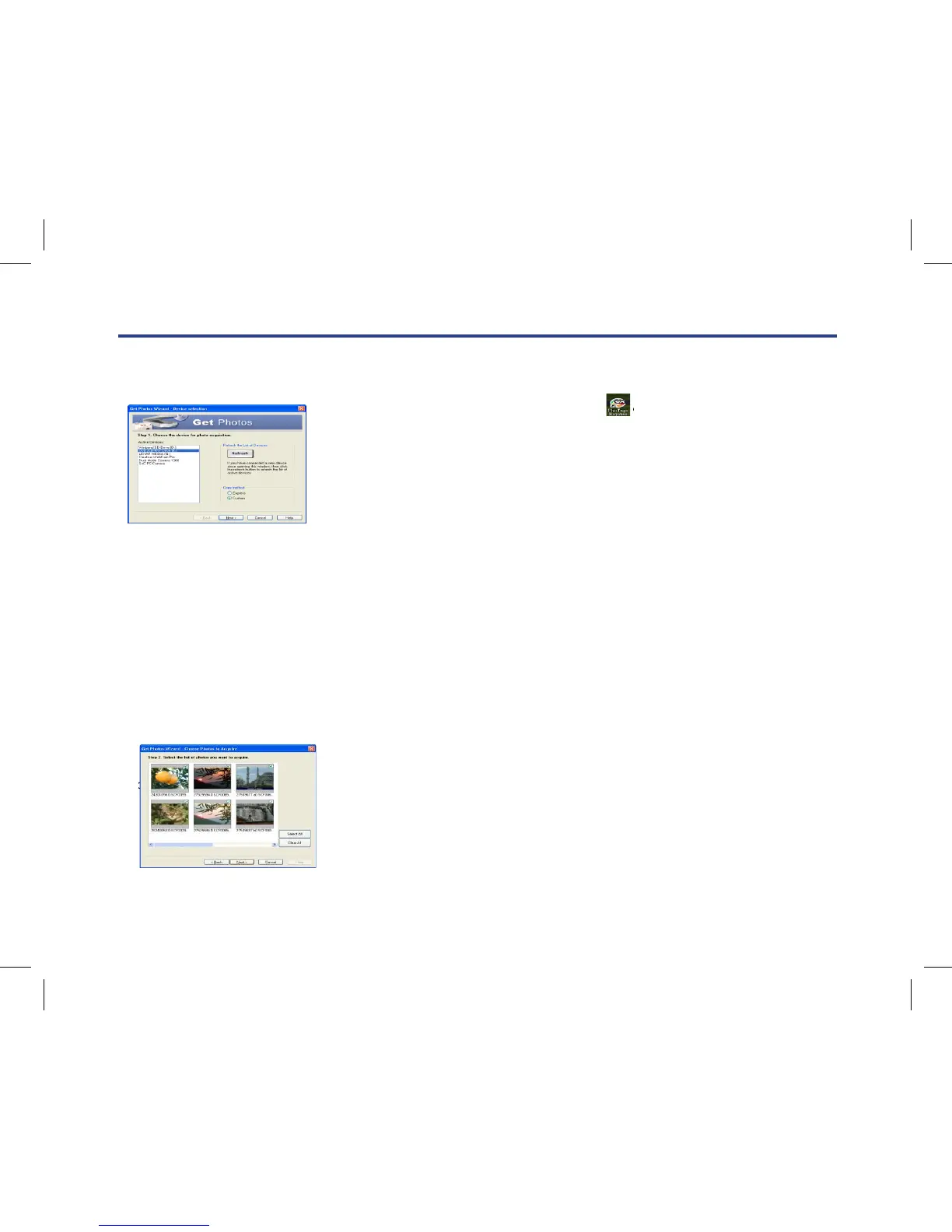
The “Get Photos” wizard mode will appear on the screen, you can select “custom copy” to download photos
with your individuation.
Or you can select “Express” option to download all photos to the computer without the option of selecting
photos. In this mode you will not see a preview of the photos transferred.
Custom copy
This mode is used to manually select the photos you wish to copy to your computer.
The “Device selection” mode will appear. Both your camera and the memory card will each appear in the
“Active Devices” list
Select “Custom copy” click “Next” to continue.
Note: At this moment, you can select “Express” option to copy all photos to your computer
on the desktop
to launch the application.
Click the “Get Photos” button on the main window.
The “Get Photos” wizard mode will appear on the screen, you can select
“custom copy” to download photos with your individuation.
Or you can select “Express” option to download all photos to the com-
puter without the option of selecting photos. In this mode you will not
see a preview of the photos transferred.
Custom copy
This mode is used to manually select the photos you wish to copy to your computer. The “Device selec-
tion” mode will appear. Both your
camera and the memory card will each appear in the “
Active Devices” list
Select “Custom copy” click “Next” to continue.
Note: At this moment, you can select “Express” option to copy all photos to your computer
Select your photos click “Next” to continue.
Double click the Photags Express icon on the desktop to launch the application.
Click the “Get Photos” button on the main window.
The “Get Photos” wizard mode will appear on the screen, you can select “custom copy” to download photos
with your individuation.
Or you can select “Express” option to download all photos to the computer without the option of selecting
photos. In this mode you will not see a preview of the photos transferred.
Custom copy
This mode is used to manually select the photos you wish to copy to your computer.
The “Device selection” mode will appear. Both your camera and the memory card will each appear in the
“Active Devices” list
Select “Custom copy” click “Next” to continue.
Note: At this moment, you can select “Express” option to copy all photos to your computer
Double click the Photags Express icon on the desktop to launch the application.
Click the “Get Photos” button on the main window.
The “Get Photos” wizard mode will appear on the screen, you can select “custom copy” to download photos
with your individuation.
Or you can select “Express” option to download all photos to the computer without the option of selecting
photos. In this mode you will not see a preview of the photos transferred.
Custom copy
This mode is used to manually select the photos you wish to copy to your computer.
The “Device selection” mode will appear. Both your camera and the memory card will each appear in the
“Active Devices” list
Select “Custom copy” click “Next” to continue.
Note: At this moment, you can select “Express” option to copy all photos to your computer



 To Next Page