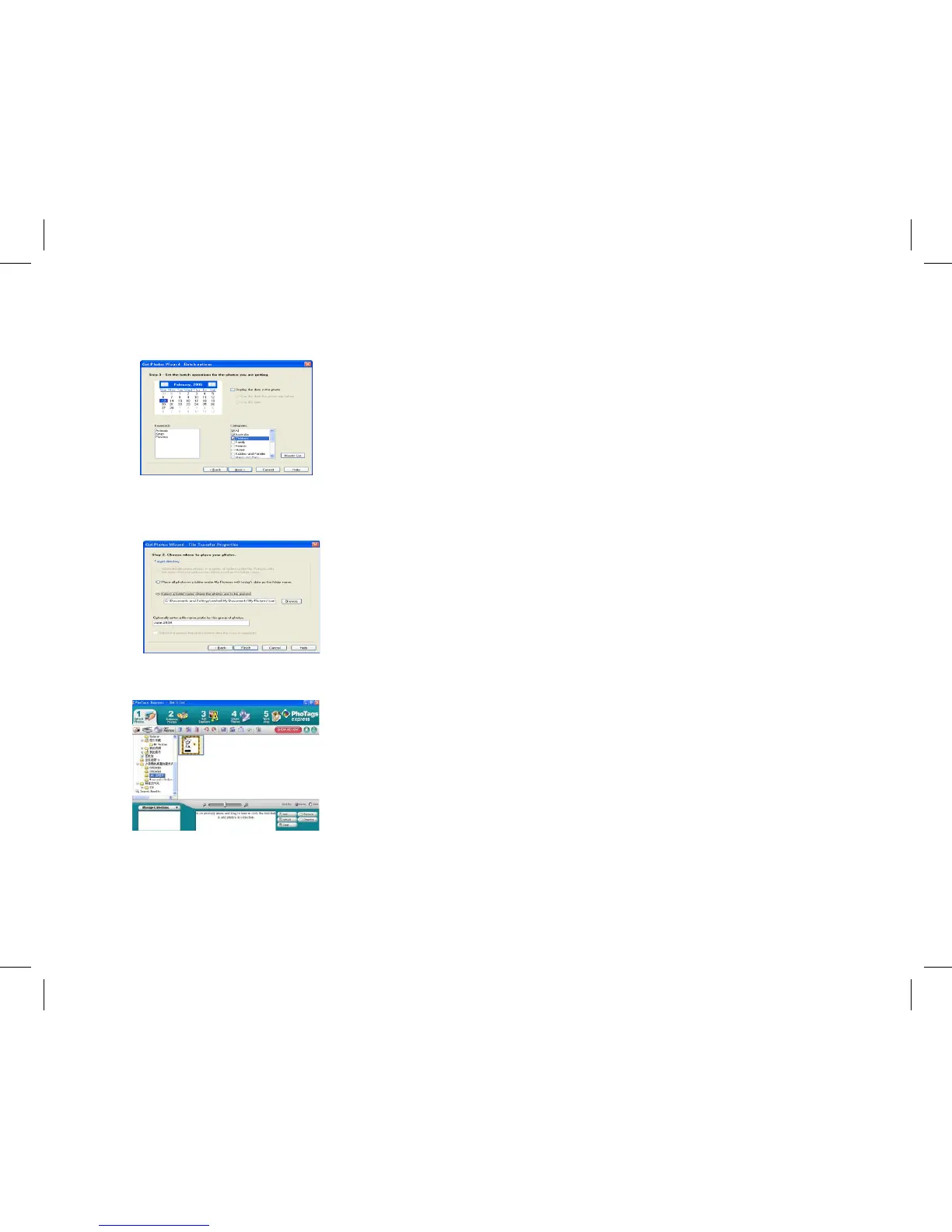
Add active captions to the picture. With this feature you can add a date,
keywords and categories. Click “Next” to continue.
Choose a position where you want to place the photos. Click “Finish” to
copy the photos to the location you selected.
Note:
All of the picture you imported will appear in the “Select Photos” main
window. And now, you can edit your photos per your idea, and then
download it to your computer. For how to edit the photos, you can refer
to the Quick Start guide in the Photags Express.
Select your photos click “Next” to continue.
Add active captions to the picture. W ith this feature you can add a date, keywords and categories. Click
“Next” to continue.
Choose a position where you want to place the photos. Click “Finish” to copy the photos to the location you
selected.
Select your photos click “Next” to continue.
Add active captions to the picture. W ith this feature you can add a date, keywords and categories. Click
“Next” to continue.
Choose a position where you want to place the photos. Click “Finish” to copy the photos to the location you
selected.
Note:
All of the picture you imported will appear in the “Select Photos” main window. And now, you can edit your
photos per your idea, and then download it to your computer. For how to edit the photos, you can refer to the
Quick Start guide in the Photags Express.
Photags Express software owner manual
You can edit, printing, sharing photos with Photags Express. You can operate it as following step to know how
to use Photags Express:
Launch the Photags Express.
Click “tour” button on the main window to view how to use the photags Express in detail.
Attention:
If Photags Express cannot upgrade the DirectX automatically, you can manually install the DirectX in the CD
before using the Camera, otherwise, if the edition of DirectX in the windows operation is less than 8.1, then
the AVI file cannot be played.



 To Next Page