8
1.Download the new firmware file from the official website (Specific address https://
gvmled.com/firmware-upgrade).
2.Unzip the downloaded file to the root directory of the USB flash drive.
3.Insert the USB Drive into the TYPE-C port of the light body through the USB to
TYPE-C adapter.
4.Press the power button and the knob at the same time, then release the power
button and keep pressing the knob until the update prompt appears on the screen.
5.When the "Upgrade success!!!" text appears on the screen, that means the upgrade
is successful.
6.Unplug the USB flash drive and restart the device to complete the upgrade.
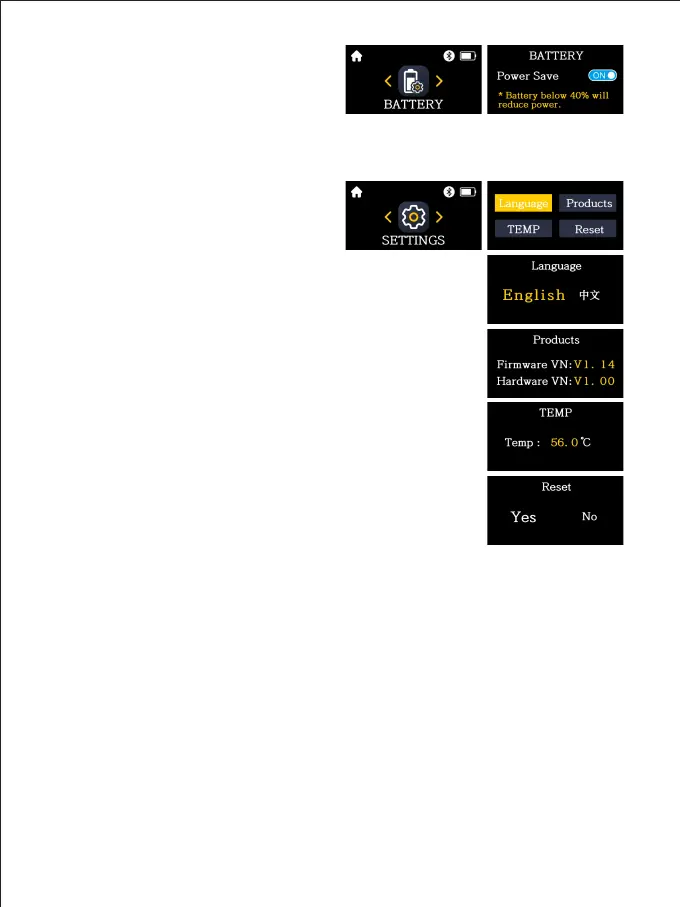
⑤ SETTINGS:
The menu setting page includes:
Language, Products, TEMP, and Reset.
Language: Supports switching between Chinese and English.
Products: Displays the product's firmware version and hardware
version information.
TEMP: You can check the current operating temperature of the
light body.
Reset: Factory settings can be restored.
FIRMWARE UPDATE
④ BATTERY:
Switch off the Power Save mode: Operate
at maximum power output.
Switch on the Power Save mode: Automatically reduce the power output when the
remaining battery level is lower than 40%.



 To Next Page