15
9. File management via folder structure
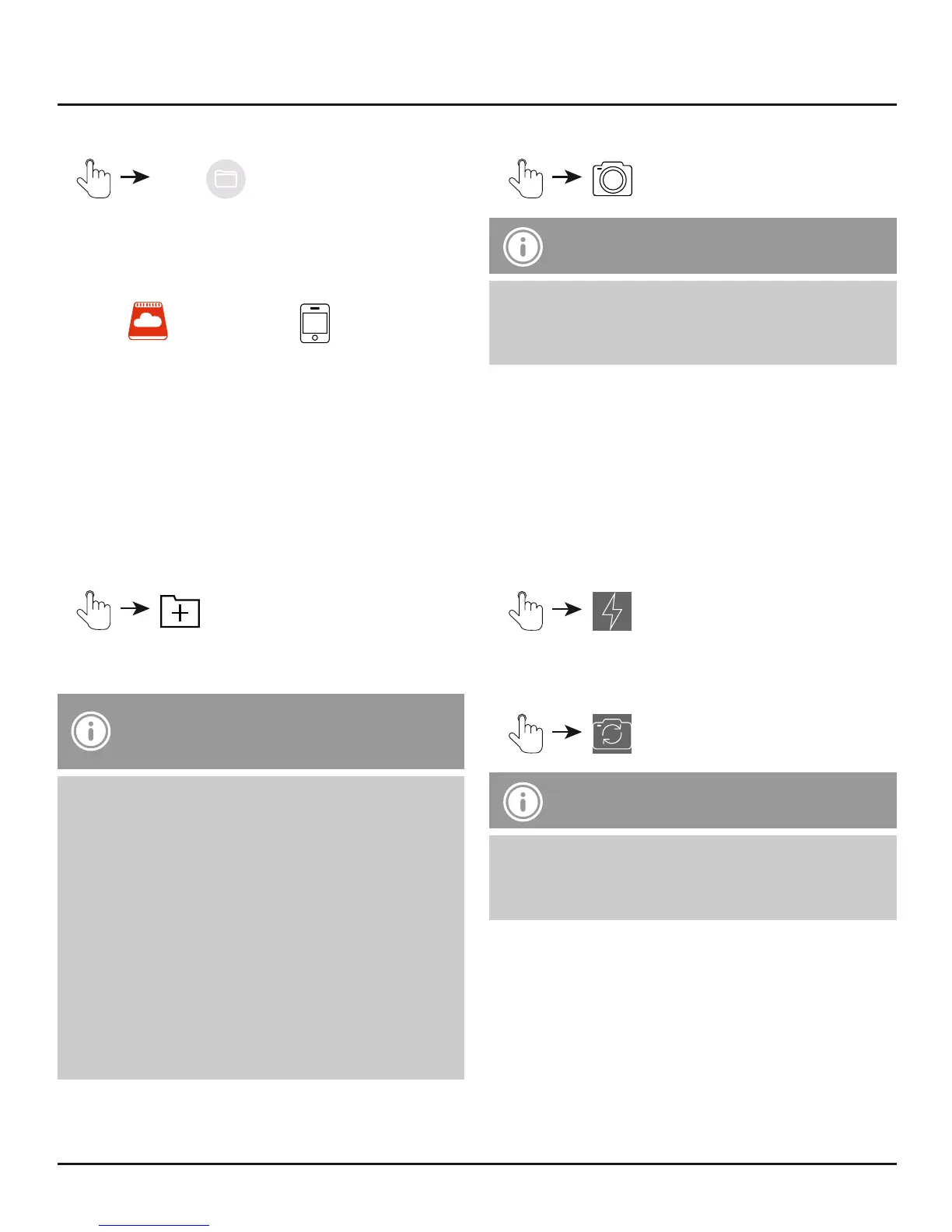
• Files
• Then the Save2Data is connected, you
automatically access its storage.
• Choose whether to access the folder structure
of the Save2Data or your terminal
device.
• Then you can exchange, move, rename or delete
les between the two storage devices.
• The procedure for transferring les is identical to
transferring pictures (see section 7.1.2).
• Aside from data transfers, this menu also allows
you to create new folders.
•
• Enter a folder name and conrm with OK.
Note – Transferring documents
• This menu allows you to open and transfer
documents (such as .pdf documents, tables,
etc.).
• Transferring documents directly to the
terminal device is not possible. You can save
documents only in the Save2Data folder in
the terminal device view.
• This folder is bound to the Save2Data app.
You can access this folder only using the app.
• If you delete the Save2Data app, any les
contained within the Save2Data folder are
also deleted.
10. Taking pictures with the Save2Data app
• in the main menu
Note – Camera feature
• The camera feature appears in the app only
if the Save2Data ash drive is connected to
your terminal device.
• If prompted, conrm that the app has permission
to access your camera and/or microphone.
• At the top edge of the display, you can choose
between photo and video recording.
• If your terminal device is equipped with a ash,
you can enable it.
•
• You also have the option to choose between the
front camera and the main camera of your
terminal device.
Note – Saving photos
Photos that you take are saved directly on the
Save2Data in a separate folder (Camera or
Video).


 To Next Page