10
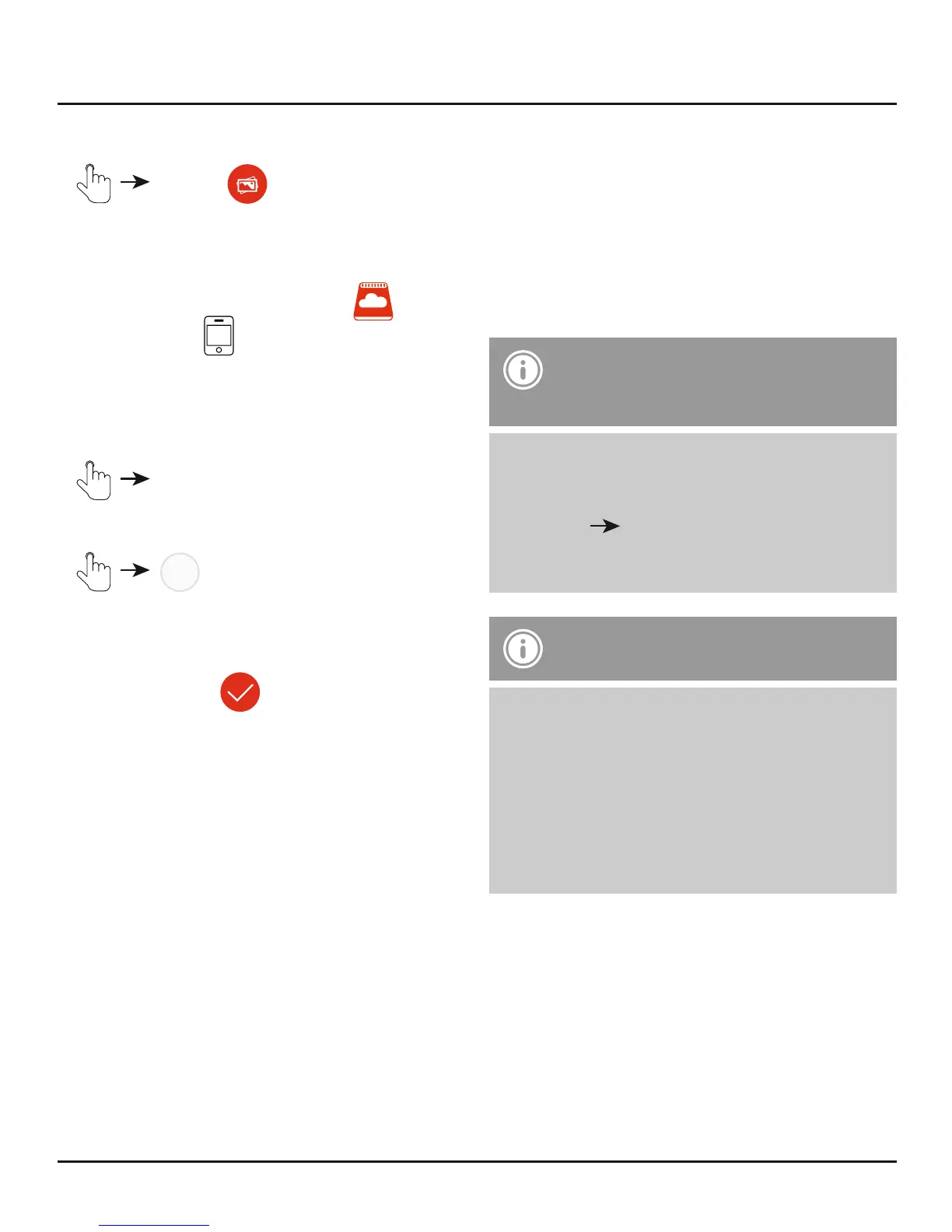
7.1.2 Transferring pictures
• Photos
• By default, the pictures stored on the
Save2Data are displayed.
• Choose whether the pictures from the
Save2Data or your terminal device should
be transferred.
• If prompted, conrm that the app has permission
to access your photos.
• Select in the top-right corner of
the display.
•
Use the circle at the left edge of the display to
select the picture(s) that you wish to transfer. On
successful selection, the circle turns red with a
white check mark
• To select all pictures at once, tap Select all at
the top-left corner of the display.
• The menu items displayed at the bottom become
available once a selection is made.
• Various options are available
• Copy (le remains in the source storage)
• Move (picture is removed from the source
storage) (nd the Move option under the
menu item More)
• Once you have selected one of the options
named above, the other (target) storage location
opens.
• At the top-middle edge of the display, you can
choose between internal storage (terminal
devices) and external storage (USB storage).
This allows you to, for example, copy or move
pictures into a sub-folder of your Save2Data.
• Choose the folder in which the copied pictures
are to be saved.
Note – Transferring pictures
and videos
• Be advised that when transferring pictures
or videos from the Save2Data to your
terminal device, they can only be saved in the
Photos Pictures folder.
• These pictures and videos can then be found
in the gallery on your terminal device.
Note – Save2Data folder
• When you transfer data from the Save2Data
to your terminal device, a folder is created in
the internal storage called Save2Data.
• This folder can only be accessed by the
Save2Data app.
• Please note that if you remove the app from
your terminal device, the les in this folder
will be deleted.
• Before saving the le you may create a new
folder (only on the Save2Data, not on the
terminal device).
• To do this, choose the option Create folder in
the bottom-left corner of the display and enter a
name for the folder.


 To Next Page