7
6. Starting up the Save2Data
Note – Formatting
In order to function correctly, the Save2Data
ash drive must be formatted with the FAT32
le system.
• Download Hama’s Save2Data app from the
Apple App Store.
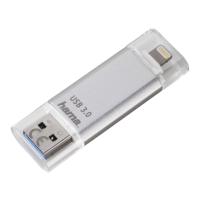
• Connect the Save2Data ash drive to your
terminal device (iPhone/iPad) using the Lightning
connector.
• Start the Save2Data app.
Note – Symbol
This symbol is used to indicate when
you must tap the screen at a particular
place in order to perform an action or
open a menu.
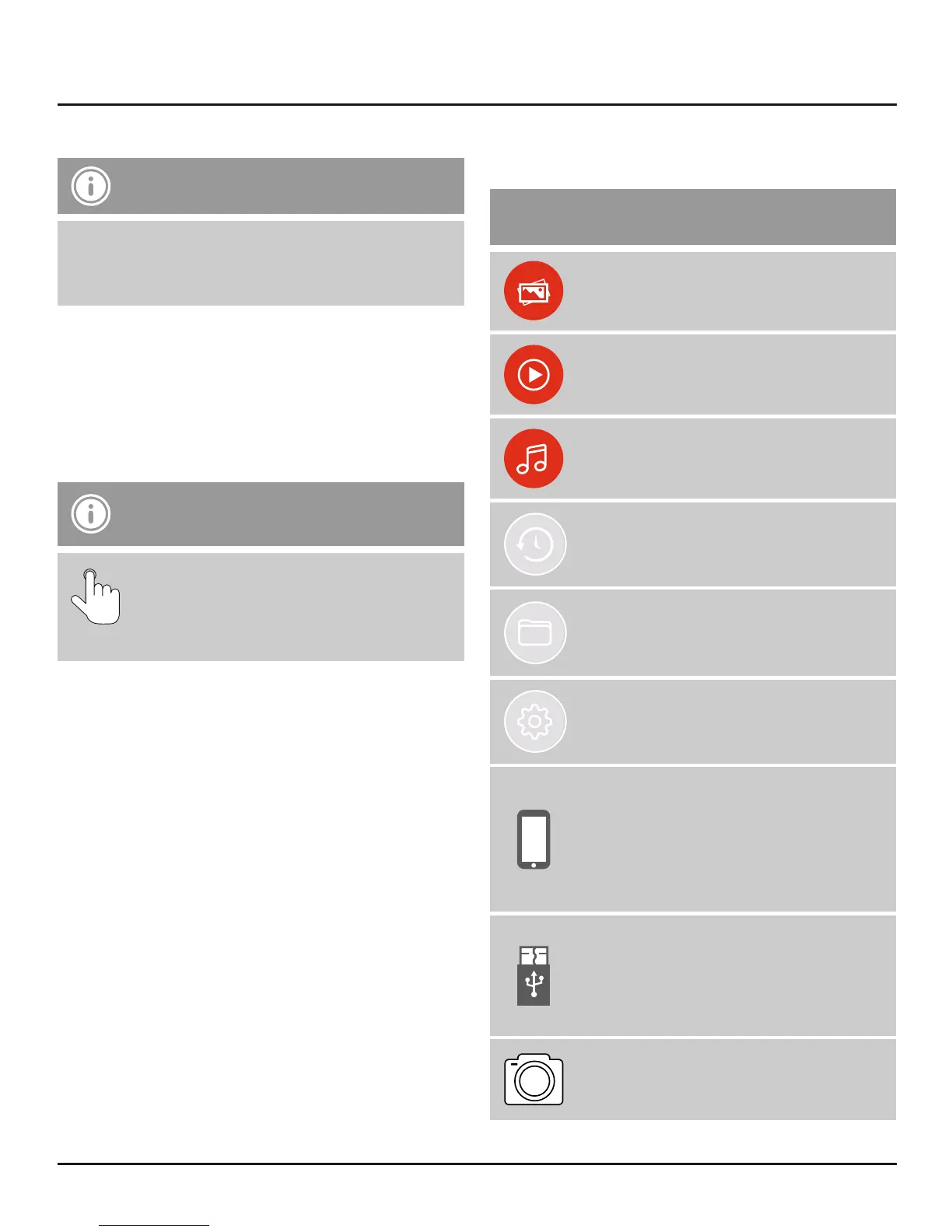
6.1 Explanation of the most important
symbols and icons of the Save2Data app
Main menu
Menu for displaying and
transferring pictures
Menu for playing back and
transferring videos
Menu for playing back music
Menu for backing up and restoring
data and contacts
Menu for accessing the directory
structure of the Save2Data and
the terminal device
Menu for system settings
Allows access to the data saved on
the terminal device
Displays the amount of storage
used and free on the terminal
device
Allows access to the data saved on
the Save2Data
Displays the amount of storage
used and free on the Save2Data
Opens the camera option of the
Save2Data app


 To Next Page