8
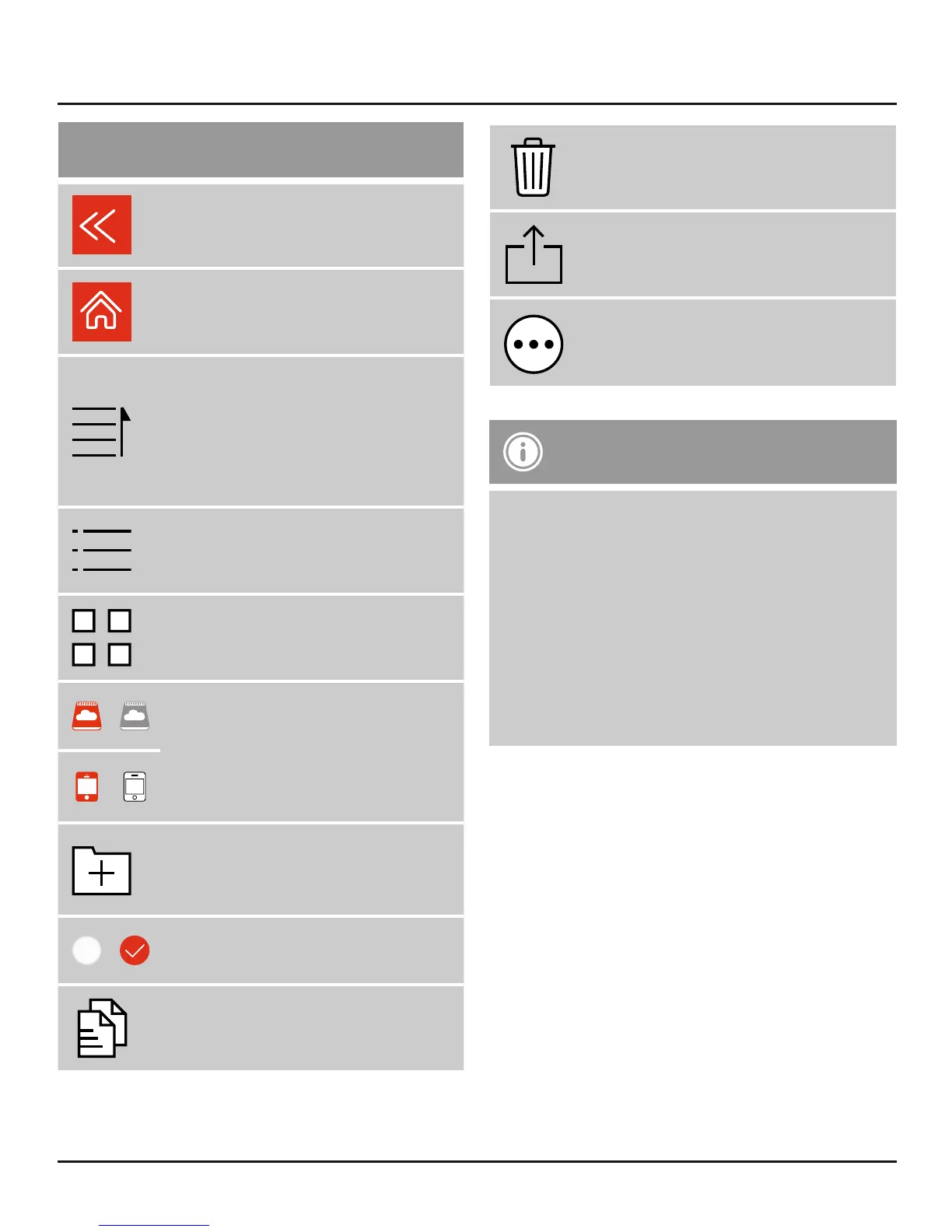
Additional symbols/icons
Return to previous view
Return to the main menu
When accessing the Save2Data:
Opens the menu for changing the
display and sorting of the data
When accessing the terminal
device: List view of the data
List view of the stored data
(Save2Data only)
Preview (thumbnail) of the stored
data
/
Change between the storage of
the Save2Data and that of the
terminal device
Red = active storage
Grey = inactive storage
/
Create a new folder in the Files
menu (only when accessing the
Save2Data)
/
Select les/folders on which to use
the options in the context menu
Copy the selected les
Delete the selected les
Share: Opens the context menu of
the terminal device
More: Opens the menu for moving
or renaming (only when accessing
the Save2Data) the selected le(s)
Note – App permissions
• Some features of Hama’s Save2Data app
require certain permissions on your terminal
device (such as backing up/restoring contact
info, backing up pictures, etc.)
• If the app does not have the necessary
permissions, a message is displayed when
the function is executed.
• To allow access, select Hama’s Save2Data
app in the settings of your terminal device
and slide the corresponding switch to green.


 To Next Page