10
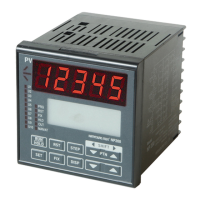
6-2. Front Panel Key Functions
- Push the key until you feel pressure.
- Do not push sharp objects (such as pencil) on key. Otherwise, it may cause damage or malfunction.
* You may push the key for one second or longer.
Key Descriptions
⑪ (RUN/HOLD)*
• Used to activate selected Pattern Number.
•
Pressing RUN/HOLD key for at least 1 second activates Segment Hold (pausing).
• Pressing RUN/HOLD key for at least 1 second deactivates
Segment Hold (pausing) and resume operation (RUN).
⑫ (SET)
• Used to input Parameter.
• Used to input Control Mode.
•
Used to verify and bypass Parameter settings when in the parameter Group Display.
• Pressing SET key for at least 3 seconds switches between
the Operating Display and Menu Display.
⑬ (RESET)*
• Pressing REST key after a program runs will reset the controller
to STOP mode and end all programs.
• Pressing REST key after a program runs will reset the controller
RESET mode and end all FIXs.
⑭ (FIX)*
• Used to change Operation mode to FIX mode.
•
Pressing FIX key after a program runs/or in Stop will reset the controller to FIX mode.
⑮ (STEP)*
• Pressing STEP key after a program runs will pause the running segment
and activate next segment.
⑯ (DISPLAY)
• Used to change the Operating Display (LCD: Liquid Crystal Display).
• Used to switch menu display (PROG, OPER, FUNC and STUP).
• Used to return back to the previous display.
⑰
(PTN UP/DOWN)
•Pressing PTN key will change pattern number.
•Pressing SHIFT key will change the digit(s) of Set Value.
⑱ (UP/DOWN)
• Used to change the value of digits when setting parameters.
• Used to move between parameter groups.
• Pressing UP/DOWN key activates Key Speed.
⑲ PV DISPLAY
• This display indicates the Process Value (PV) while a program is running.
• Temperature display range
(Below zero (-) comes in first place of five digit number.)
~


 To Next Page
 Loading...