Page 10
USE ONLY HAYWARD GENUINE REPLACEMENT PARTS
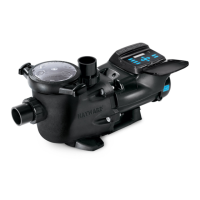
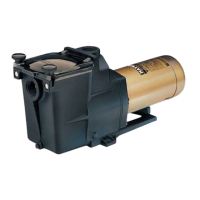
TriStar Variable Speed Pump
USE ONLY HAYWARD GENUINE REPLACEMENT PARTS
2. Advance through the Configuration Wizard.
When you get to “Filter Pumps”, add the VSP but skip over blank HUA screen.
3. Continue through the Configuration Wizard. When you get to “Accessories”, determine which HV relay is
wired to the VSP GPO and configure it as an accessory named “VSP Power”.
4. Finish the configuration, save and exit the Configuration Wizard.
5. From the Home Screen, go to the “VSP Power” accessory and set a schedule to run from 12:00am to 11:59pm
(this is the longest daily timer possible). This schedule controls the input power to the pump only, not the actual
run time of the pump (see Step 12). Be aware that the pump will receive power immediately after this schedule is set.
If this is the first time that the VSP has been powered, it will start in prime mode. If so, go to the pump and press
the RUN/STOP button once to put it in Standby mode.
6. On the VSP, enter the CONFIG Menu by holding down the DISP/FUNC button until CONFIG is displayed and
then scroll through by repeatedly pressing DISP/FUNC button until “rS485” is displayed.
7. Use the UP or DOWN arrow button to toggle between “y” & “n” so the display reads “rS485 y”.
8. Press the DISP/FUNC button to save the selection. The VSP is now in RS485 Controlled Mode and will allow the
OmniLogic to discover the HUA of the pump.
9. On the OmniLogic go to System Info and write down your MSP ID.
(this is the password when you enter the Configuration Wizard)
10. Enter the Configuration Wizard and edit the existing configuration. Go back to the VSP configuration and
there should now be an HUA for the pump.
11. Select the VSP’s HUA, (for cross-reference the HUA is listed on the pump label found on the user interface)
save and exit the Configuration Wizard.
12.
You can now set a schedule for the VSP (refer to the OmniLogic Operation Manual).
If VSP is Plugged into an OmniLogic HV Relay Controlled GPO
If the VSP is contolled by one of the OmniLogic’s HV relays, it will not be powered until after the assigned HV
relay is configured and set to operate. Without power to the pump, the OmniLogic will not be able to discover the VSP.
Therefore, configuring the pump requires two separate configurations; one for the HV relay (performed first) and
one for the VSP (performed last).
1. Enter the OmniLogic Configuration Wizard (no password needed during initial configuration). If a password is
required, use your MSP ID which can be found in System Info and write it down (see Operation Manual).
Overview
Configuring the OmniLogic to control your variable speed pump (VSP) requires multiple steps that must be performed in
sequence. If the procedure is not followed in the proper order, the pump will not operate as intended. Typically, the
configuration of the VSP would take place during the initial configuration of the OmniLogic. Read this guide and the
Installation Manual before attempting to install your VSP.
Wiring
The OmniLogic can control the VSP whether it's plugged directly into an outside GPO or to one of the OmniLogic's HV
relay controlled GPOs. Determine which method will be used and then install the pump according to the Installation Manual.
Configuration
Configuration steps will vary depending on which wiring method is used. In both cases, the pump will have to be powered
before the OmniLogic can initiate communication. Once the VSP has been discovered and configured, the OmniLogic will
take control based on the user settings (see OmniLogic Operation Manual). Read carefully and follow the steps below
when installing the variable speed pump.
If VSP is Plugged into an Outside GPO
If powering from an outside GPO, it's best to power the VSP continuously (we recommend NOT using a timeclock).
If the VSP will not be powered continuously, ensure that it will be powered throughout the intended run time.
1. Turn on power to the VSP. If this is the first time it's been powered, the pump will start in prime mode.
If so, go to the pump and press the RUN/STOP button once to put it in Standby mode.
2. On the VSP, enter the CONFIG Menu by holding down the DISP/FUNC button until CONFIG is displayed
and then scroll through by repeatedly pressing the DISP/FUNC button until “485” is displayed.
3. Use the UP or DOWN arrow button to toggle between “y” & “n” so the display reads “485 y”.
4. Press the DISP/FUNC button to save the selection. The VSP is now in RS485 Controlled Mode and
will allow the OmniLogic to discover the HUA of the pump.
5. At the OmniLogic, enter the the Configuration Wizard (no password is needed during initial configuration).
If a password is required, use your MSP ID which can be found in System Info (see Operation Manual).
6. Advance through the Configuration Wizard. When you get to “Filter Pumps”, configure the VSP as
described in the OmniLogic Installation Manual.
7. Save and exit the Configuration Wizard.
8. You can now set a schedule for the VSP (refer to the OmniLogic Operation Manual).
USE ONLY HAYWARD GENUINE REPLACEMENT PARTS
092xxx RevA draft1
VSP Quick Start Guide
IMPORTANT: Read this guide thoroughly before installing variable speed pump.
Hayward Pool Products (Australia) Pty Ltd.
Melbourne-Sydney-Brisbane-Perth
Email: sales@hayward-pool.com.au Website: www.hayward-pool.com.au
P.O Box 4384, Dandenong South, VIC. 3164
ABN 66 083 413 414
Sales Ph 1300POOLS1 Fx 1300POOLS2
OmniLogic to VSP - HUA Access Guide (Cont.)




 To Next Page