11
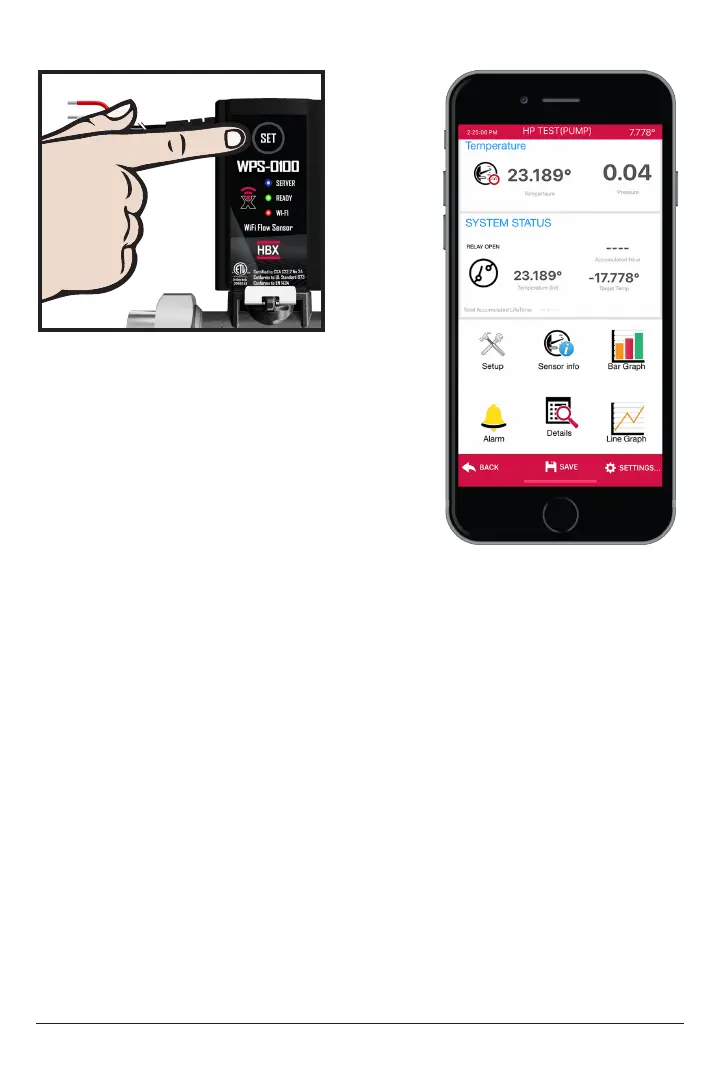
1. 1. Press the SET button on the BTU Flow
Sensor, and wait 60 seconds. If the red LED
light (Wi-Fi) on the sensor is not blinking,
press and hold down the reset button for 10
seconds, or until all the LED’s on the sensor
turn off, and then release.
2. Go into your smartphone device settings and
then go into your Wi-Fi settings.
3. Select the TLBTUXXYY network. The XXYY
number will correspond to the serial number on
the device.
4. Once you have selected the TLBTUXXYY network a prompt will display for the
password.
5. The password for the device is YYXXYYXX, where the XX is the rst 2 digits of the
device numbers and YY are the last 2 digits of the device number. (E.g. TLBTU1234 ,
the password would be 34123412)
6. Once the password is input correctly then you will be taken to the main Wi-Fi
settings page on the phone. Wait unit you get a Green check mark beside the
TLBTUXXYY network before moving on.
7. Once you have the check mark then exit the Wi-Fi settings on your phone and
open the ThermoLinx App.
8. Upon opening the ThermoLinx App, after about 10 seconds a selection menu
will appear. Select Setup Device. If this menu does not appear there is a Setup Wi-Fi
button in the top left of the screen to press.
CONNECTING TO A NETWORK (IOS)
100%9:41 AM
WiFi Setup
--°F
Add Name Here
Connect to WiFi Now
Network SSID
Network Password
CHOOSE A NETWORK
Home Network
ThermoLinx
Home Network
1234



 To Next Page