29
1. Log in WebGUI
2. Click Logical
3. Click Spare Pool
4. Check the box for the disk you want as a spare from Available Disks
5. Click Add Spare
Disks added to the spare pool will show under Spare Pool and can be removed by
checking the disk checkbox from Spare Pool > Click Remove Spare.
Email Notifications
When enabled, all added recipients will receive an email notification for any event log
entries.
To set up email alerts:
1. Check the Enable Event Notification box.
2. Enter the ISP server address name or SMTP name.
3. Type in the email address of the sender (email account that is going to send the
alert).
4. Type in the account name and password of the sender.
5. Type in the SMTP port (default: 25).
6. Check support SSL box if SSL is supported by your ISP (port value will change to
465, refer to your ISP if you have a specific SMTP port.
Note: After you click ‘Change Setting’ the password box will become blank.
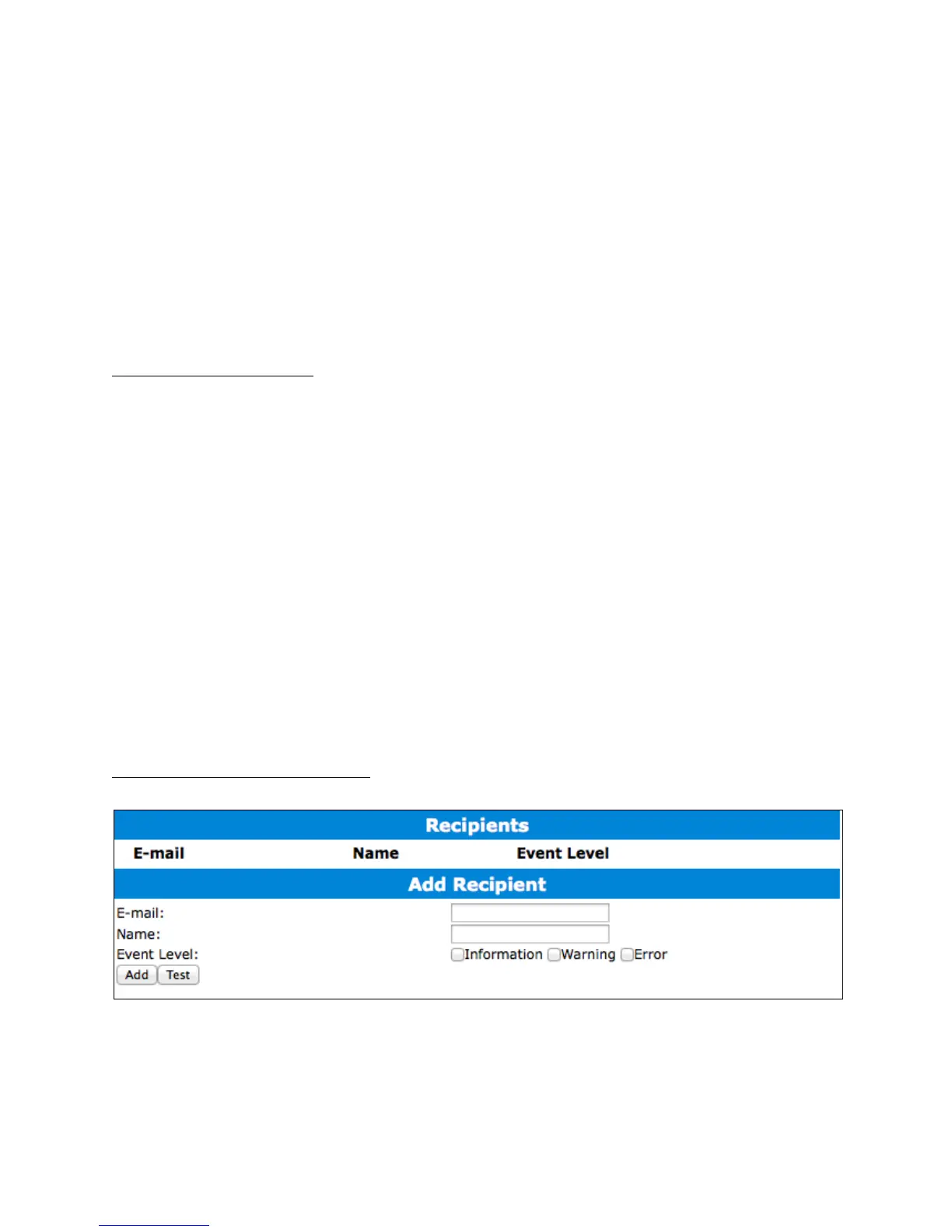
Adding Email Recipients
You can add multiple email addresses as receivers of a notice.
1. Type the email of the recipient in the E-mail text box.
2. Type the name of the recipient in the Name text box.


 To Next Page