Chapter 2 Live View
2.1 GUI Introducon
●
Click Target Detecon at the upper-le corner, and select or to display the specied live
target detecon results. For result details, click View More.
Note
○
Target Detecon is only available for certain models.
○
Target Detecon is valid when HDD is installed.
○
is valid for moon detecon, line crossing detecon, intrusion detecon, and face capture.
●
Click to start/stop auto-switch. The screen will automacally switch to the next one.
●
Click
/ / / / / to select the live view window division.
●
Click
to enter full screen mode.
●
Double click a camera to view it in single-screen mode. Double click again to exit single-screen
mode.
●
Change a camera live view screen by dragging it from its screen to the desired screen.
●
Scroll up/down to turn to previous/next screen.
●
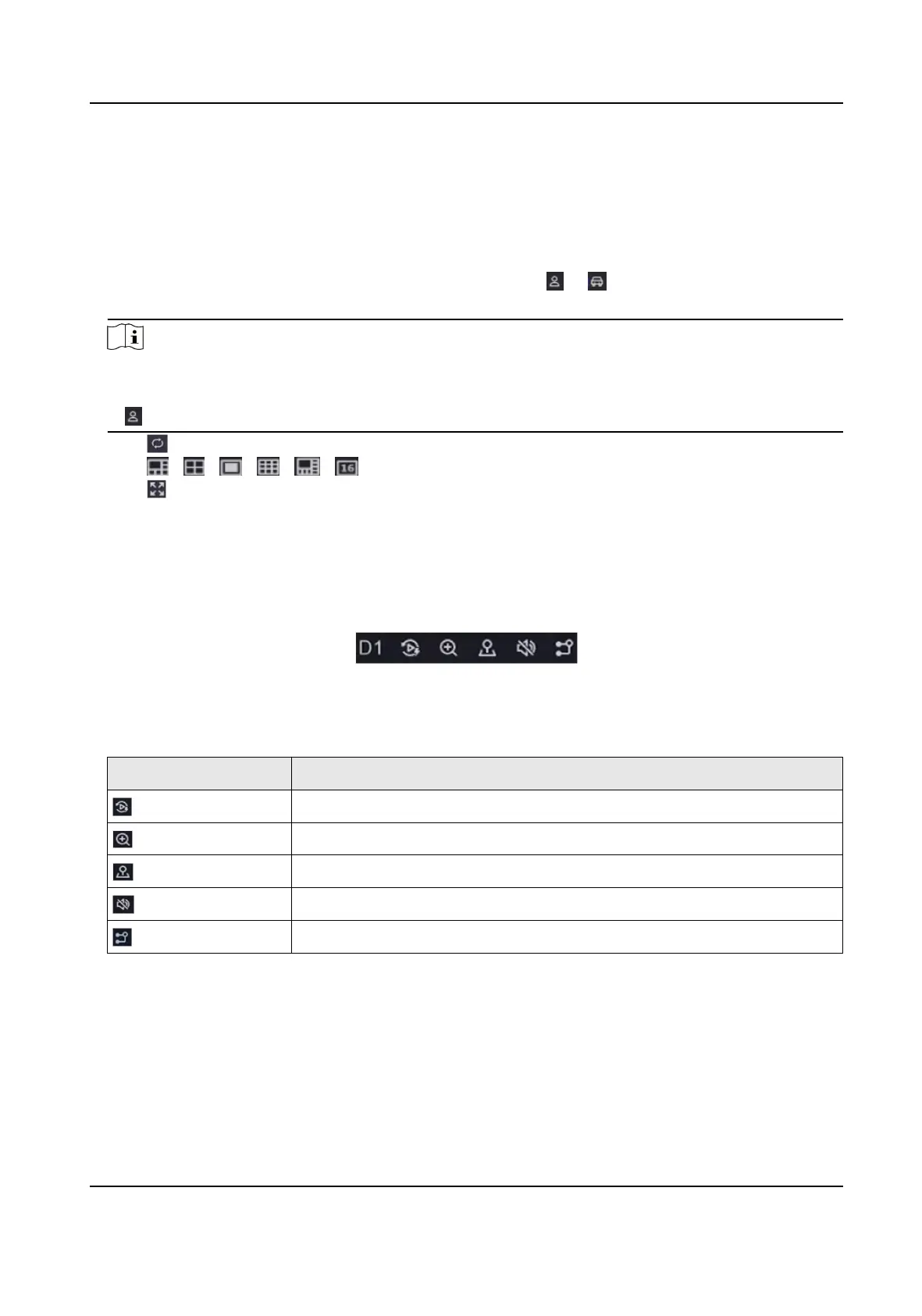
Posion the cursor on a camera to show shortcut menu.
Figure 2-1 Shortcut Menu
Table 2-1 Shortcut Menu Descripon
Buon Descripon
Start playing videos recorded in the latest ve minutes.
Digital zoom. You can adjust zoom-in mes and view the desired area.
Click it to enter PTZ control mode.
Turn on/o live view audio.
Switch video stream.
●
In the live view interface, there are icons at the upper-right corner of the screen for each
camera, showing the camera recording and alarm status.
Digital Video Recorder User Manual
5



 To Next Page
 Loading...