Table 3-2 Buon Descripon
Buon Descripon Buon Descripon
Adjust denion. Zoom in/out
playback image.
Turn on/o audio. Add tag.
Lock/unlock video. Clip video.
3.3 Event Playback
When you select the event playback mode, the system will analyze and mark videos that contain
the
moon detecon, line crossing detecon, or intrusion detecon informaon, .
Before You Start
●
Ensure the camera has enabled Dual-VCA. You can enable it via the camera web browser
interface in
Conguraon → Video/Audio → Display Info. on Stream .
●
Ensure your video recorder has enabled Save Camera VCA Data. You can enable it in
Conguraon → Record → Advanced .
Steps
1.
Go to Playback .
2.
Click Event.
3.
Select a camera.
4.
Posion the cursor on playback window to show control bar.
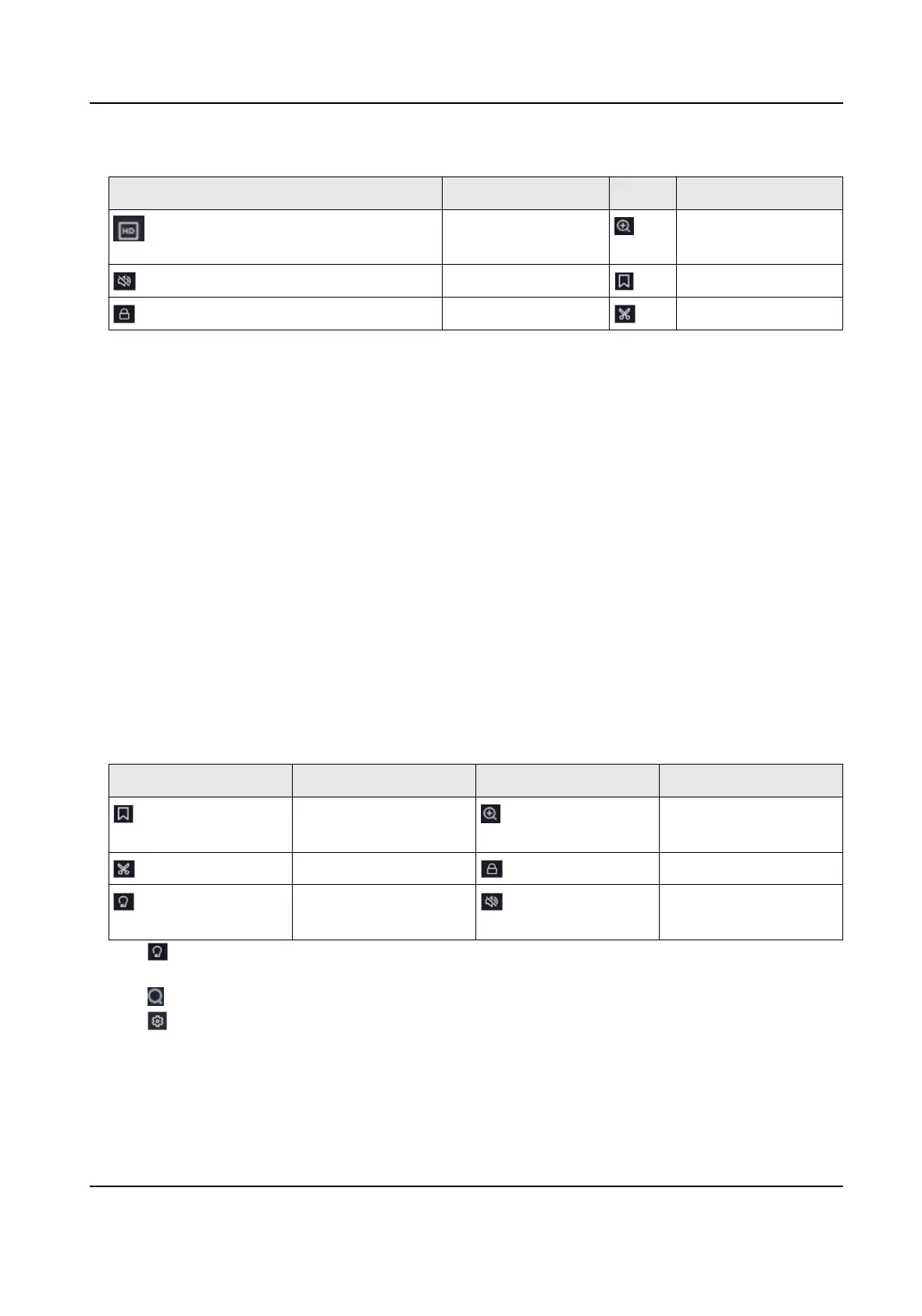
Table 3-3
Buon Descripon
Buon Descripon Buon Descripon
Add tag. Zoom in/out playback
image.
Clip video. Lock/unlock video.
Congure detecon
area.
Turn on/o audio.
5.
Click to set detecon areas of line crossing detecon, intrusion detecon, or moon
detecon.
6.
Click to search videos. Videos meet the detecon rule requirement will be marked in red.
7.
Click
to congure the play strategy.
Skip Normal Videos
If it is enabled, videos without smart informaon will not be played.
Normal Video
Digital Video Recorder User Manual
12



 To Next Page
 Loading...