EasyManua.ls Logo

HIKVISION DS-PHA20-P - User Manual

HIKVISION DS-PHA20-P
127 pages
Print Icon
To Next Page IconTo Next Page
Loading...
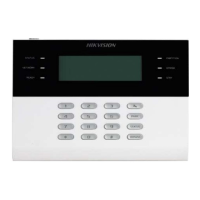
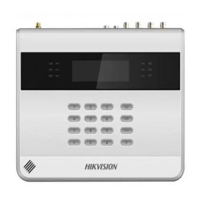
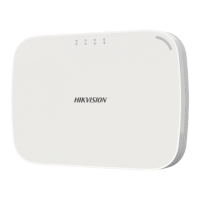
Hybrid Security Control Panel
User Manual

Table of Contents

Other manuals for HIKVISION DS-PHA20-P

Questions and Answers

  • B
    Bradley WhiteAug 19, 2025
    How to resolve IP conflict on HIKVISION DS-PHA20-P Control Panel?
    • P
      Peggy PageAug 19, 2025
      To resolve IP conflicts on your HIKVISION Control Panel, use the ping command to find available IP addresses. Then, change the panel's IP address and log in again.
  • W
    Wyatt LeeAug 21, 2025
    Why is alarm information not reported to APP/4200/Alarm Center from HIKVISION DS-PHA20-P?
    • P
      Phillip McdowellAug 21, 2025
      If alarm information is not being reported to the APP, 4200, or the Alarm Center from your HIKVISION Control Panel, ensure that the "alarm and tamper-proof notice" is enabled in the settings.
  • S
    sarahjohnsonAug 26, 2025
    How to fix failed to send mails to QQ or Foxmail from HIKVISION DS-PHA20-P?
    • P
      phillipsravenAug 26, 2025
      If you are failing to send mails to QQ or Foxmail from your HIKVISION Control Panel, verify the following: * The password required for QQ account login is not the password used for normal login. The specific path is: Enter the email account ? device ? account ? to generate the authorization code, and use the authorization code as the login password. * SMTP login permission is needed to open.
  • J
    John PerryAug 28, 2025
    How to fix failed to send mails to Yahoo from HIKVISION DS-PHA20-P Control Panel?
    • J
      james50Aug 28, 2025
      If you are failing to send mails to Yahoo from your HIKVISION Control Panel, go to your mail account and turn on "less secure sign-in".
  • S
    Shawn AyalaAug 30, 2025
    What to do if web page is not accessible for HIKVISION DS-PHA20-P Control Panel?
    • A
      Alex MaynardAug 30, 2025
      If you can't access the web page for your HIKVISION Control Panel, check if the network cable is securely connected and that the panel's network is working correctly. Also, if the panel port has been modified, add the port number to the web address to access it.
  • N
    Nicole Miles MDSep 1, 2025
    How to fix failed to send mail during use from HIKVISION DS-PHA20-P?
    • A
      Andrew KelleySep 1, 2025
      If your HIKVISION Control Panel is failing to send mail during use, log in to the mailbox to see if the mailbox is locked.
  • D
    Dennis HullSep 3, 2025
    Why is Hik-Connect offline on HIKVISION DS-PHA20-P Control Panel?
    • T
      Travis AndersonSep 3, 2025
      If the Hik-Connect is offline on your HIKVISION Control Panel, it means that the network configuration of the panel is error, unable to access extranet.
  • J
    judymcdonaldSep 5, 2025
    What to do if network camera drops off frequently from HIKVISION Control Panel?
    • J
      jonestammySep 6, 2025
      If you are experiencing network camera drops frequently on your HIKVISION Control Panel, check whether the network communication or camera live view is proper.
  • T
    Tracy DanielsSep 8, 2025
    What to do if failed to add device on APP with HIKVISION DS-PHA20-P Control Panel?
    • J
      Jennifer LoveSep 8, 2025
      If you are failing to add device on the APP with your HIKVISION Control Panel, check the web page to see if Hik-Connect is offline.

Summary

Chapter 1 System Description

Chapter 2 Specifications

Chapter 3 Activation

3.1 Activate Device via Web Browser

Steps to activate device using a web browser.

3.2 Activate Device via Client Software

Steps to activate device using client software.

3.3 Activate via SADP

Steps to activate device using the SADP tool.

Chapter 4 Configuration

4.1 Use the Client Software

How to configure the control panel using client software.

4.2 Use the Web Client

How to configure the control panel using the web client.

4.2.1 Communication Settings

Configure wired, Wi-Fi, and cellular network parameters.

Alarm Center

Set up parameters for the alarm receiving center.

Notification Push

Configure settings for sending alarm notifications.

4.3 Use Mobile Client

Using the mobile client for device management and monitoring.

4.3.1 Download and Login the Mobile Client

Steps to download and log into the Hik-Connect mobile client.

4.3.2 Activate Control Panel via Hik-Connect

Activating the control panel using the Hik-Connect service.

4.3.3 Add Control Panel to the Mobile Client

Adding the control panel to the mobile client app.

4.3.4 Add Peripheral to the Control Panel

Adding external peripherals like detectors to the control panel.

4.3.5 Add Card

Adding RFID cards for system access.

4.3.6 Add Keyfob

Adding keyfobs for system access and control.

4.3.7 User Management

Managing user accounts and permissions.

4.3.8 System Settings

Configuring various system-wide settings and options.

Chapter 5 Operations

5.1 Arming

Procedures for arming the security system.

5.2 Disarming

Procedures for disarming the security system.

5.3 Use the Keyfob

Using the keyfob to control system operations.

5.4 Use the Card

Using the RFID card to control system operations.

5.5 Use the Client Software

Performing system operations using client software.

5.5.1 Add Device to the Client Software

Steps to add a device to the client software.

5.5.2 Add Device to the Client Software through Cloud P2 P

Adding devices to client software via Cloud P2P.

5.6 Use the Web Client

Performing system operations using the web client.

5.6.1 Add;Edit;Delete Tag (Card)

Managing RFID tags (cards).

5.6.3 Add;Edit;Delete User

Managing user accounts and permissions.

5.6.4 Check Status

Checking the operational status of system components.

5.7 Zone Operation

Performing operations specifically on zones.

5.8 Area Operation

Performing operations on defined areas.

5.9 Sounder Operation

Controlling the sounder's operation.

5.10 Relay Operation

Controlling the relay's operation.

Appendix A. Trouble Shooting

A.1 Communication Fault

Troubleshooting issues related to network communication.

A.2 Mutual Exclusion of Functions

Resolving conflicts between system functions.

A.3 Zone Fault

Troubleshooting problems with system zones.

A.4 Problems While Arming

Diagnosing and resolving arming failures.

A.5 Operational Failure

Troubleshooting general system operational issues.

A.6 Mail Delivery Failure

Troubleshooting problems with email notifications.

Appendix B. Input Types

Appendix C. Output Types

Appendix D. Event Types

Appendix E. Access Levels

Appendix F. SIA and CID Code

Appendix G. Communication Matrix and Device Command

HIKVISION DS-PHA20-P Specifications

General IconGeneral
ModelDS-PHA20-P
CategoryControl Panel
Wireless Zones32
Siren Output1
Onboard SirenYes
Event Log1000 events
Power SupplyDC 12V
Battery TypeLithium battery
Operating Temperature-10°C to +55°C
Operating Humidity10% to 90% (non-condensing)
Power Consumption10 W
Wired Outputs2 (Expandable to 4)

Related product manuals