Part 2 - Getting Started
26
Flashes in orange if the camera has not been
registered to the NVR.
• Information is not indicated on the bottom of the
screen for cameras already registered to the NVR,
and the Screen Position/Registration Info icon is
shown with a black background.
• Screen Position/Registration Info icon for cameras
registered to another NVR is shown with a steady
orange background on top of a grey screen.
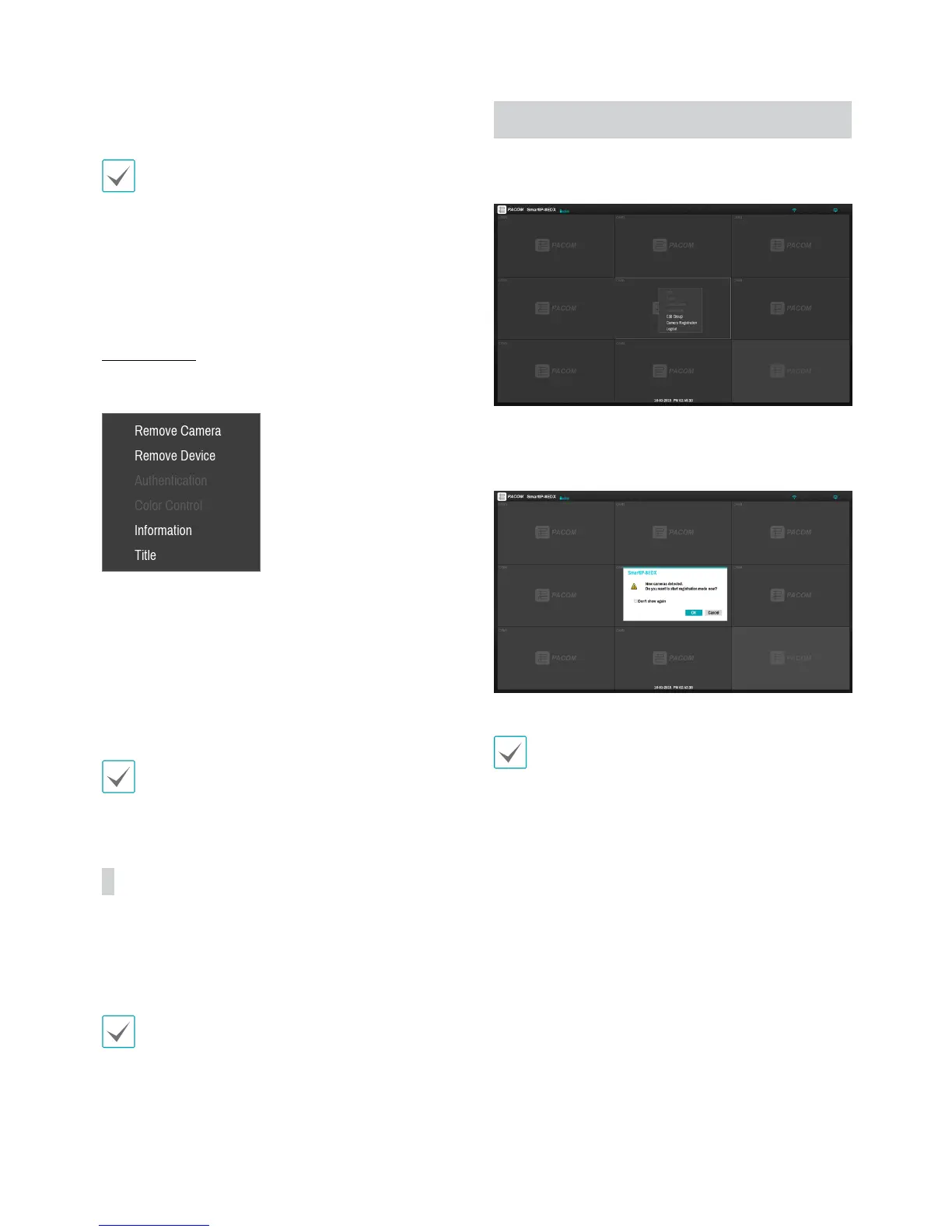
Camera Menu
Right-click on the video display area to bring up the
camera menu.
• Remove Camera: Removes the registered camera.
• Remove Device: Removes the registered encoder.
• Authentication: Enter the necessary camera login
info.
• Color Control: Adjusts the camera's color settings.
• Information: Displays the camera's basic information.
• Title: Edits the camera's title.
You can drag & drop to add or remove cameras.
Apply/Cancel Buttons
While in Camera Registration mode, select Apply to
register all changes.
Select Cancel to exit Camera Registration mode without
applying the changes.
It is not possible to register a camera that has already
been registered to a dierent NVR.
Camera Registration Mode
While in Live mode, right-click and select Camera
Registration.
If Auto Detection has been enabled, a message will
appear while in Live mode when a new camera is
detected.
Select OK to enter Camera Registration mode.
Auto Detection should be disabled if no more camera
connections are expected.


 To Next Page