The rules for media cover:
1 For folder, it will display the first .bmp or .jpg file in the current folder. Suggestion name: cover. jpg, folder. jpg
2 For movie, it will display the .bmp or .jpg file with the same filename as the movie in the same folder.
3 For photo, it will just display the photo.
4 For music, it will display the .bmp or .jpg files with the same filename as the music in the same folder.
8.6 Music Playlist
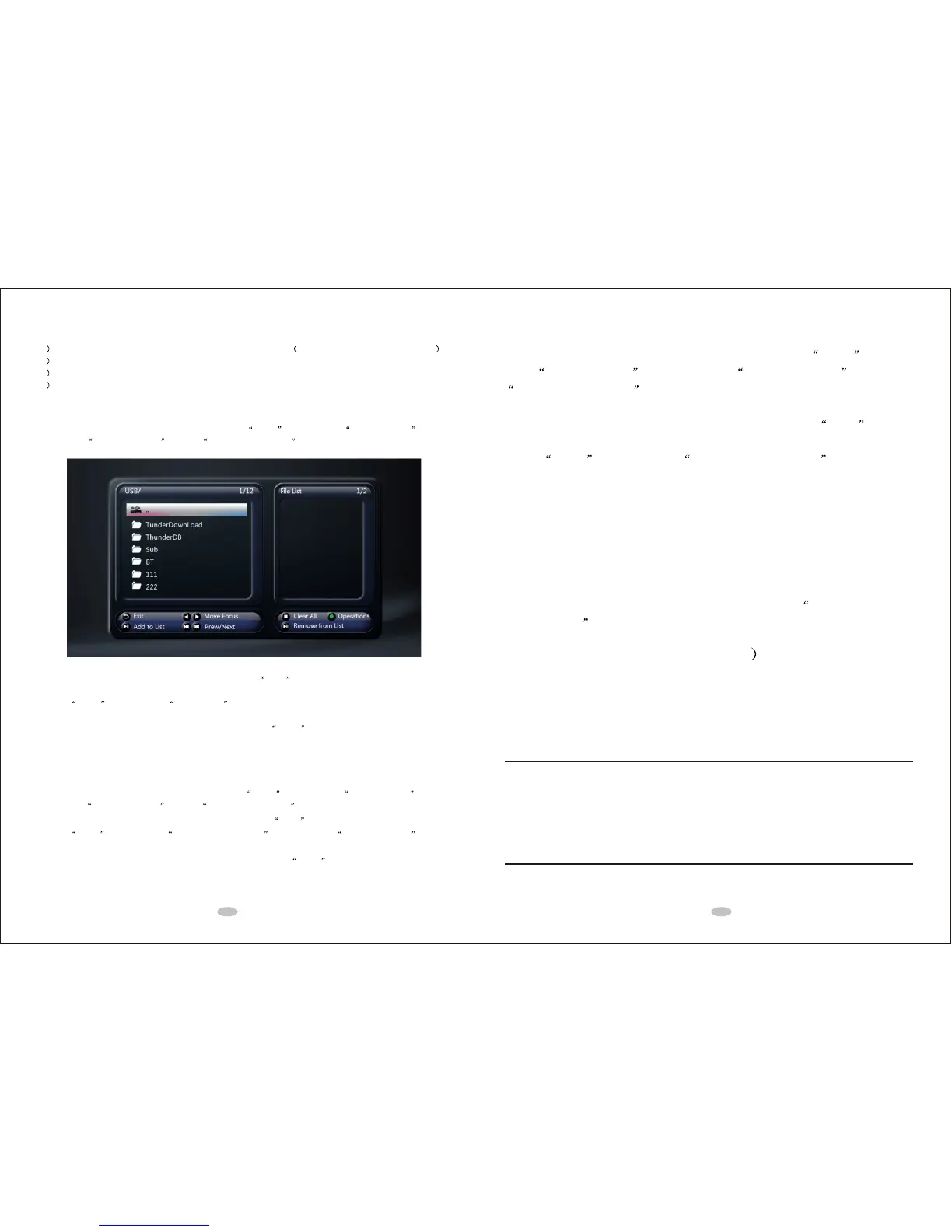
In the music media library or file manager, you can use Green button to show Operation Menu , and
then select Multi-File Manage to enter Playlist Manage Menu .
1) Use UP/DOWN Key to high-lighten a music, then press PLAY button to add the selected music to the
playlist.
2) Use Green button to select Save Playlist .
In file manager, you can select the playlist file and then press Green button to modify the selected playlist.
8.7 Photo Album
In the photo media library or file manager, you can use Green button to show Operation Menu , and
then select Multi-File Manage to enter Playlist Manage Menu .
1) Use UP/DOWN Key to high-lighten a photo, and then press PLAY button to add the photo to the album.
2) Use Green button to show Multi-File Manage Menu , and then select Save Photo Album .
In file manager, you can select the Photo Album file and then press Green button to modify the selected
photo album.
8.8 File Copy and Delete
In file manager, you can high-lighten a file or folder, press Green button to
show Operation Menu , and then select Multi-File Manage to enter
Playlist Manage Menu .
1) Use UP/DOWN Key to high-lighten a file, and then press PLAY button
to add the file to the playlist.
2) Use Green button to show Multi-File Manage Menu , and then you
can copy, delete or remove the file.
8.9 Play Media Files through Local Network
Network Settings
You can playback the multimedia files shared on the local area network
(Ethernet or WLAN).
Before doing that, please make sure that you have read Network Settings
on Chapter 3.0 and finish the related settings.
Playback from SMB(windows
Do the setting on your PC:
1) Configure the IP address and make sure that the player and the PC are
in the same sub network;
2) Configure the shared folder in window;
3) Disable windows firewall, and other applications with the firewall function;
TESTING
A) On PC side, ping the player's IP address to make sure the network
between the PC and player is working.
B) Test the windows share setting by using another computer (PC) to
access the shared folder.
21 22



 To Next Page