20
Advanced Features
3.2
All Apps
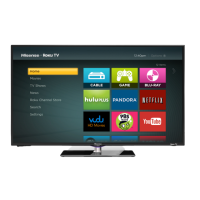
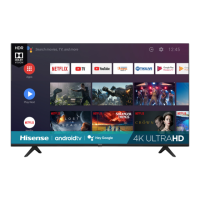
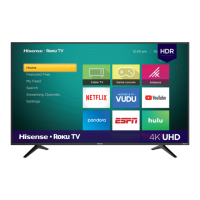
Numerous factory-installed apps are available for you to choose from for your entertainment preferences.
Installing an App
Even though your TV has numerous factory-installed apps, there may be others that you’d like to download.
To install an app:
1. From the Apps screen, click on the Opera TV Store icon.
2. Navigate to the SEARCH tab at the top of the screen.
3. Begin typing the name of the app. As you begin typing the first two to three letters the Opera Store
suggests words to quicken your search time.
4. Use the navigation buttons of your remote to select the app.
A page displays that shows a written description of the app.
5. Click on OPEN or ADD TO FAVORITES.
Removing an App
Y
ou can only delete apps that you’ve downloaded to the TV. Factory-installed apps can not be deleted.
To delete an app:
1. From the Apps screen, click on the
Delete
icon.
2. Use the navigation buttons on your remote to select the app that you want to remove.
3. Press the
[OK]
button on your remote. A dialog message displays that asks if you’re sure you want to
remove the app.
4. Click on
Delete
. A confirmation message displays and the icon is removed from the Apps list screen.
NOTE:
If an app is deleted, the information related to that app is also removed.
Moving App Icons around
Apps can not be moved around on the screen.


 To Next Page