COAXIAL
DIGITAL
AUDIO OUT
S
-
VIDEO
OUT
DVD
DVD/VCR AV 1
(
TV
)
AV2
(
DECODER
)
VCR
ANALOG
AUDIO OUT
L
R
AERIAL
RF OUT
VIDEO IN AUDIO IN R
PROGRAM OUTPUT
DVD
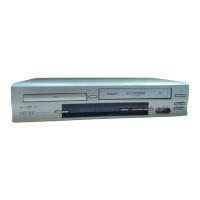
DVD/VCR Combo DV-PF6E
DVD / DVD-R / CD / CD-R / CD-RW COMPATIBLE
VCR
REC
TIMER
L
(mono)
AV3
AV1 (TV)
Playing VCR
Playing VCR
to the audio
output jack
to 21-Pin
Scart jack
to the video output jack
Recording DVD/VCR (this unit)
Recording DVD/VCR
(this unit)
to AV1 (TV)
Scart jack on
the back of the
DVD/VCR
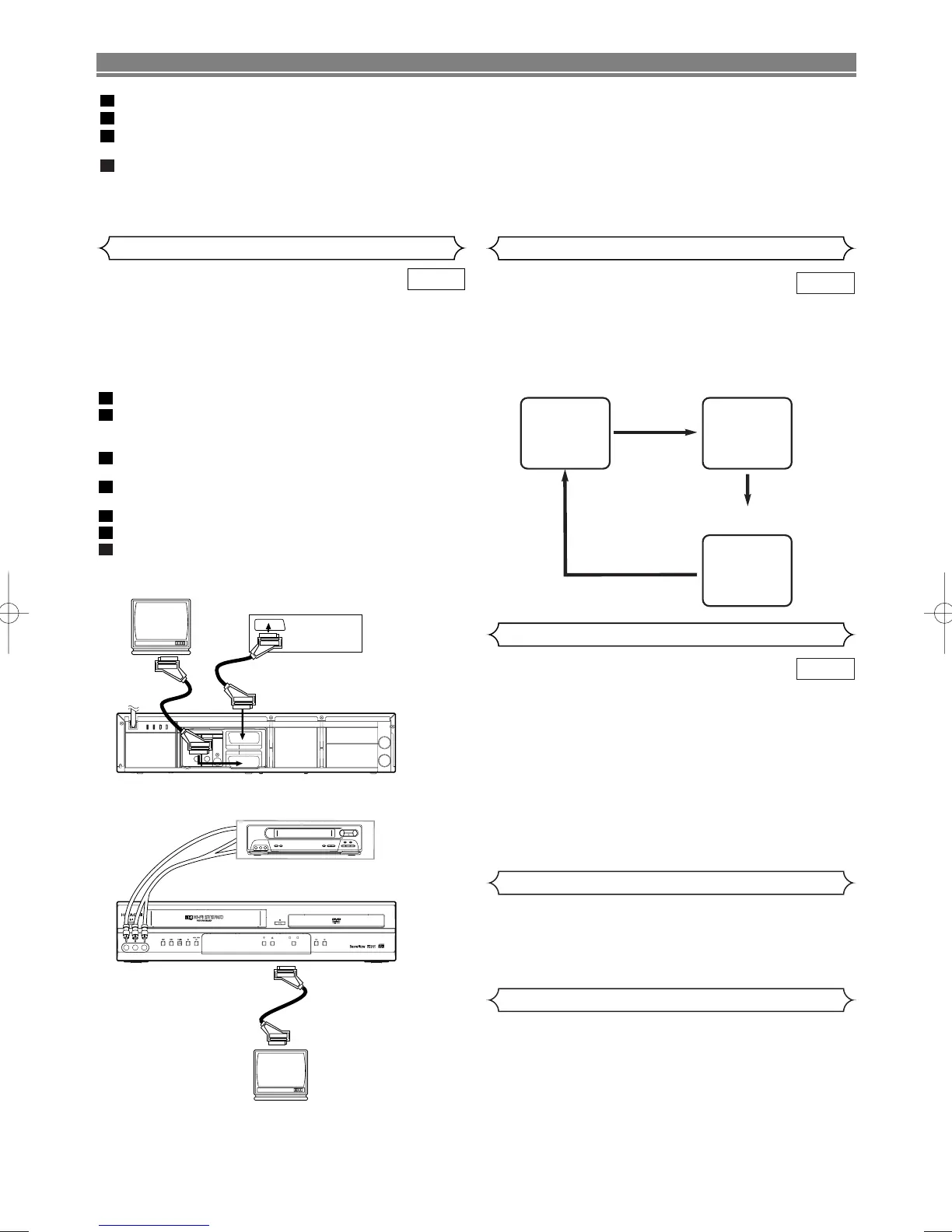
Using AUDIO/VIDEO IN JACKS
Using scart jacks
to 21-Pin
Scart Jack
(TV)
(TV)
You can make copies of videotapes made by friends or rela-
tives for your own enjoyment.
WARNING:
Unauthorized recordings of copyrighted video tapes may
be an infringement of copyright laws.
Connect the recording DVD/VCR (this unit), playing VCR
(another VCR) and your TV as outline in the following diagram.
Insert a pre-recorded video cassette into the playing VCR.
Insert a blank video cassette, or one you want to record
over, into the cassette compartment of the recording
DVD/VCR.
Press
SPEED on the remote control to select the desired
recording speed (SP/LP).
Select “AV2” or “AV3” position on the recording DVD/VCR.
See “Other Connections” on page 12.
Press REC/OTR I on the recording DVD/VCR.
Begin playback of the tape in the playing VCR.
To stop recording, press
C on the recording DVD/VCR,
then stop playback of the tape in the playing VCR.
7
6
5
4
3
2
1
VCR
Copying a video tape
Press MENU.
Press K or L repeatedly to point to “SET UP”, then press B.
Press K or L to point to “AUTO RETURN”, then press B.
• [ON] will appear next to “AUTO RETURN”.
Press MENU to exit.
TO WATCH THE RECORDED TIMER PROGRAMME
Press TIMER to cancel the Timer Stand-by. Then, select VCR
mode by pressing VCR on your remote control. Press B.
4
3
2
1
NOTES:
•For best results during dubbing, use the DVD/VCR’s
front panel controls whenever possible. The remote
control might affect the playing VCR's operation.
• If video or colour fades in and out, you may be copying
a copy guarded video tape.
TO MONITOR THE RECORDING
Turn on the TV and select the video channel on the TV.
■
SP
0:12:34
■
SP
17:40
P02
<CLOCK and CHANNEL
NUMBER mode>
<COUNTER mode>
Press once.
Press once.
Press once.
<OFF mode>
Press DISPLAY to check the Counter, or Clock & Channel
number. Each time you press the DISPLAY, TV screen will
change as illustrated:
When you select the channel using the remote control number
buttons, select the desired channel (position number).
VCR
Status Display
Different countries use different television colour systems.
Tapes recorded in the PAL or NTSC system can be played
back on this unit. Usually, the picture on the TV screen will
be in black and white when you play back a tape that is
recorded in a different colour system.
•Tapes recorded in the NTSC system can be played
back on this unit and a PAL system TV set. This feature
is only available in the SP mode. When playing back
such tapes, the picture may roll up or down, shrink ver-
tically and black bars may appear both at the top and
bottom of the screen. Adjust the vertical hold control on
your TV, if the TV features this control.
VCR
TV Colour System
When a tape reaches the end during recording, playback or
fast-forward, the tape will automatically rewind to the begin-
ning. After rewinding finishes, the DVD/VCR will eject the tape.
• The DVD/VCR will not rewind the tape automatically
during timer recording or One Touch Recording.
Auto Rewind
• This shows the elapsed recording or playback time in
hours, minutes, and seconds. (The displayed time will
not change during blank portions of the tape. The front
display of DVD/VCR will show in hour, minute only.)
• The ‘_’ indication will appear when the tape is rewound
further than “0:00:00” on the tape counter.
Real Time Tape Counter
–
22
–
H9754ED(EN).qx4 04.5.31 3:24 PM Page 22



 To Next Page