Chapter 14 Operation Examples
14-7
S T E P
3 Program Input
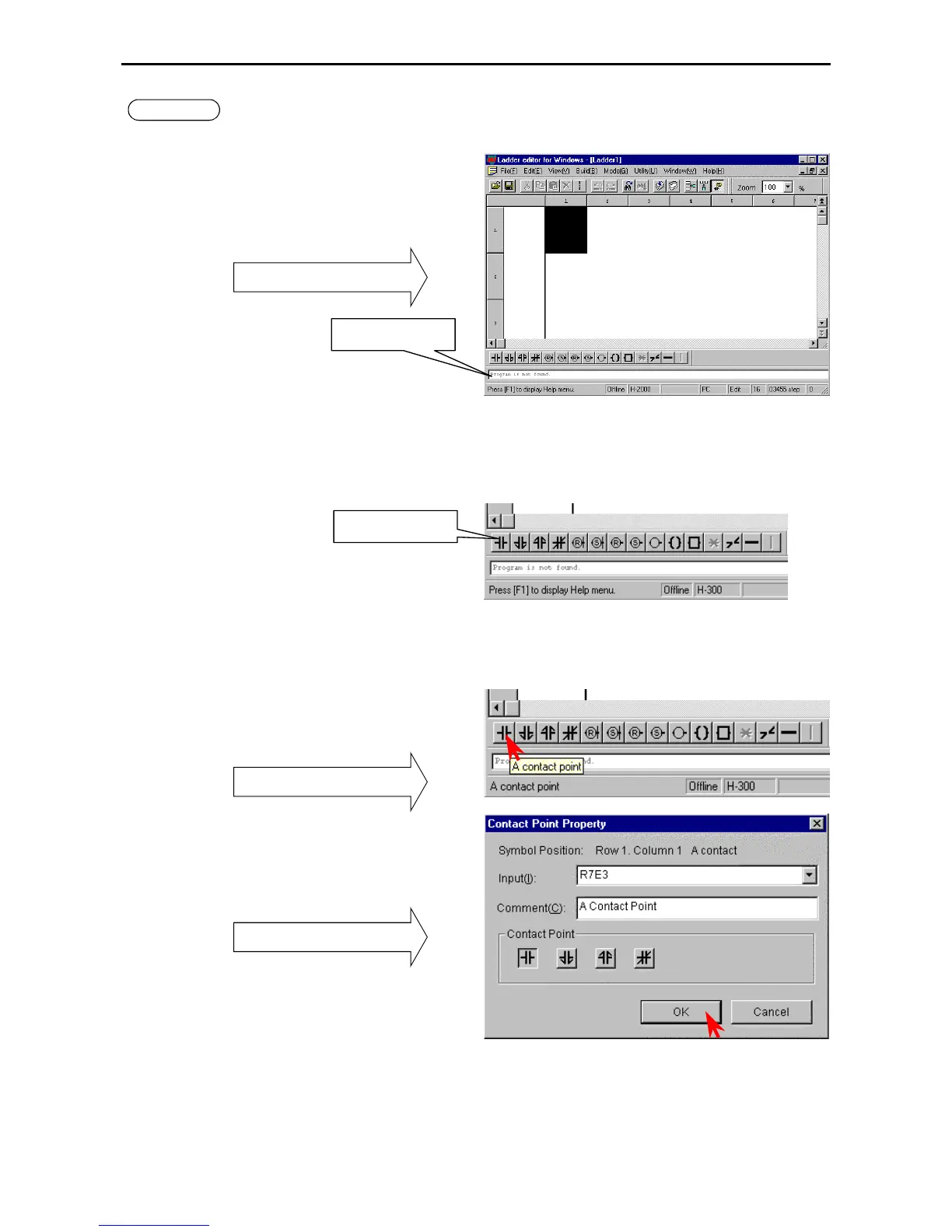
1. Input a program.
At first, the output window displays “there is no
program” in the bottom left of the Read/Edit
screen.
The cursor , which indicates the program input
position, is placed at the top left of the screen.
Read/Edit screen
[Input procedure of ladder program]
Repeat steps 1] to 4] to proceed with symbol input. The usual operations found in other Windows applications, such as
cut, copy, paste, and move, can be performed on already input symbols.
1] Specify the input position. (Move the cursor by clicking the mouse or the arrow keys.)
2] Click symbols in the Symbol bar.
3] Input the desired function (I/O, comparison expression, arithmetic expression) in the dialogue box for the symbol
displayed.
4] Click the [OK] button in the dialogue box.
[Example of entering a contact]
1] Begin from the cursor position at the top left.
2] Click the symbol for contact A.
The dialogue box for contacts is displayed.
Symbol selection
3] Enter “R7E3” as the I/O No. in the Input field.
(I/O No. (half-width alpha-numeric input) can
be entered by the keyboard only, or by
selecting the initial letter(s) from the pull-down
menu of W and by typing the rest.)
Enter a proper comment.
Contact property
4] Click the [OK] button.
The dialogue closes.
Output window
Symbol bar


 To Next Page