English - 17 -
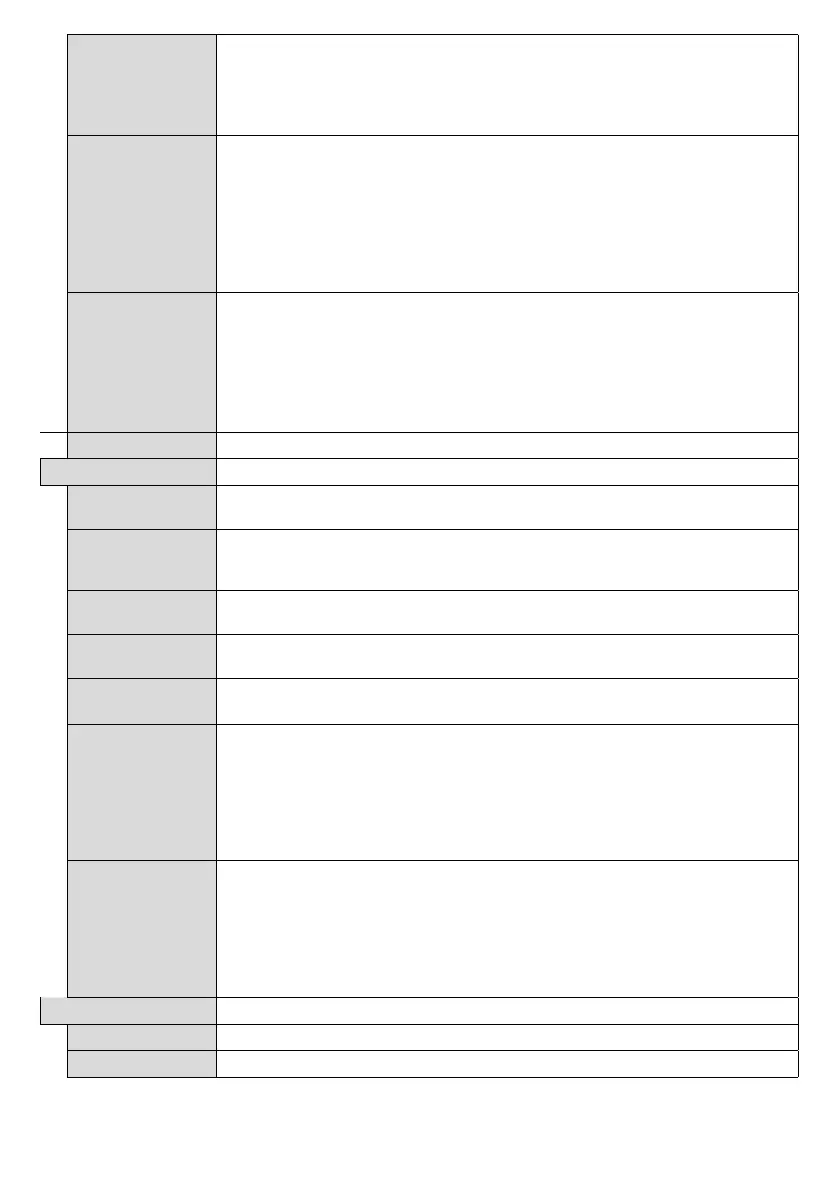
RCU Inhibit
Set as On
to inhibit the use of the remote. Remote control will function in Stand-By
mode independently from the setting of this option.
MENU/M-1-9-7-3
buttons on the remote consecutively. Signage Settings
menu will appear. Enter the
Controls menu and set this option as Off.
UART 0
Select ASCII/HEX protocol for UART 0. Default value is ASCII. There is no need to
restart the Display after selection in order to work with the protocols correctly. If the
the Display is booted up.
Note that ASCII/HEX selection is not working while debug logs are enabled. If it is
reboot the Display in order to correct the debug logs and the ASCII protocol behaviour.
Also note that HEX protocol will work with the baud rate value 19200 for UART0
UART 1
Select ASCII/HEX protocol for UART 1. Default value is HEX. There is no need to
restart the Display after selection in order to work with the protocols correctly. If the
the Display is booted up.
Note that ASCII/HEX selection is always working as expected. It does not matter if the
debug logs are enabled or not.
Also note that HEX protocol will work with the baud rate value 9600 for UART1
Enables or disables the functionality of the embedded touch screen.
Power Up Settings
Power Up Mode
Last State, Always On and Standby
options are available.
Quick Standy
If this feature is enabled the Display can be turned on again
commands if it is turned off through it. Press Left or Right button to enable or disable
the feature.
Power on Delay
Sets a delay value at power on. This value can be set from 0 to 2000 ms in steps of 100
ms. The Display will turn on after the set delay time is expired.
Auto Launch
initial page) and Disabled options are available.
Boot Up Picture
Off the last set picture
mode will be used at power on.
HDMI1 Wake Up
Enabled
If this option is set as Enabled
when it is switched on. This feature works based on HDMI 5V signal. When this signal
is active the Display wakes up and when the signal is inactive the Display shuts down.
You can disable this option by setting as Disabled.
inactive and can not be set as Enabled.
Note: This feature may not be available depending on the model of your unit.
HDMI2 Wake Up
Enabled
If this option is set as Enabled, the Display will turn on with the HDMI2 input source, when it
is switched on. This feature works based on HDMI 5V signal. When this signal is active the
Display wakes up and when the signal is inactive the Display shuts down. You can disable
this option by setting as Disabled.
If any Scheduler is set or an OPS unit is connected to the Display, this option will be inactive
and can not be set as Enabled.
Note: This feature may not be available depending on the model of your unit.
USB
Clone from USB






 To Next Page