Page 4 HP-4960-1TB: v1.0
2. Powering on the DVR
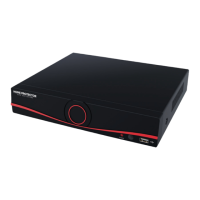
Plug in the power supply and turn on; the red power light
indicates the DVR is now powered on. When the startup is
completed you will hear a beep, and the default setting for
video output is a multiple-window display showing the
cameras.
NB: Restarting the DVR after an unscheduled power
off will automatically restore the DVR’s previous state.
3. Powering on the DVR
There are two methods to turn off the DVR; soft switch and
hard switch. For soft switch, select [Main menu] and
[Logout], select preferred option. For hard switch, turn off
power to the DVR.
NB: If replacing the backup battery, ensure DVR
settings are saved or these will be lost and will need to
be re-entered.
4. Login
When the DVR is powered on, the user must login in order
to view settings. There are two user settings;
“admin”: super user settings with access to all
DVR functions
“guest”: has the ability to view and playback
recorded video.



 To Next Page