328
uuAudio System Basic OperationuWi-Fi Connection
Wi-Fi Connection
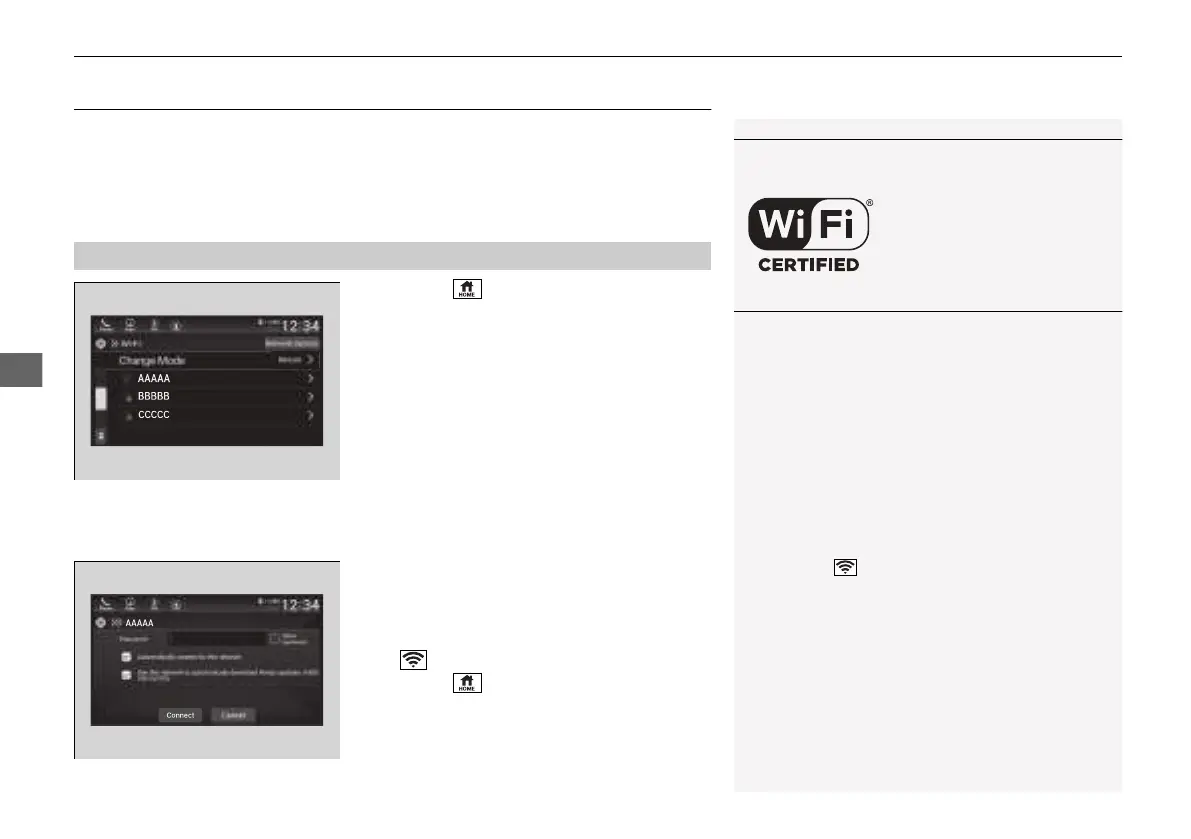
You can connect the audio system to the Internet using Wi-Fi on the audio/
information screen. If your phone has wireless hotspot capabilities, the system can
be tethered to the phone. Use the following steps to setup.
1. Press the button.
2. Select Settings.
3. Select Connections.
4. Select Wi-Fi.
5. Select Change Mode.
6. Select Network or Hotspot, then
Confirm.
u To change the Wi-Fi settings, select
Network Options or HotSpot
Options.
u Select the access point you want to
connect to the system.
7. Select Connect.
u Enter a password for the access point,
and select Done.
u When the connection is successful, the
icon is displayed on the list.
8. Press the button to go back to the
home screen.
■
Wi-Fi mode (setting for the first time)
1Wi-Fi Connection
Wi-Fi and Wi-Fi Direct a registered trademark of Wi-Fi
Alliance®.
1Wi-Fi mode (setting for the first time)
You cannot go through the setting procedure while a
vehicle is moving. Park in a safe place to set the audio
system in Wi-Fi mode.
Some cell phone carriers charge for tethering and
smartphone data use. Check your phone’s data
subscription package.
Check your phone manual to find out if the phone
has Wi-Fi connectivity.
You can confirm whether Wi-Fi connection is on or
off with the icon on the Wi-Fi network list.
Transmission speed and others will not be displayed
on this screen.
In case of Wi-Fi connection with your phone, make
sure your phone’s Wi-Fi setting is in access point
(tethering) mode.
21 INSIGHT-31TXM6200.book 328 ページ 2020年2月5日 水曜日 午前10時0分














 To Next Page