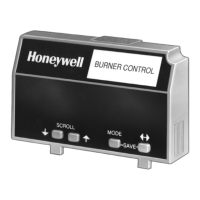
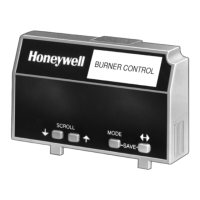
7800 SERIES S7800A KEYBOARD DISPLAY MODULE
27
65-009
0-6
ModBus
BaudRate: 9600
Clear
Configuration
Use ENTER to
Confirm
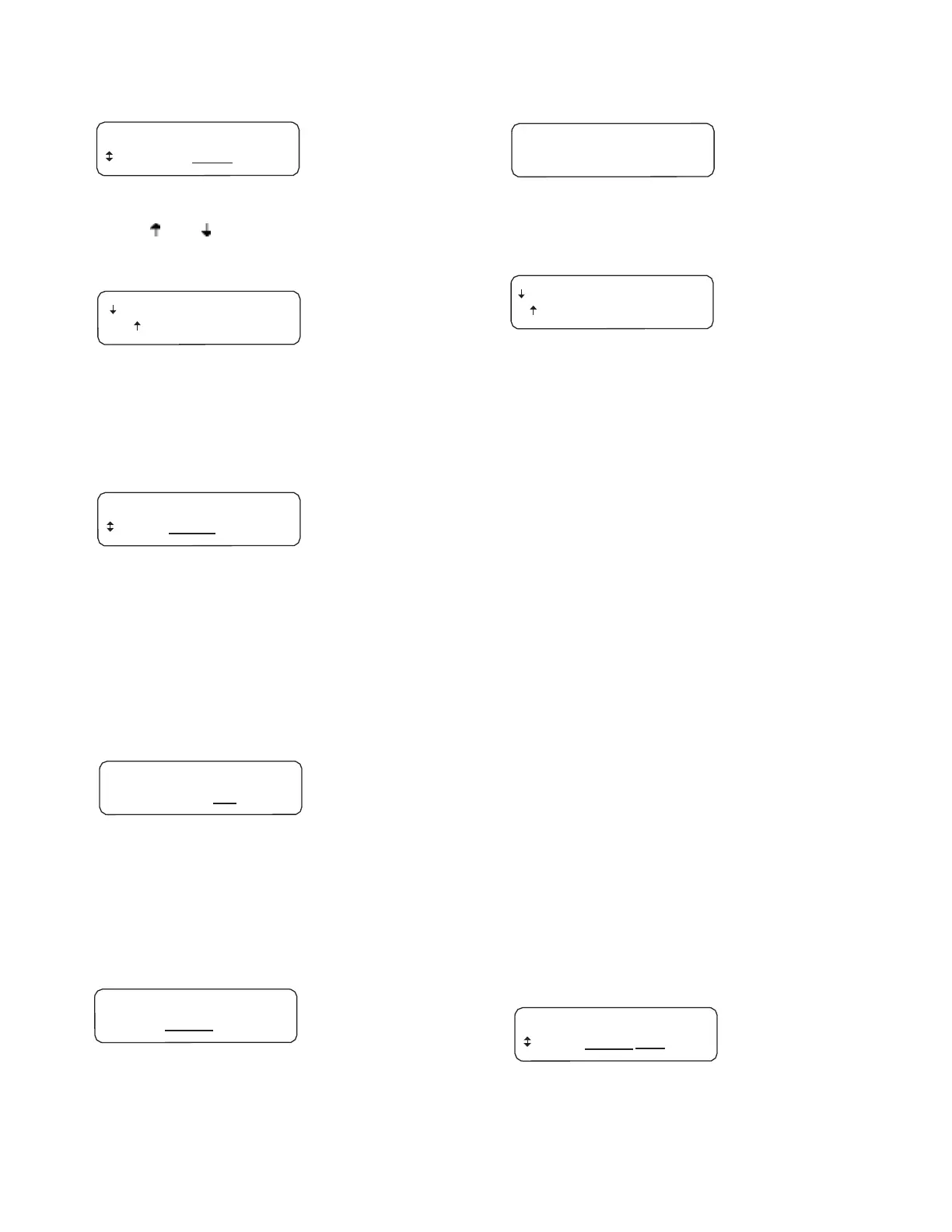
Fig. 34. ModBus Baud rate selection setup.
Use the and keys to change rates (choices are 9600,
19,200, and 38,400).
Fig. 39. Clear Configuration screen.
Press ENTER using the two ENTER buttons at the same time.
– Save
Changes
– Exit no
Save
Fig. 35. Save Changes/Exit No Save screen will display
again.
Press ENTER at the Save Changes/Exit No Save screen.
The display will go back to the DISPLAY Setup/Select CLONE
screen:
DISPLAY
Setup
Select:
CLONE
Fig. 36. DlSPLAY Setup/Select CLONE Screen.
Display
Setup-Clear
All
Clear All resets the display setting back to the factory settings.
To access the Display Setup Menu:
Press the left three buttons of the KDM for one second, then
release. DISPLAY Setup will appear:
DISPLAY
Setup
± PASSWORD: 000
Fig. 37. DlSPLAY Setup screen.
Enter your password if it has been changed from the Default
Password.
Press ENTER using the two ENTER buttons at the same time.
The Select/Exit screen (see Fig. 33) will appear. Choose
Select.
Clear
ALL
Exit
Fig. 40. Clear ALL screen.
Press the Down arrow Clear All.
All display settings are returned to the factory defaults.
Display will go back to the DISPLAY Setup/Select CLONE
screen (see Fig. 38).
Display
Setup-Password
The S78800A KDM, Series 4 or higher, requires a password to
make changes to the display information, such as unique Call
Service Message or Expanded Annunciator Message
information, for example.
The display is programmed with a default password of 000
(three zeros) and can easily ben changed to any three
numbers.
NOTE: Use caution when selecting and securing your new
password, should access be required in the future.
Re-entering the Display Setup will show different numbers and
your unique password will need to be entered to gain access.
To access the Change Password menu.
Press the left three buttons of the KDM for one second, then
release.
The DISPLAY Setup screen (see Fig. 37) will appear. Press
ENTER using the two ENTER buttons at the same time.
The Select/Exit Screen (see Fig. 33) will appear. Choose
Select.
The DISPLAY Setup/Select CLONE screen (see Fig. 23) will
appear. Use the down arrow to scroll through the menu
choices until PASSWORD appears.
DISPLAY
Setup
± Select:
CLONE
Fig. 38. DlSPLAY Setup/Select CLONE screen.
Press the down arrow to scroll to CLEAR ALL.
Press ENTER, using the two ENTER buttons at the same time
to select. The Select/Exit screen (see Fig. 33) will appear.
Choose Select.
DISPLAY
Setup
Select: P
ASSWORD
Fig. 41. DlSPLAY Setup/Select PASSWORD screen.
Press ENTER using the two ENTER buttons at the same time.


 To Next Page