MAN0974-14-EN_XL7_XL7P_UM
July 6, 2022 Page 72 | 199
7.4 Configuration
An overview of configuration:
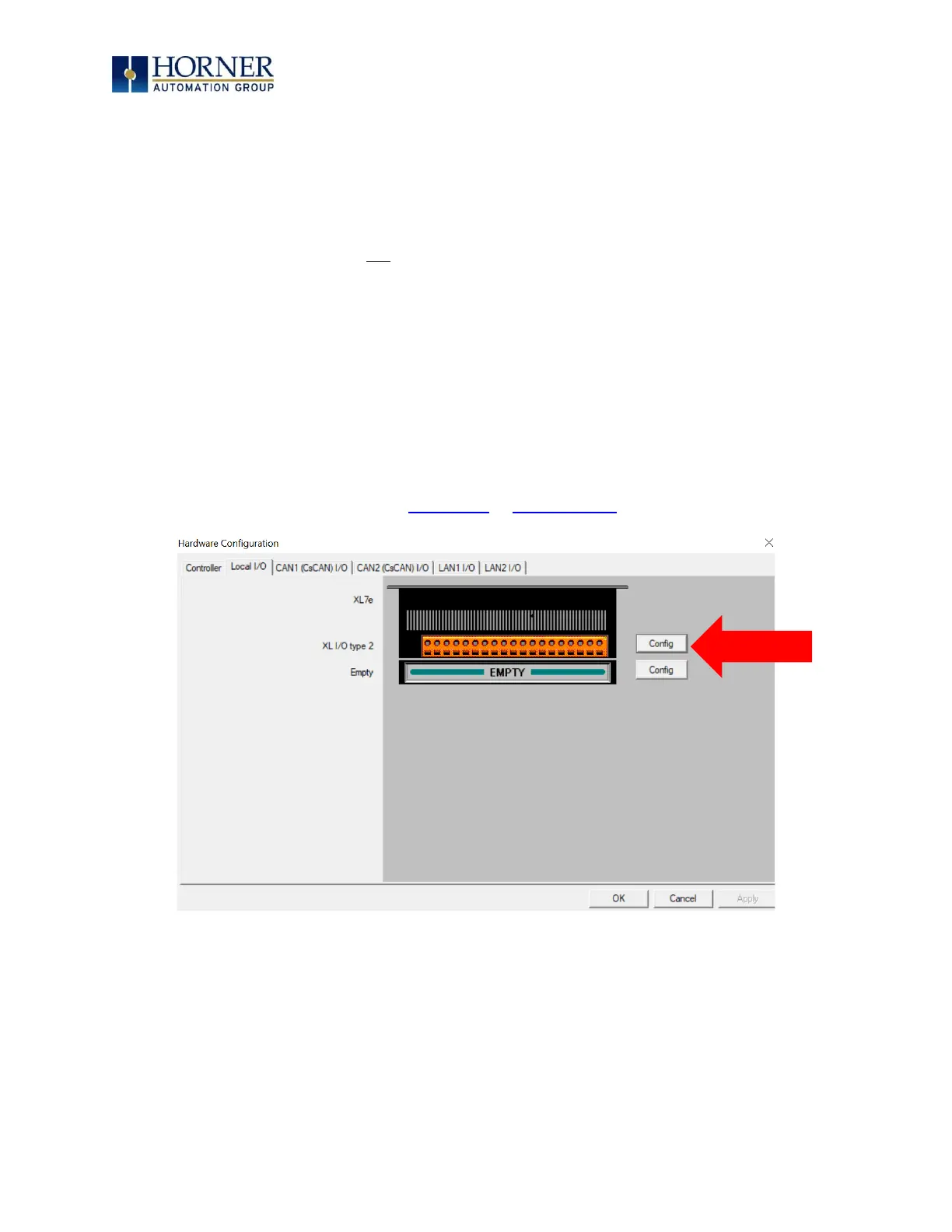
1. Start the configuration by selecting the Controller → Hardware Configuration menu item.
2. If the XL7/XL7 PRIME OCS is connected to the PC press the Auto Config System button to
automatically detect the Base model, I/O and any communication options.
3. If the XL7/XL7 PRIME OCS is not connected press the Config button to the right of the top of the
unit. This allows the base CPU to be selected.
4. Select either XL7/XL7 PRIME OCS CsCAN from the type drop down box.
5. Once the type of XL7/XL7 PRIME OCS is selected, the model # drop down box will provide the
XL7/XL7 PRIME OCS model numbers from which to choose from.
6. Once the XL7/XL7 PRIME OCS CPU is selected, press OK to exit the dialog and configure the I/O
that is present in the first slot.
7. The Hardware configure dialog (specifically the Module Setup tab) provides four buttons to
configure all of the I/O. Go through each area of I/O and configure it.
8. Once done configuring the I/O OK out of configuration dialogs.
Configuring the XL7/XL7 PRIME OCS I/O has four main portions that are covered in this chapter. For
additional information on I/O, refer to the General I/O or High Speed I/O chapters.


 To Next Page