EasyManua.ls Logo

HP C200 - User Manual

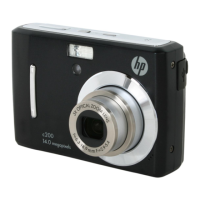
HP C200
80 pages
Print Icon
To Next Page IconTo Next Page
Loading...

Table of Contents

Other manuals for HP C200

Questions and Answers

  • G
    George SanchezAug 15, 2025
    How to unlock memory card on HP Digital Camera?
    • M
      Michael LaneAug 15, 2025
      If the LCD screen of your HP Digital Camera displays ‘Card locked’, it means that the memory card is protected. To solve this, remove the card and slide the write-protect switch to its unlock position.
  • N
    Nancy FletcherAug 18, 2025
    What to do if LCD screen displays ‘Memory full’ on HP Digital Camera?
    • J
      Jamie FosterAug 18, 2025
      If the LCD screen displays 'Memory full' on your HP Digital Camera, it means the memory card is full. You can fix this by replacing the memory card with a new one or deleting unnecessary images.
  • H
    hcookeAug 21, 2025
    Why does my HP C200 show an empty battery icon and turn off?
    • T
      Timothy RichardsAug 21, 2025
      If your HP Digital Camera displays an empty battery icon on the LCD and then turns off, it's likely that one or both of the batteries are exhausted. Replacing the batteries should solve the problem.
  • H
    harry24Aug 25, 2025
    What does 'Copy error' mean on HP Digital Camera?
    • L
      Laura ZavalaAug 26, 2025
      If the LCD screen of your HP Digital Camera displays ‘Copy error’, it could be due to two reasons: either the memory card is protected, or the memory card is full. To address this, first remove the card and slide the write-protect switch to its unlock position. If the issue persists, replace the card or delete unnecessary files.
  • J
    jennifer37Aug 27, 2025
    Why won't the lens retract on my HP C200?
    • J
      James MartinezAug 27, 2025
      If the lens of your HP Digital Camera is extended and will not retract, it could be due to the battery. The type of battery used may be incorrect, or the battery power level may be too low. Try changing the battery or charging it before using the camera.
  • J
    Jay TurnerAug 31, 2025
    How to fix HP C200 Digital Camera that does not turn on?
    • S
      Scott WilliamsonAug 31, 2025
      If your HP Digital Camera does not turn on, it's possible that one or both of the batteries are exhausted. Try replacing the batteries.
  • R
    Renee JenkinsSep 2, 2025
    What to do if HP C200 Digital Camera displays 'CARD HAS WRONG FORMAT'?
    • R
      Ryan TaylorSep 2, 2025
      If the LCD screen of your HP Digital Camera displays ‘CARD HAS WRONG FORMAT’, it means that the memory card is protected. Remove the card and slide the write-protect switch to its unlock position.
  • G
    gbutlerSep 5, 2025
    What to do if LCD turns blank on HP C200?
    • G
      George DavenportSep 5, 2025
      If the LCD turns blank on your HP Digital Camera, press any button except the Power button to turn on the LCD.
  • R
    Regina MooreSep 8, 2025
    What does 'Not available for this file' mean on HP C200?
    • J
      Jasmine SmithSep 9, 2025
      If the LCD screen on your HP Digital Camera displays ‘Not available for this file’, it means that the function is only available for specific file types, and the current file format is not supported.
  • A
    angel97Sep 12, 2025
    What does 'No images in memory' mean on HP C200 Digital Camera?
    • A
      Andrew PerezSep 12, 2025
      If the LCD screen on your HP Digital Camera displays ‘No images in memory’, it indicates a problem with the image file on the memory card, or that the image file format may not be supported.

Summary

Preface

Safety and Handling Precautions

Battery Information

Specifications

Getting Started

Inserting the Batteries

Steps for inserting batteries into the camera.

Camera Memory

Inserting an SD;SDHC Memory Card

Procedure for inserting and removing memory cards.

External storage

Information on compatible memory cards and usage.

Camera Buttons

Turning the Power On and Off

Initial Settings

Modes

Scene Mode

Mode for capturing images and recording videos.

Playback Mode

Mode for viewing and editing captured media.

Understanding the LCD Screen

LCD Screen Layout

Diagram of the photo mode screen layout.

Video Mode Screen Layout

Diagram of the video mode screen layout.

Playback mode display of photos:

Diagram of the photo playback screen layout.

Playback mode of videos:

Diagrams of video playback screen layouts.

Playback mode of audio clips:

Diagrams of audio clip playback screen layouts.

Recording Photos, Movies and Voices

Taking Photos

Step-by-step guide to taking still photos.

Recording Videos

Instructions for recording video clips.

Using the Stabilizer Feature

How to use the image stabilizer feature.

Setting the Zoom Control

How to adjust optical and digital zoom.

Using the Flash Features

How to use and select different flash modes.

Setting the Focus Mode

How to set different focus modes like Normal, Macro, PF, INF.

Using the Function Menu

How to access and use the function menu for quick settings.

Exposure Value (EV) Compensation

Adjusting brightness for better exposure.

White Balance

Setting white balance for different lighting conditions.

ISO

Adjusting sensor sensitivity for lighting.

Metering

Selecting the area for light measurement.

Color Mode

Adjusting colors and tones for artistic effects.

Using the Record Menu

Scene Mode

How to access and use scene modes for specific shooting conditions.

Intelligent Scene

Camera detects and switches to appropriate scene mode.

Smile Capture

Auto captures smile with face detection.

Blink Detection

Detects and flags blinked eyes for re-take option.

Using Intelligent Scene

Auto scene recognition for novice users.

Using Kids Mode

Optimized settings for photographing children.

Using Smile Capture Mode

Auto captures smile with face detection.

Using Blink Detection Mode

Detects and flags blinked eyes for re-take option.

Using D-Lighting

Preserves details in highlights and shadows.

Using Voice Recording

How to record audio clips.

Setting the Drive Mode

How to set self-timer and burst modes.

Setting the AEB

How to set Automatic Exposure Bracketing.

Setting the AF Area

How to determine the focus area.

Setting the AF Lamp

How to use the AF lamp in low light.

Setting the Digital Zoom

How to control the digital zoom feature.

Setting the Date Stamp

How to add date and time stamps to images.

Playback

Viewing in Single Navigation

Viewing media one by one.

Viewing Thumbnails

Viewing multiple images in thumbnail mode.

Playing Videos

How to play video clips.

Playing Voice Recording

How to play recorded audio clips.

Playing Voice Memo

How to play voice memos attached to images.

Deleting an Image;Video;Audio

Ways to delete captured media.

Using the Delete Button

Playback Menu

Delete

Options for deleting files: Single, Voice Only, Multi, All.

Protect

Red-eye Correction

How to reduce red-eye in photos.

Using the Setup Menu

Setting Sounds

How to adjust camera sounds like startup and shutter.

Setting Power Save

How to set the camera's idle time for power saving.

Setting LCD Save

How to adjust LCD brightness for power saving.

Setting Date & Time

How to set the camera's date and time.

Setting Language

How to set the display language for menus.

Setting File Numbering

How to select file numbering methods.

Setting LCD Brightness

How to select LCD brightness level.

Setting Memory Kit

How to format memory or copy files.

Reset All

How to reset camera settings to factory defaults.

Making Connections

Connecting the Camera to a PC

How to connect the camera to a computer for file transfer.

Connecting the Camera to a Printer

Setting the Print Mode Menu

Options for printing: Select, All, Index.

Troubleshooting

Getting Help

HP C200 Specifications

General IconGeneral
Sensor TypeCCD
Optical Zoom3x
Battery Type2 x AA batteries
ModelHP C200
Storage MediaSD/MMC
Effective Pixels5.0 MP

Related product manuals