8
Personalized Digital Greeting Card
You can set a personalized greeting which displays when the DPF is powered on. This feature is especially useful when
presenting this DPF as a gift.
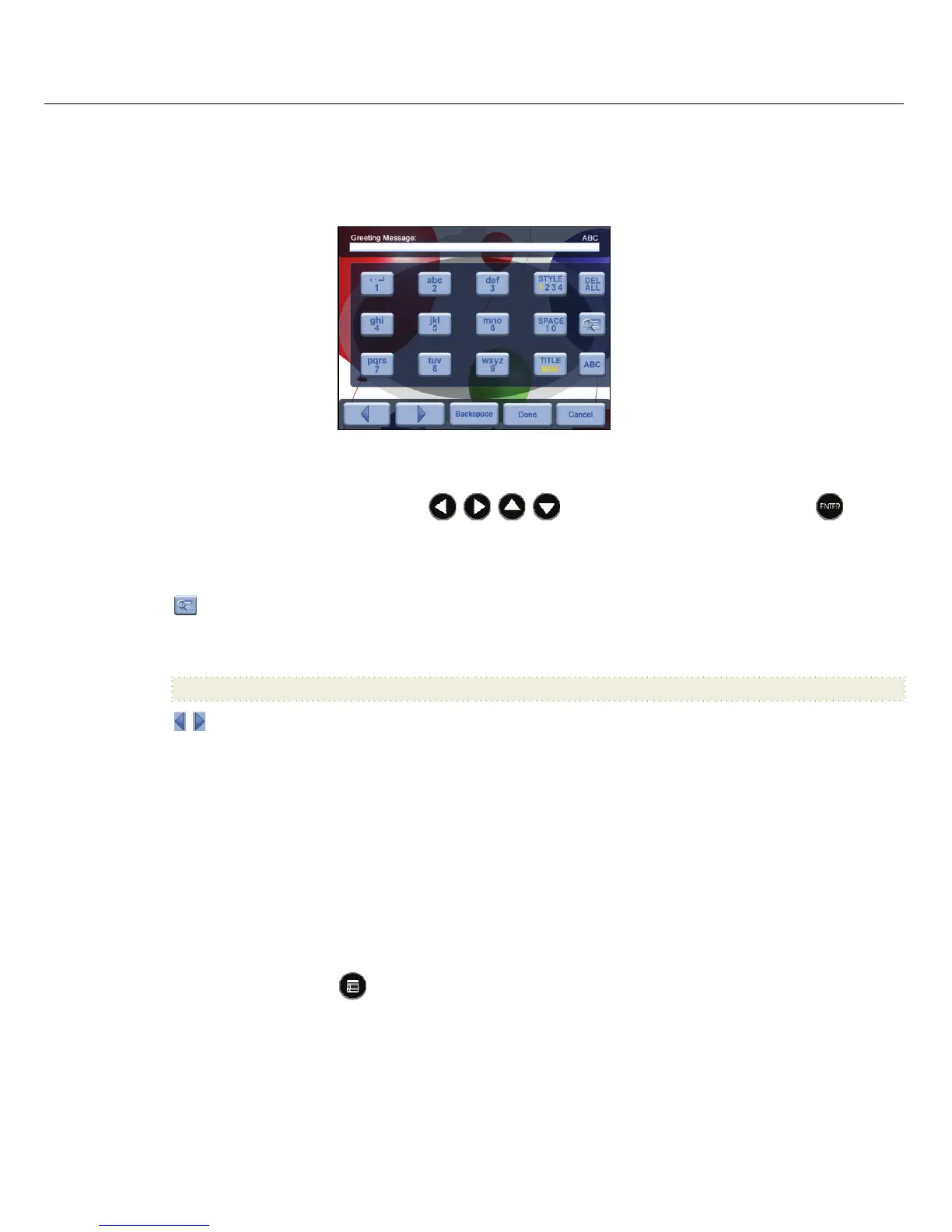
TheVirtualKeyboard
You will use a virtual keyboard for entering your personalized greeting.
Navigate the keyboard as follows:
To select the desired characters, use
to highlight the keys, and then press ,
multiple times as needed.
STYLE1234 = Select the background image appropriate for your greeting (can also be your personal photo)
DEL= Clears the entry field
= View your greeting with selected background image
TITLEMSG = Toggle between the Title and Message entries
ABC/abc/SYM = Toggles between upper and lower case letters, and the following symbols:
_!:;$()[]\&/%^!+=~‐|<>{}
= Scroll through your entry to edit as needed
Backspace = Erases last selected character
Done= Completes entry
Cancel= Return to the previous screen without an entry
Note: You can also use the remote control buttons as follows:
‘
+’ = Scroll forward through entry to edit as needed
‘
‐‘ = Scroll back through entry to edit as needed
ROTATE = Backspace, erases last selected character
ZOOM = Toggles between ABC / abc / SYM screens
EnterGreeting
1. On the HOME screen, press
to display the
Setup Menu screen.
2. Select
Greeting Card.
3. Select Yes to create a new greeting or delete existing greeting, or select No to edit existing greeting.
4. Enter a greeting
Title (i.e., Happy Birthday, Merry Christmas).




 To Next Page