EasyManua.ls Logo

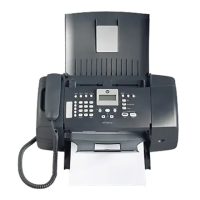
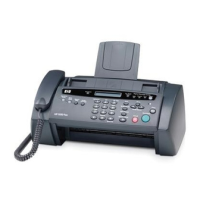
HP FAX 1250 Series - User Manual

HP FAX 1250 Series
106 pages
Print Icon
To Next Page IconTo Next Page
Loading...
HP 1250 Fax series
User Guide

Table of Contents

Questions and Answers

  • E
    Elizabeth QuinnSep 3, 2025
    What causes "Phone Cord Connected to Correct Port on Fax" test to fail on HP FAX 1250?
    • S
      smithmichaelSep 3, 2025
      If the "Phone Cord Connected to Correct Port on Fax" test failed, plug the phone cord into the correct port.
  • J
    Jessica AndersonSep 18, 2025
    Why does the automatic document feeder pick up too many pages or none at all on my HP FAX 1250?
    • J
      John MartinezSep 18, 2025
      If the automatic document feeder picks up too many pages or none at all, the separator pad or rollers inside the automatic document feeder might need to be cleaned. Load one or two sheets of unused plain white full-size paper into the document feeder tray and press Start Black.
  • A
    Alexandria HallSep 16, 2025
    What can I do if the phone cord that came with my HP FAX 1250 Fax Machine is not long enough?
    • R
      Rebecca JacksonSep 16, 2025
      If the phone cord that came with the HP Fax is not long enough, you can use a coupler to extend the length.
  • C
    Connor TownsendSep 14, 2025
    What to do if the wrong measurements are showing in menus on the display of my HP FAX 1250 Fax Machine?
    • A
      Anthony TylerSep 14, 2025
      To change the country/region, you must reset the language settings.
  • D
    Dana ColeSep 12, 2025
    What to do if I received a message on the display that the print cartridge alignment failed on my HP FAX 1250?
    • S
      sarah03Sep 12, 2025
      If you receive a message that the print cartridge alignment failed, it could be due to several reasons: * The incorrect type of paper is loaded. Load unused plain white letter or A4 paper into the input tray and try again. * Protective tape is covering the print cartridges. Check each print cartridge and remove any remaining tape. * The contacts on the print cartridge are not touching the contacts in the print carriage. Remove and reinsert the print cartridges, ensuring they are fully inserted and locked in place.
  • M
    melindamillerSep 12, 2025
    What to do if I received a message on the display to attach the control panel faceplate on my HP Fax Machine?
    • L
      Lauren CooleySep 12, 2025
      If you receive a message to attach the control panel faceplate, make sure to align the faceplate over the buttons on the top of the HP Fax and snap it firmly into place.
  • K
    Katherine MurphySep 9, 2025
    Why does my HP FAX 1250 record fax tones on my answering machine?
    • R
      robinmarquezSep 9, 2025
      If fax tones are being recorded on your answering machine, and you have an answering machine on the same phone line you use for fax calls, try connecting the answering machine directly to the HP Fax. Also, make sure the HP Fax is set to receive faxes automatically and that the Rings to Answer setting is correct.
  • J
    jessica39Sep 7, 2025
    Why does the display always show 'Phone Off Hook' on my HP Fax Machine?
    • L
      lopezloriSep 7, 2025
      If the display always shows 'Phone Off Hook', make sure you are using the phone cord that came with the HP Fax to connect the device to your phone line.
  • S
    Sarah BaileySep 5, 2025
    What causes "Using Correct Type of Phone Cord with Fax" test to fail on HP Fax Machine?
    • S
      Scott DaySep 5, 2025
      If the "Using Correct Type of Phone Cord with Fax" test failed, make sure you used the phone cord supplied in the box with the HP Fax to connect to the telephone wall jack.
  • J
    james98Aug 20, 2025
    What to do if my HP Fax Machine is having problems sending and receiving faxes?
    • T
      tatejoshuaAug 21, 2025
      If your HP Fax is having problems sending and receiving faxes, ensure the device is turned on. Also, verify that you are using the phone cord supplied in the box with the HP Fax to connect to the telephone wall jack. Other equipment using the same phone line, a noisy phone line connection, or the lack of a DSL filter (if you are using a digital subscriber line (DSL) service) could also be the cause. Additionally, using a phone splitter can cause faxing problems.

Summary

HP Fax Overview and Features

The HP Fax at a Glance

Overview of the HP Fax hardware features and control panel functions.

Control Panel Features

Detailed explanation of the HP Fax control panel buttons and their functions.

Menu Overview

Explanation of the top-level menus available on the HP Fax display.

Text and Symbols Input

How to use the control panel keypad for text and symbol input.

Finish Setting Up the HP Fax

Set Your Preferences

Customize general device settings like language, date, and time.

Set the Date and Time

Setting the date and time for fax headers and internal logs.

Adjust Volume Settings

Adjusting ring, beep, and monitor volumes for the HP Fax.

Fax Setup Procedures

Setting up the HP Fax for different phone systems and services.

Change Fax Receive Settings

Configuring answer mode, rings, and distinctive ring patterns.

Test and Configure Fax Setup

Testing fax setup and setting the default fax header.

Loading Originals and Paper

Load Originals

Instructions for loading single or multiple-page documents into the feeder.

Choose Papers for Copying

Recommendations for paper types to use and avoid for best copy quality.

Load Full-Size Paper

Steps for loading letter, A4, or legal size paper into the input tray.

Avoid Paper Jams

Guidelines to prevent paper jams during operation.

Using HP Fax Features

Send a Fax

Methods for sending faxes, including basic, manual, and monitor dialing.

Receive a Fax

Options for receiving faxes automatically or manually.

Backup Fax Reception

Setting up storage for received faxes, including on error only.

Forward Faxes

Configuring the HP Fax to forward received faxes to another number.

Block Junk Fax Numbers

Setting up the junk fax blocker to filter unwanted incoming faxes.

Using HP Copy Features

Make a Copy

Instructions for creating black-and-white or color copies.

Change Copy Settings

Customizing copy settings for the current job or as defaults.

Stop Copying

How to cancel an ongoing copy job.

Maintain the HP Fax

Clean the HP Fax

Cleaning the glass strip, white strip, and exterior of the automatic feeder.

Print a Self-Test Report

Printing a self-test report to diagnose printing problems.

Work with Print Cartridges

Procedures for handling, replacing, aligning, and cleaning cartridges.

Order Supplies

Order Paper or Other Media

Information on ordering HP papers and media supplies.

Order Print Cartridges

How to order replacement HP print cartridges.

Order Other Supplies

Information on ordering other HP Fax accessories and parts.

Troubleshooting Information

Setup Troubleshooting

Tips for resolving installation and configuration issues.

Hardware Setup Troubleshooting

Solving problems related to initial HP Fax hardware setup.

Fax Setup Troubleshooting

Resolving issues with sending or receiving faxes.

Fax Test Failures

Diagnosing and resolving common fax test failure causes.

Operational Troubleshooting

Information on paper and print cartridge operational issues.

Paper Troubleshooting

Resolving issues related to paper loading and jams.

Clear Paper Jams

Instructions for clearing paper jams from the rear door or ADF.

Print Cartridge Troubleshooting

Resolving problems related to print cartridge installation and performance.

HP Warranty and Support

Warranty Information

Details on HP product warranty coverage and repair services.

Warranty Upgrades

Information on optional warranty extensions and enhancements.

Before Calling HP Support

Steps to prepare and gather information before contacting HP support.

Access Serial Number and Service ID

How to find and access the product's serial number and service ID.

Prepare for Shipment

Instructions for removing parts and packing the HP Fax for service.

Technical Information

Paper Specifications

Details on paper tray capacities and available paper sizes.

Copy Specifications

Technical details about copying features, resolution, and zoom.

Fax Specifications

Key technical capabilities and features of the HP Fax system.

Physical and Power Specifications

Dimensions, weight, and electrical input requirements for the HP Fax.

Environmental and Stewardship Information

Information on environmental impact, energy usage, and recycling.

Regulatory Information and Notices

Compliance information from various regulatory agencies.

FCC Statement and Requirements

FCC compliance declaration and guidelines for US telephone network users.

Canadian Telephone Network Notice

Compliance and connection information for the Canadian telephone network.

Notices for Japan and EEA

Specific notices for users in Japan and the European Economic Area.

HP FAX 1250 Series Specifications

General IconGeneral
BrandHP
ModelFAX 1250 Series
CategoryFax Machine
LanguageEnglish

Related product manuals