EasyManua.ls Logo

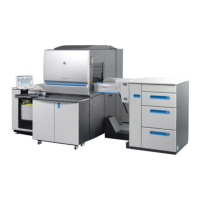
HP Indigo press 3050 - User Manual

HP Indigo press 3050
288 pages
Print Icon
To Next Page IconTo Next Page
Loading...
HP Indigo press 3050
User guide
English version

Table of Contents

Other manuals for HP Indigo press 3050

Questions and Answers

  • T
    Tina MacdonaldAug 13, 2025
    What to do if my HP Power Tool has leaks (overflow)?
    • J
      Jason KingAug 13, 2025
      If your HP Power Tool is experiencing leaks or overflow, verify that the ink outlet bellows is not twisted. Also, use the Ink Flow wizard to check the ink flow rate, and check that the ink catch tray is assembled correctly. Additionally, run the BID diagnostic wizard to ensure the BID motor is rotating.
  • G
    Grace ColemanAug 17, 2025
    Why does my HP Power Tool have machine print quality problem?
    • V
      Victoria MurrayAug 17, 2025
      If you are experiencing print quality issues with your HP Power Tool, first check the flexible ink hose connections to ensure they are not kinked before performing the Ink Flow Calibration wizard. Then, perform the Ink Flow Calibration wizard to recalibrate the ink flow rate. Also, check for a clogged pump (look for waste around the filter) or a bad pump that could be decreasing the flow rate. If problems continue after BID replacement, check the flow.
  • S
    Samantha HardinAug 21, 2025
    What to do for partial coverage with HP Power Tool?
    • B
      Benjamin DonovanAug 21, 2025
      If you are experiencing partial coverage issues with your HP Power Tool, perform a BID Engage Calibration wizard. Also, check the ink coupling bellows tension and the BID engage force, ensuring the spring is not clogged or in need of readjustment. For further assistance, it is recommended to call a customer engineer to check the BID engage system arms and the rear engage wall wiring and adjustment.
  • G
    George TravisAug 25, 2025
    What causes developer surface damage on HP Power Tool?
    • Z
      Zachary GuzmanAug 26, 2025
      Mechanical defects on the developer surface of your HP Power Tool are often caused by improper BID handling, especially during insertion and removal. BID roller grinding can also occur if the BID engages the PIP when it should not. Run a BID diagnostic to verify that the BID motor is rotating. In some cases, the BID may need replacement. If the BID is not engaging the PIP when the unit is not in the print mode, call customer engineer.
  • G
    georgesmithAug 28, 2025
    How to fix banding – horizontal lines on HP Power Tool?
    • V
      valenzuelaangelaAug 28, 2025
      To address horizontal lines (banding) on your HP Power Tool prints, start by checking the BID connector. If the issue persists, consider replacing the BID. Call customer engineer if the problem persists.
  • J
    jennifermorrisAug 31, 2025
    What to do if there is stain on developer roller / burned strip on HP Power Tool?
    • C
      Christopher RamosAug 31, 2025
      If you notice a stain on the developer roller or a burned strip on your HP Power Tool, remove the BID and clean the developer unit and squeegee with imaging oil and a lint-free wipe. If the problem persists, replace the BID. Call customer engineer.
  • S
    Steven CampbellSep 4, 2025
    What to do for streaks (mostly black ink) on HP Power Tool?
    • M
      Mr. Ryan Harris MDSep 4, 2025
      To address streaks (mostly black ink) on your HP Power Tool prints, use cleaning foil.
  • S
    Stephanie DavilaSep 8, 2025
    What does HVIF no-go, HVIF BID current failure or HVIF BID voltage failure mean for HP Power Tool?
    • J
      Jennifer RiveraSep 9, 2025
      If your HP Power Tool displays HVIF no-go, HVIF BID current failure, or HVIF BID voltage failure, use the BID wizard to check for all HVPS problems, and follow the error message instructions.

Summary

3 Safety

Overview

Provides guidelines to ensure the safety of personnel operating and maintaining the HP Indigo press 3050.

Warning signs and labels

Describes the warning symbols and labels found on the HP Indigo press 3050.

Emergency power shutdown

Explains how to cut off electrical power to the press using Emergency Stop buttons and disconnect switches.

Maintenance safety and emergency procedures

Outlines procedures for standby status, inching, inch-safe-service, and machine lockout.

Flammable liquids and fumes

Provides safety procedures for handling combustible imaging oil and flammable liquids like IPA.

5 The main windows

Managing jobs

Explains how to import, maintain, arrange, and print jobs using the Job Manager.

6 Operating the press

Turning the press on and off

Provides step-by-step instructions for powering the press on and off.

Preparing the press

Outlines the procedures to prepare the press for printing, including subsystem checks and substrate loading.

Printing jobs

Details the stages of printing jobs: preparing the press, proofing, and printing the full run.

Calibrating the press colors

Explains color calibration using color adjust and machine LUT for accuracy.

Blanket maintenance

Details blanket characteristics, cleaning, and replacement procedures.

Photo imaging plate (PIP) maintenance

Provides guidance on PIP maintenance, handling, and replacement procedures.

7 Operator routines

8 Handling ink

9 Blanket

Replacing the blanket

Details the procedure for replacing the blanket, including removing the old and installing a new one.

First pressure adjustment

Guides on adjusting pressure between PIP and ITM drums using the First Transfer Calibration.

10 PIP

Overview

Explains the function of the PIP and how to handle it for longevity and image definition.

Replacing the PIP

Details the procedure for replacing a damaged or aged PIP.

11 Paper transport

Clearing paper jams

Guides on identifying jam locations, clearing sheets, and checking for residues.

12 Impression drum

13 Imaging oil

14 Cleaning station

15 Scorotron

16 Binary ink developer (BID)

Replacing the BID

Guides on when and how to replace a BID station, including diagnostics and removal.

BID troubleshooting

Provides a table for analyzing and troubleshooting common BID problems and their solutions.

19 Chiller

Troubleshooting

Provides a table of common chiller alarms, causes, solutions, and restart procedures.

20 Long-term shutdown

HP Indigo press 3050 Specifications

General IconGeneral
BrandHP
ModelIndigo press 3050
CategoryPower Tool
LanguageEnglish

Related product manuals