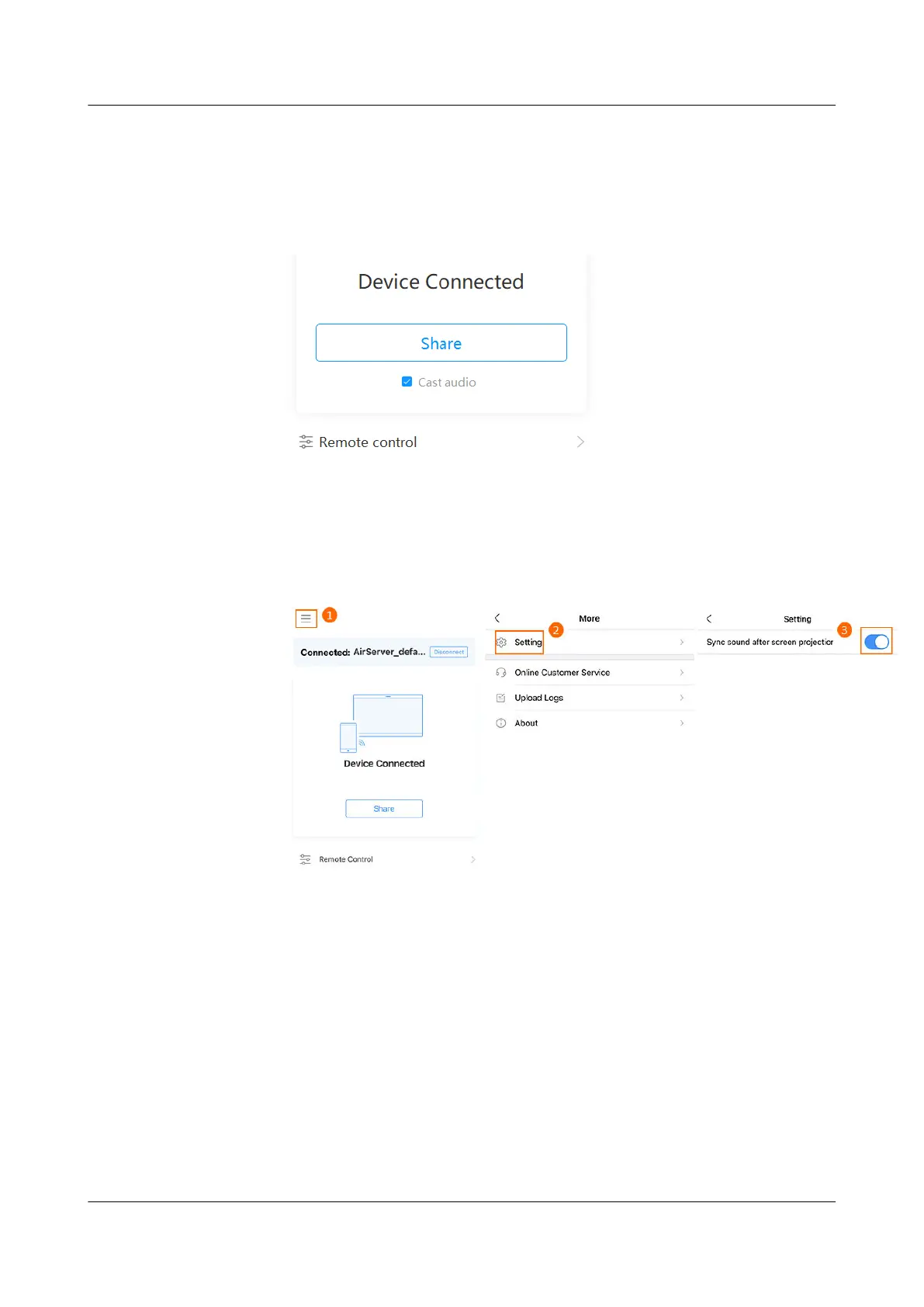
a. Select Cast audio to cast the audio from your computer to the endpoint.
b. Click Remote control to control the microphone, speaker, and camera of
the endpoint.
Figure 3-2 Remote control
● Operations on the mobile phone
a. Enable Sync sound after screen projection by following instructions in
Figure 3-3 to synchronize the sound from your phone to the endpoint.
Figure 3-3 Sync sound after screen projection
b. Tap Remote Control to control the microphone, speaker, and camera of
the endpoint.
----End
Meeting Projection
To use meeting projection, perform the following steps:
Step 1 Start the IdeaShare client on your computer or mobile phone.
Step 2 Enter the projection code displayed in the upper right corner of the endpoint.
Step 3 Click Share. Then, the computer or mobile phone screen can be displayed on the
endpoint.
IdeaShare
User Guide 3 Projection Function
Issue 01 (2023-03-30) Copyright © Huawei Technologies Co., Ltd. 8


 To Next Page