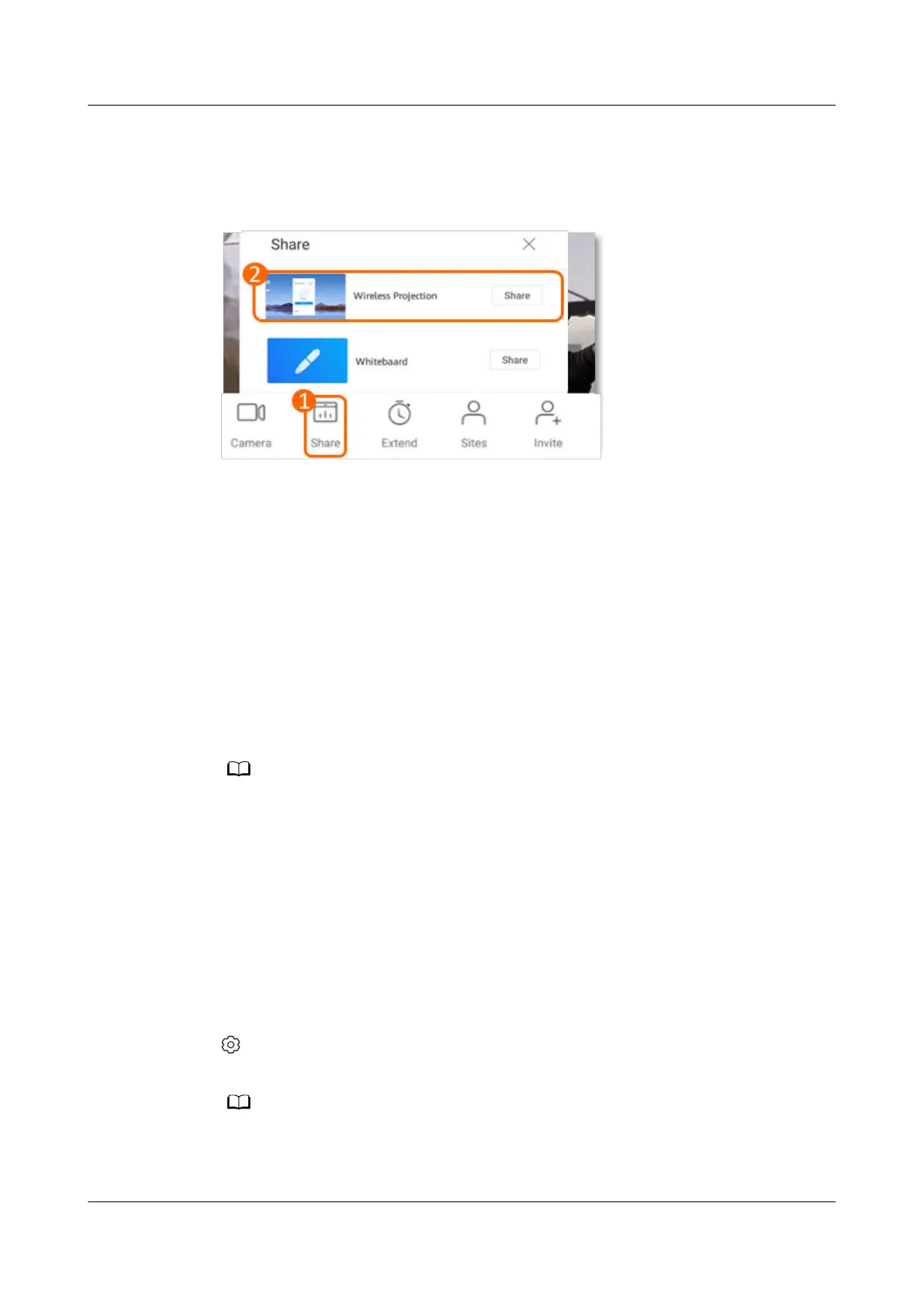
Step 4 Tap Share on the meeting page as shown in Figure 3-4, and then share wireless
projection.
Figure 3-4 Sharing in a meeting
----End
Wi-Fi P2P Projection
Introduction
Wi-Fi P2P is also called Wi-Fi Direct. Through this protocol, two devices supporting
Wi-Fi can establish a direct, peer-to-peer connection without passing through the
LAN.
The IdeaShare client supports projection using Wi-Fi P2P. You can enter the
projection code to start projection as long as Wi-Fi is enabled on both the
endpoint and your computer (or mobile phone).
● This function applies only to IdeaHub S2, IdeaHub S2 Pro, IdeaHub ES2, and IdeaHub
ES2 Pro that support the Wi-Fi function.
● Wi-Fi P2P projection must meet the following operating system requirements:
● Computer: 32-bit and 64-bit Windows 10 or 11
● Mobile phone: Android 8.0 or later; HarmonyOS 2.0 or later
● IdeaShare client: V6.19.0.32 or later
Wi-Fi P2P Projection Procedure
Step 1 Ensure that Wi-Fi is enabled on the endpoint and computer (or phone).
Step 2 On the endpoint's home screen, tap Projection. On the displayed screen, choose
> Advanced > Wi-Fi P2P Projection in the upper right corner to enable Wi-Fi
P2P Projection, as shown in Figure 3-5.
The Wi-Fi P2P conguration item in the advanced projection settings applies only to
IdeaHub S2, IdeaHub S2 Pro, IdeaHub ES2, and IdeaHub ES2 Pro of version 2.1.0 and later.
IdeaShare
User Guide 3 Projection Function
Issue 01 (2023-03-30) Copyright © Huawei Technologies Co., Ltd. 9


 To Next Page