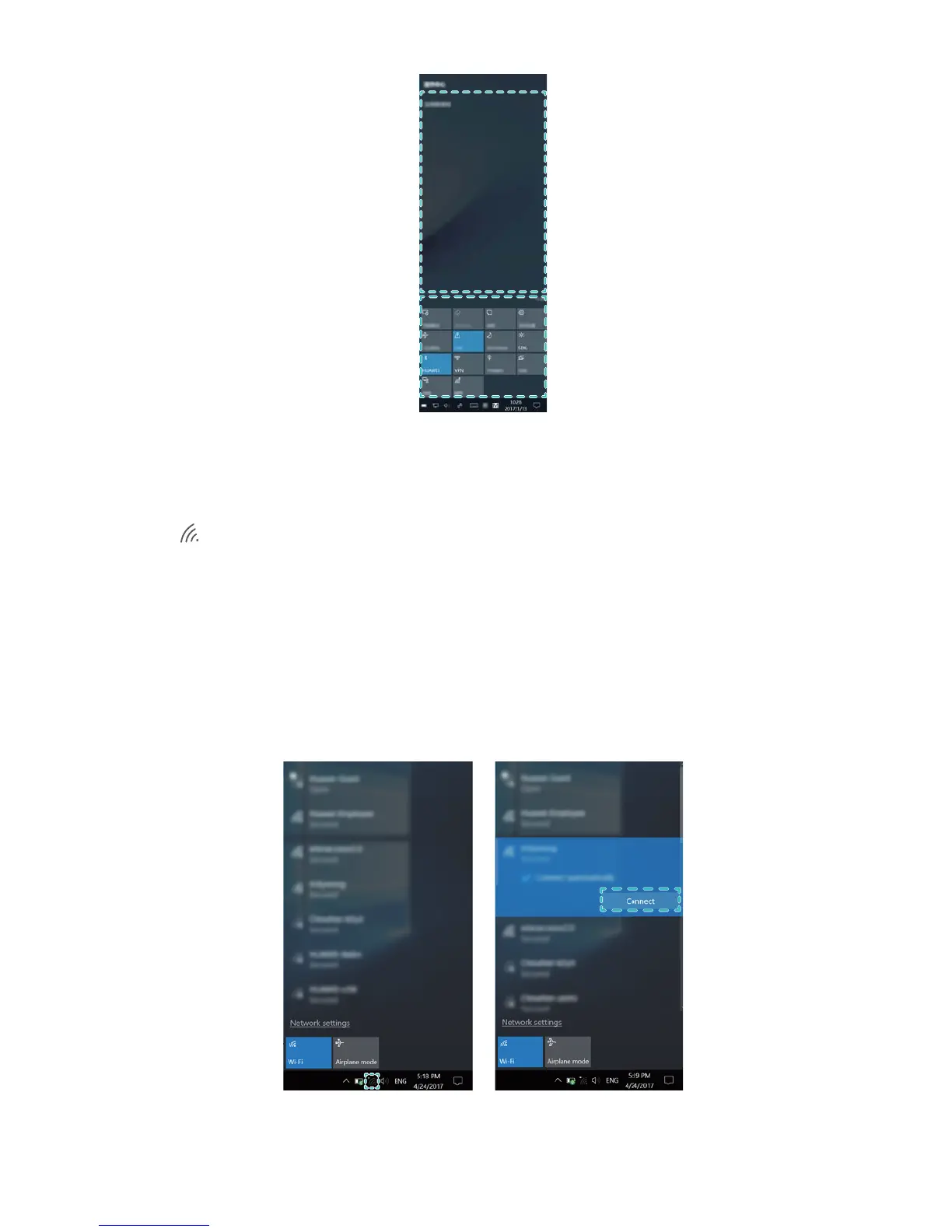
Connecting to Wi-Fi
1 Click in the lower-right corner of the screen to open the Wi-Fi settings screen.
2 Switch on the Wi-Fi. Your MateBook will automatically search for available Wi-Fi networks.
3 Select the network that you want to connect to and follow the on-screen instructions to
proceed. Some Wi-Fi networks require a security key or password to connect. You can find
this in your router settings, or obtain it from your Internet Service Provider (ISP) or network
administrator.
About Windows 10
8




 To Next Page