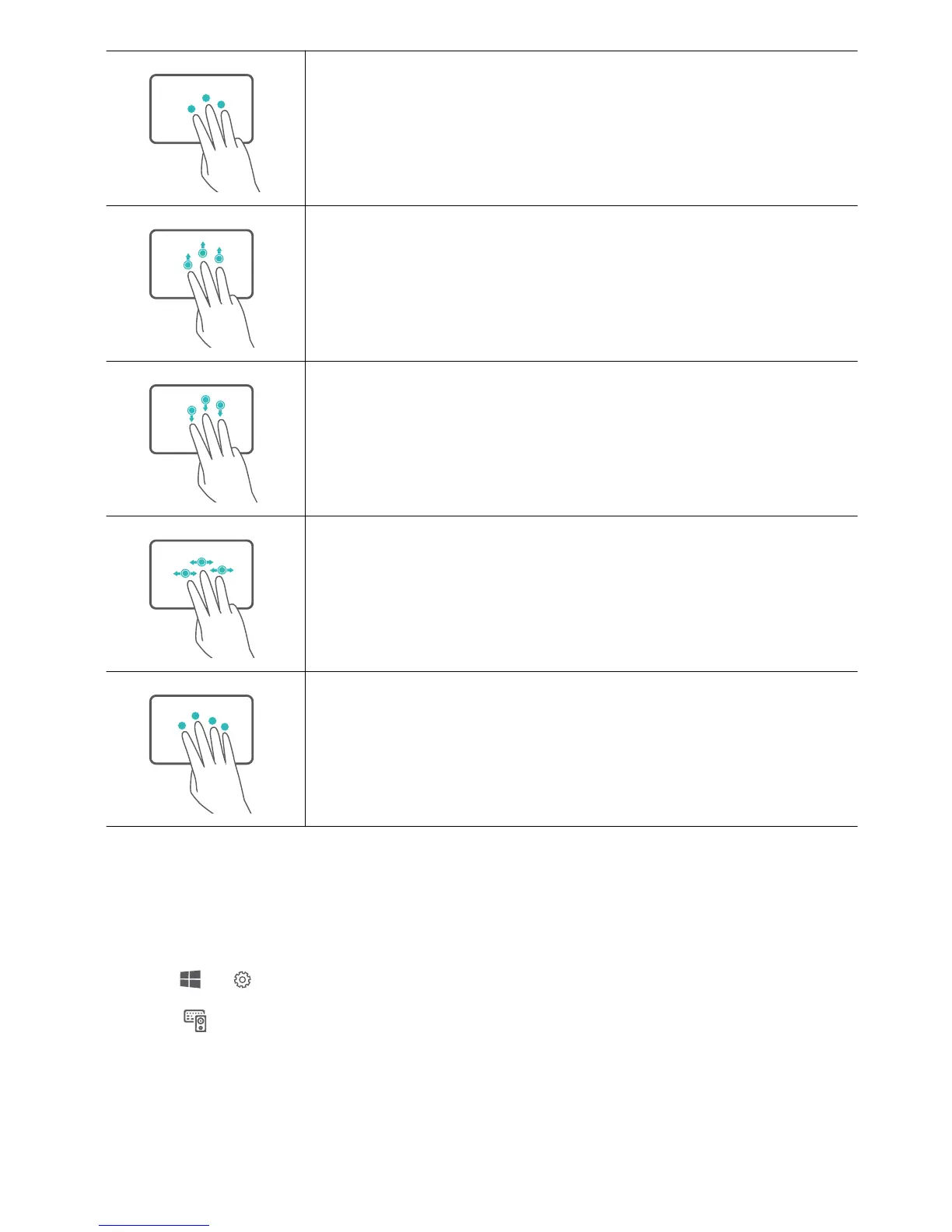
Touch with three fingers: Launch search screen.
Swipe up with three fingers: Display virtual desktops.
Swipe down with three fingers: Hide an open app.
Swipe left or right with three fingers: Select an open app.
Touch with four fingers: Open the action center.
Configuring the touchpad
Customize the cursor speed, gestures, and other touchpad settings to suit your personal
preferences.
1 Click > to open the settings menu.
2 Click and navigate to the touchpad settings. From there, you can:
l Enable or disable the touchpad.
l Automatically enable or disable the touchpad when a mouse is connected.
l Change the touchpad scroll direction.
l Configure touchpad gestures.
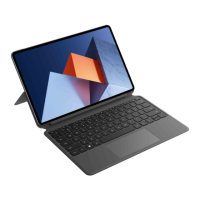
HUAWEI Folio Keyboard
18






 To Next Page