HUAWEI MatePen
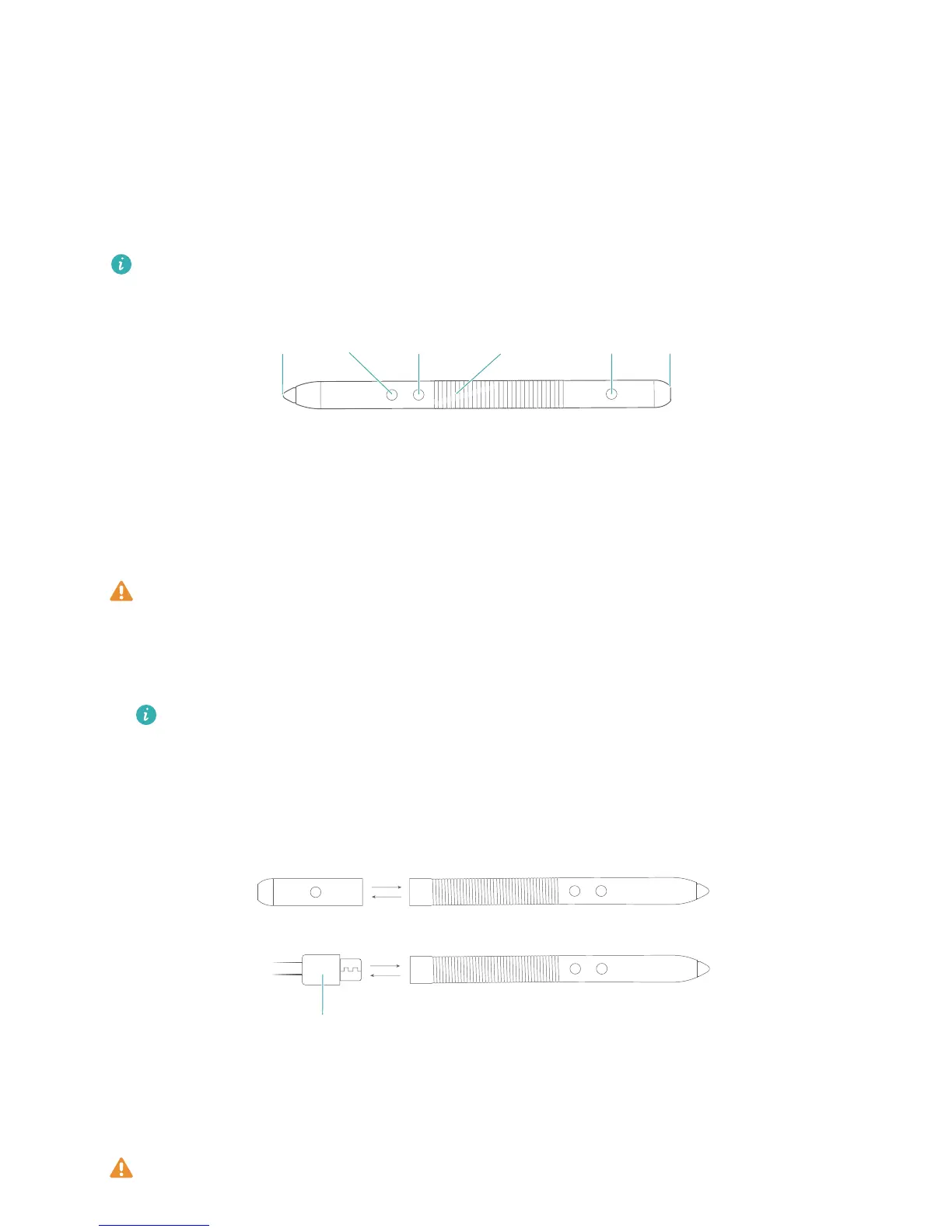
Getting to know your HUAWEI MatePen
The MatePen allows you to write or draw on the screen with pen-and-paper precision. It also
doubles up as a laser pointer and wireless presenter.
The MatePen is an optional accessory and is sold separately.
Charging your HUAWEI MatePen
The MatePen features a built-in rechargeable battery that lasts hundreds of hours on a single
charge. Charge your MatePen before you use it for the first time.
Always follow the instructions in this guide when charging your MatePen. Do not use
excessive force when removing the cap from the MatePen.
1 Pull the cap off the stylus.
2 Use a 5 V power adapter and a micro-USB cable to charge your MatePen.
The charging indicator on the MatePen shows the battery level during charging (red: low
battery, orange: medium battery, green: at least 90% charged.)
3 Once charging is complete, align the laser button with the next and back buttons and place
the cap back onto the stylus.
Replacing the MatePen tip
Perform the following steps to replace your stylus tip in the event of loss or damage:
Hold the stylus tip firmly to avoid losing it.
19




 To Next Page