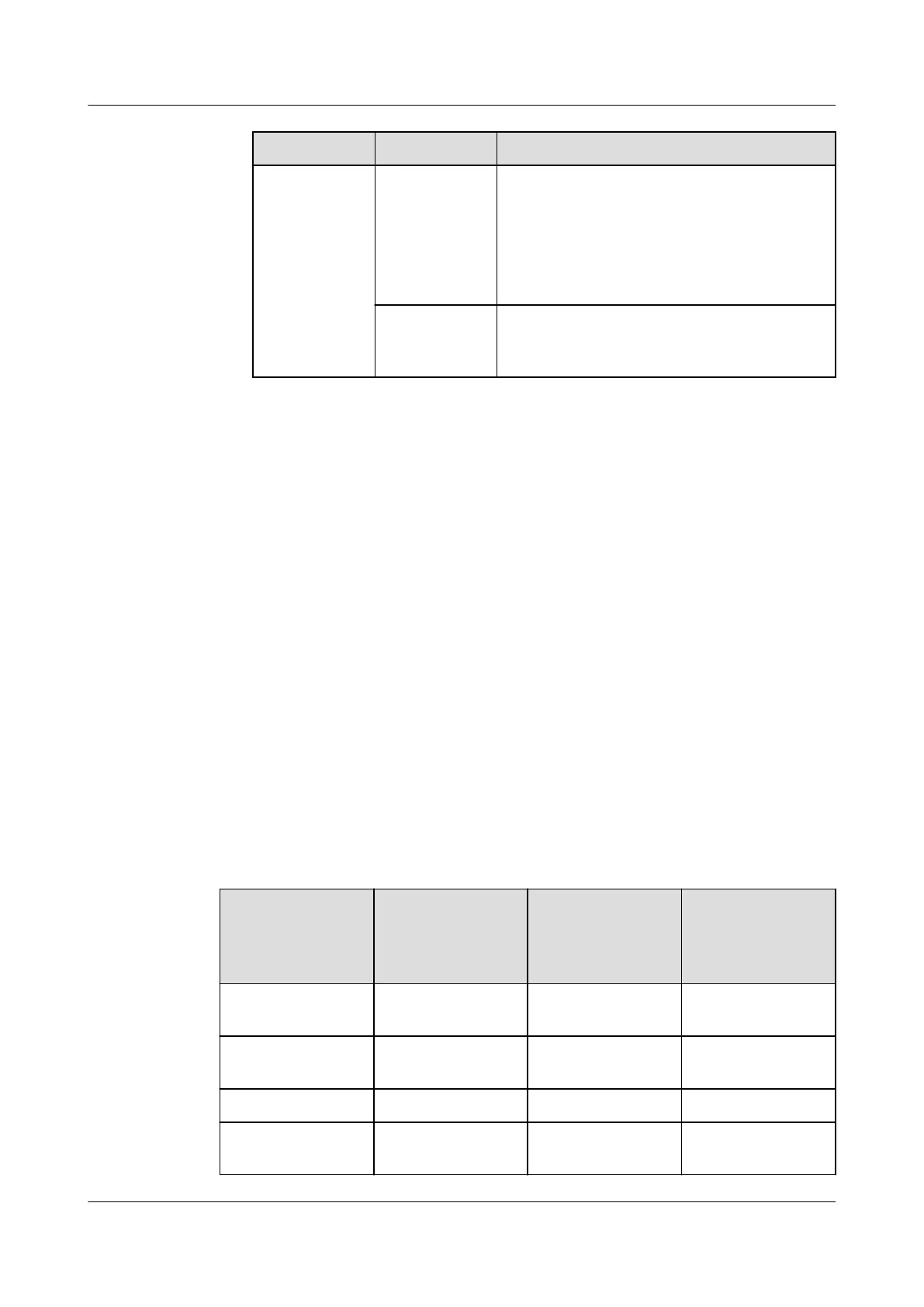
Path Parameter Setting
Communicati
ons Port
Select COM1 from the drop-down list box.
NOTE
The setting example indicates that the DC
power supply is connected to the COM1 port on
the ECC800-Pro. If the DC power supply is
connected to another port, select the number of
the connected port.
Device
Address
In this example, Device Address is set to 1.
Set the device address based on the actual
situation.
3. Click Test Connect to check whether the DC power supply is properly
connected to the ECC800-Pro.
– If the connection succeeds, click Conrm. The connected devices are
displayed in the Number of connected devices list.
– If the connection fails, check whether the device is properly connected to
the ECC800-Pro, whether the device and ECC800-Pro are running
properly, and whether the parameter settings are consistent with the
device parameters.
----End
8.7.15 How Can I Set and Add an rPDU?
Prerequisites
One end of the straight-through cable has been connected to the COM, SER, or
RS485 port on the rPDU, and the other end has been connected to the COM port
on the ECC800-Pro collector, UIM20A expansion module, or ETH converter.
Context
Table 8-14 rPDU basic information
Model
Vendor Name Displayed
on the WebUI
Eleventh and
Twelfth
Characters in
Device Barcode
a
PDU2000-32-1PH
-20/4-M1/CLEVER
Clever PDU2000-M(C) FT
PDU2000-32-1PH
-20/4-M1/HPX
HPXIN PDU2000-M(H) 6B
MD-1324-2004 Clever rPDU-MPDU FT
PN1-32I10-20E4G
-AV4
HPXIN rPDU-PN 6B
ECC800 Data Center Controller
User Manual 8 FAQ
Issue 04 (2021-10-09) Copyright © Huawei Technologies Co., Ltd. 319



 To Next Page