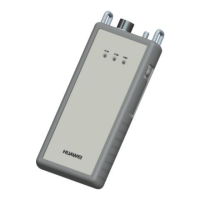
Step 3 Check functions of the T/H sensor.
Table 8-42 Function commissioning
Check Method Normal Connection Status
Check the running
information about the T/H
sensor on the WebUI.
Choose Monitoring > Aisle > T/H Sensor Group
> T/H Sensorn > Running Info, and check the
current T/H and NTC information of the cabinet.
Set T/H sensor alarm
thresholds.
Choose Monitoring > Aisle > T/H Sensor Group
> T/H Sensorn > Running Parameters, and set
High temperature alarm threshold, Low
temperature alarm threshold, High humidity
alarm threshold, Low humidity alarm
threshold, NTC1-6 high temperature alarm
threshold and NTC1-6 low temperature alarm
threshold as required.
NOTE
The default values of High temperature alarm
threshold, Low temperature alarm threshold, High
humidity alarm threshold, Low humidity alarm
threshold, NTC1-6 high temperature alarm
threshold and NTC1-6 low temperature alarm
threshold are 30.0°C, 5.0°C, 85.0% RH, 15.0% RH,
45°C and 10°C respectively.
----End
8.7.40 How Can I Add an SMU11B?
Prerequisites
One end of the straight-through cable has been connected to the COM port on
the SMU11B and the other end has been connected to the COM port on the
ECC800-Pro or ETH converter.
Procedure
Step 1 Ensure that the PC IP address is in the same network segment as the SMU IP
address.
For example, if the SMU has an IP address of 192.168.0.10, a subnet mask of
255.255.255.0, and a default gateway of 192.168.0.1, set the IP address to
192.168.0.11, subnet mask to 255.255.255.0, and default gateway to 192.168.0.1
on the PC.
Step 2 Enter https://SMU IP address (for example, https://192.168.0.10) in the address
box of the browser, and then press Enter to access the WebUI login page.
ECC800 Data Center Controller
User Manual 8 FAQ
Issue 04 (2021-10-09) Copyright © Huawei Technologies Co., Ltd. 354



 To Next Page