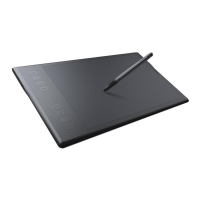
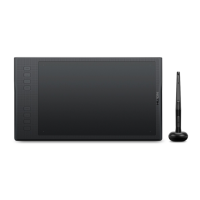
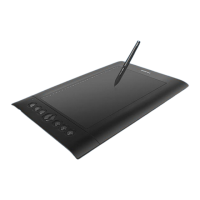
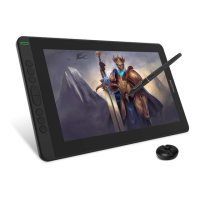
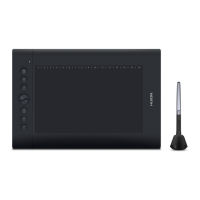
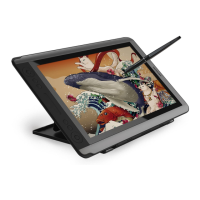
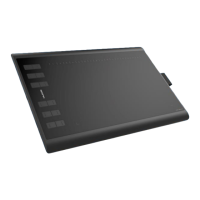
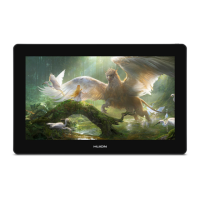
The HUION®INSPIROY® Q11K is a wireless graphics tablet designed to enhance painting and creative work efficiency. This new generation portable professional drawing tablet offers a natural and intuitive experience, allowing users to draw and write with various lines and colors, much like a pen on paper. The tablet is compatible with both Windows (7 or later) and macOS (10.11 or later) systems.
Function Description
The Q11K tablet operates in two primary modes: wired and wireless. In wired mode, the tablet connects directly to a computer via a Micro USB cable, which also charges the tablet's internal battery. For wireless operation, a wireless receiver is inserted into the computer, and the tablet's power switch is toggled on. The tablet features 8 customizable press keys located on the top left side, designed to improve workflow efficiency by allowing users to set functions according to their habits.
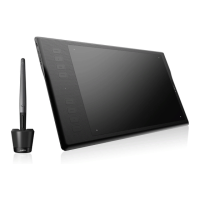
The stylus pen, a key component of the Q11K, is a rechargeable pen with 8192 levels of pressure sensitivity. It includes an upper button (functioning as a mouse right-click) and a lower button (for switching brushes), both customizable through the driver interface. The pen nib acts as a mouse left-click. The tablet's active area maps to the monitor screen, and for multiple monitor setups in extended mode, users can select the specific monitor to map to. In mirror mode, the tablet maps to all monitors simultaneously. The working area can also be rotated by 0°, 90°, 180°, or 270° to accommodate left- or right-handed users.
The Q11K supports the Windows Ink feature, providing extensive pen input support for applications like Microsoft Office, Windows Journal, Adobe Photoshop CC, and SketchBook 6. The driver also allows for exporting and importing custom configuration data, simplifying the setup process when using different software or avoiding repetitive settings.
Usage Features
To begin using the Q11K, users must first install the appropriate driver, which can be downloaded from the HUION website. Before installation, it is crucial to uninstall any other similar product drivers, including older versions of the Q11K driver, and close all graphics and anti-virus software to prevent conflicts. Once installed, the driver icon will appear in the system tray, changing color to indicate successful tablet recognition.
Holding the stylus pen is similar to holding a normal pen or pencil, with the side switch positioned for easy access by the thumb or forefinger. Users should be mindful not to accidentally press the switch during drawing or positioning. The pen's movement slightly above the active area moves the cursor, and pressing the pen tip on the screen registers a click. Tapping once highlights or selects an item, while double-tapping opens it. Objects can be moved by selecting them and sliding the pen tip across the screen. The pen's side buttons can be used when the pen tip is within 10mm of the tablet's active area, without needing to touch the tablet surface.
The tablet's power switch is located on the top left. In wireless mode, it must be turned on. An LED indicator provides status updates: white for detected pen/touch signal, off for no signal, and red flashes for low battery. When charging, the LED is red, turning off when fully charged. The tablet enters sleep mode after 15 minutes of inactivity or if the power button is pressed for 3 seconds, and can be woken by toggling the switch off and then on.
The pressure sensitivity of the pen can be adjusted via a slider in the driver interface; a smaller value indicates greater sensitivity. A pen pressure test feature allows users to gradually apply pressure to the stylus on the screen to test the pressure level, with a "Clear" button to erase all ink.
Maintenance Features
Proper maintenance ensures the longevity and optimal performance of the Q11K tablet. Before cleaning, the tablet's power cord should be unplugged, and it should be wiped with a soft, damp cloth, avoiding any detergents. The product should not be exposed to water or other liquids, as this can cause malfunction or electrical shock. To prevent damage and ensure safety, the tablet should be placed on a stable surface, out of reach of children, who might accidentally swallow pen nibs or side switches.
The tablet and pen should not be disassembled or modified, as this can lead to heat generation, ignition, electric shock, or other damage, and will void the warranty. If components need replacement, only manufacturer-specified substitutes should be used to avoid potential hazards. Foreign materials should never be inserted into the USB port or any other opening of the product.
Both the tablet and the digital pen contain lithium batteries that require timely charging when in low battery mode. Additionally, they should be charged every 3 months to prevent battery damage. It is important not to press the digital pen's nib when placing it down, as this prevents the pen from entering power-saving mode, which can lead to lithium battery over-discharge damage.
To protect the tablet and conserve power, it should be switched off when not in use. This is especially important in locations where electronic devices are restricted, such as airplanes, to prevent interference with other electronic equipment. If the computer cannot enter sleep mode while the tablet is charging, users may need to adjust their system's power or energy saver settings to allow the computer to sleep while the tablet charges.


 To Next Page
 General