Page 13
“Overview” gesture is available for use with the distance viewing mode. You
can slide two fingers from top to bottom across the middle of the screen, and
the image will zoom to 1x, allowing you to note where the zoom was
effectuated. The image will return to the previous zoom level once you release
your fingers from the screen.
SWITCHING CAMERAS
Icon art makes it easy for the user to recognize the functionality of the on-
screen icons that switch camera modes. Tap the Mountains icon to access
distance mode, and the Text icon to access document/near viewing mode.
By default, the magnifier mode is set to the Near Camera view when the base
or the stand is opened, however, you can toggle to the Distance Camera
(designated by the Mountains icon at the top, left of the screen).
Alternatively, you can toggle the camera view by selecting Toggle Camera
in the Settings menu.
CHANGING CONTRAST
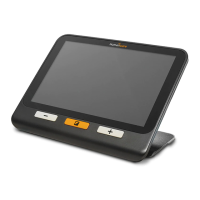
explorē 12 allows you to customize contrast to suit your needs by pressing
the orange Contrast button (located at the bottom, center of the device) to
change contrast levels.
Default contrast modes are: full color, black on white, white on black, black
on yellow, yellow on black.
Other contrast modes are available and can be activated via the Settings
menu. They include black on orange, orange on black, black on cyan, cyan
on black, black on purple, purple on black, black on green, green on black,
blue on yellow, yellow on blue, white on blue and blue on white, red on white
and red on black.


 To Next Page