Page 22
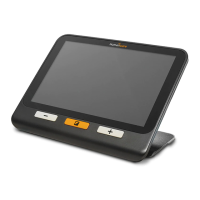
Users can select the date and time for the device using touch gestures or
physical buttons.
Date and time can be set by accessing the About Menu, then Date and time,
then tapping year/month/day/hours/minutes and selecting the correct date
and time by tapping the up/down arrows. The user can also adjust the
year/month/day/hours/minutes selection by tapping the + or – keys then
pressing the capture button to select the value to change, arrows will appear
on the screen, tap the + or – to change the value. Finally, press the capture
button to deselect the edit field.
CHAPTER 5 – UPDATING THE SYSTEM
Step 1: Click this link or copy and paste it into your browser:
http://support.humanware.com/en-canada/support/explore
Step 2: Select Download for the latest version of the explorē 12 software.
Step 3: Connect the explorē 12 to your computer using the USB cable
(provided).
Step 4: Access your computer's file explorer, then copy and paste or drag and
drop your downloaded file(s) directly into your explorē 12 root directory.
Step 5: When the transfer has completed, unplug your USB cable from your
computer and restart your explorē 12. Your device will have automatically
updated.


 To Next Page