Page 14
TURNING LIGHTS ON AND OFF
Press and hold Zoom+ and Zoom- simultaneously to turn lights On and Off.
Note: Near camera must be selected to turn lights On.
Lighting control setting for each viewing mode
LED lights can be set to On, Low, or Off for each viewing mode, thus enabling
you to set up the device for use in various environments or for specific tasks.
Access Lights from the Menu, select a viewing mode (Base or Folding
Stand & Handheld), then select On, Low, or Off for each of
the viewing
modes
.
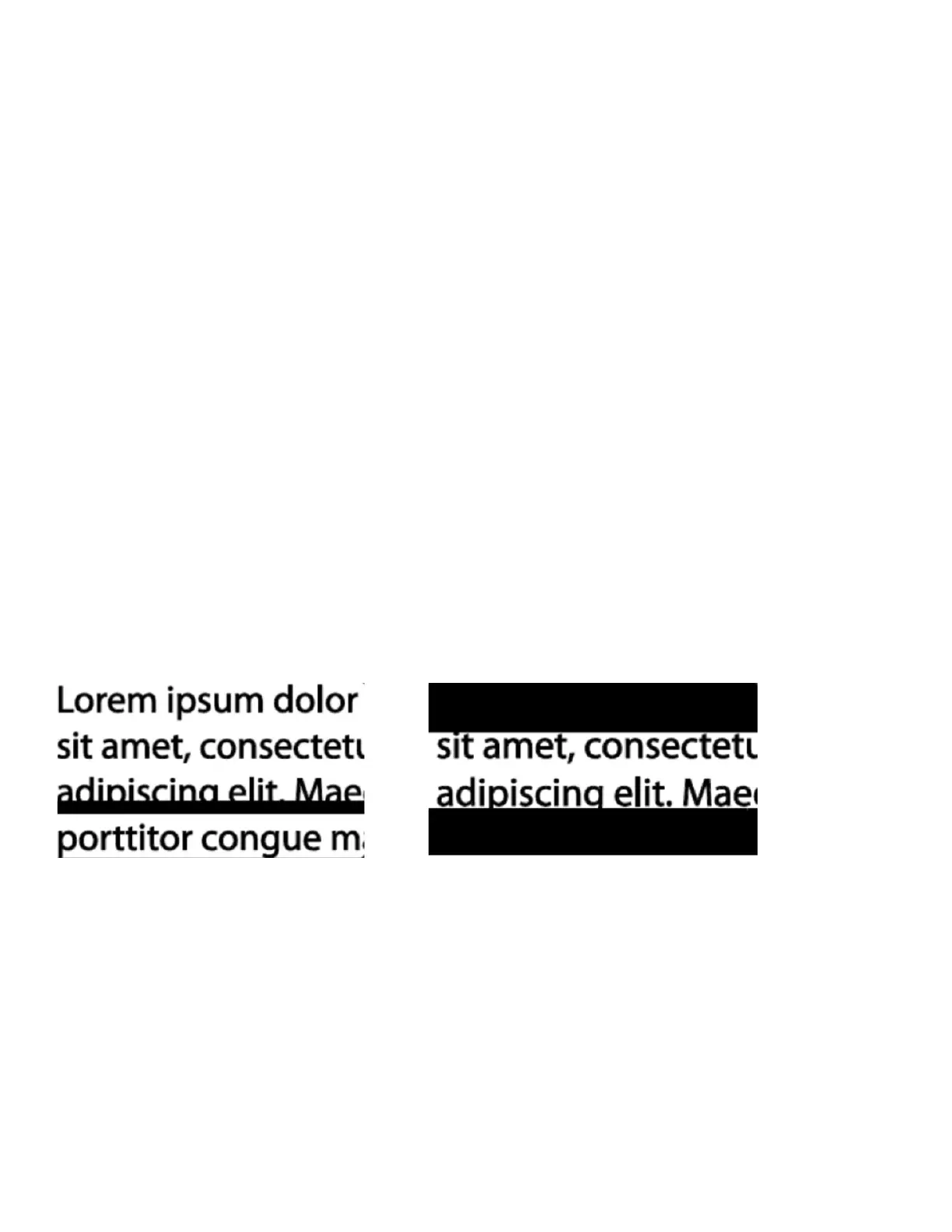
LINES AND BLINDS
The explorē 12 allows you to add a horizontal line (left image) or blinds (right
image) over your image for easier reading.
To add a line, press and hold Contrast and Zoom+ simultaneously. Repeat
to remove the line.
To add blinds, press and hold Contrast and Zoom- simultaneously. Repeat
to remove the blinds.


 To Next Page