3
|
Download and Display Purchased Charts on your Mobile Device
Y
our purchased LakeMaster charts are listed under the Owned tab in the Maps menu. Use the instructions in this section to download
purchased charts to display on your mobile device. A Wi-Fi or cellular data connection is required.
N
OTE: Visit our Web site at humminbird.chartselect.com to purchase lake charts from your personal computer or see the section
Purchase Charts on your Mobile Device to make in-app purchases.
1. Apple iOS: Tap the Maps menu icon.
Google Android: Tap the FishSmart main menu. Select Maps.
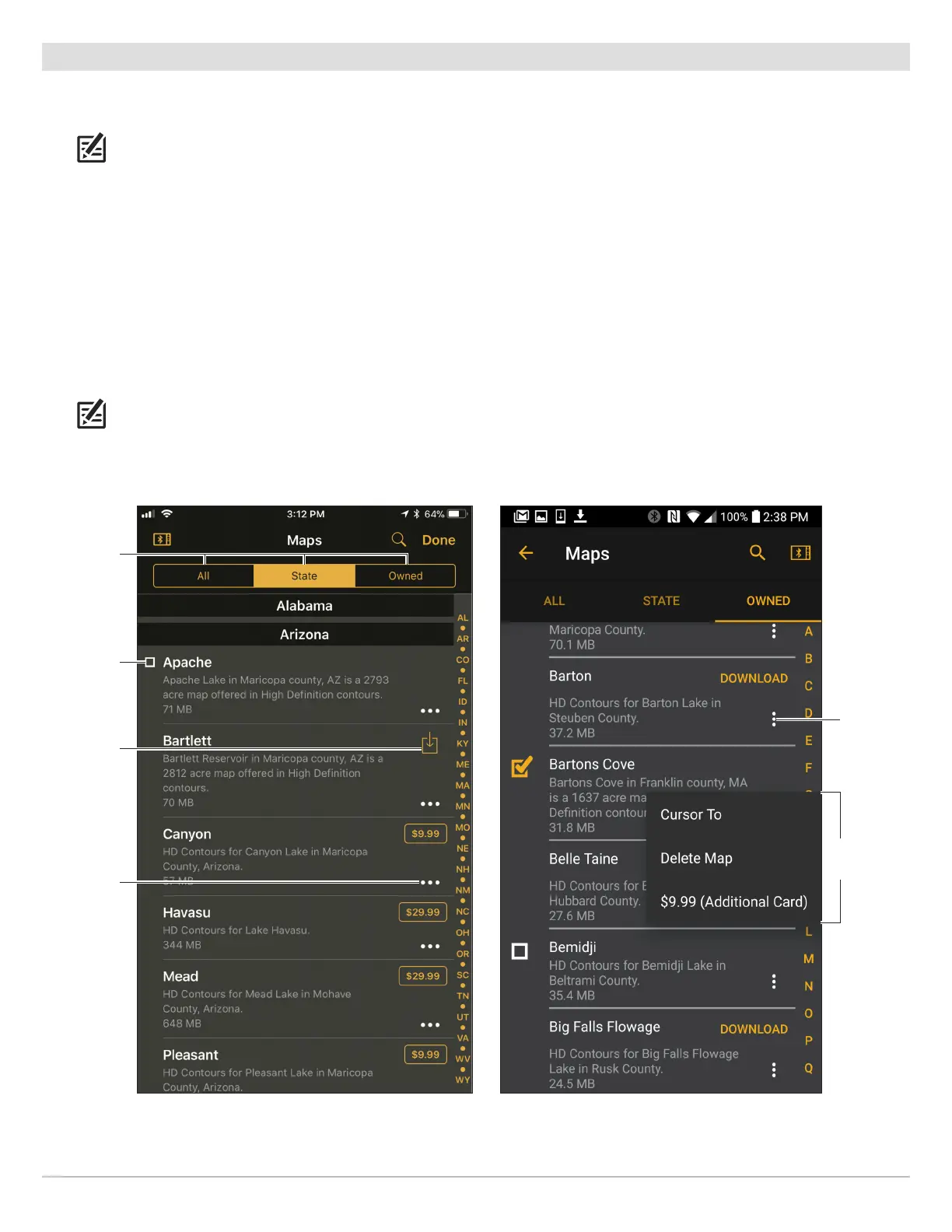
2. Download a Chart: Tap the download symbol next to the lake chart name (see the illustration Downloading Purchased
Charts). A check box will display to the left of the chart name when the download is complete.
3. Repeat: Repeat steps 1 and 2 to download additional purchased charts.
4. Display a Chart: Tap the check box next to the chart name. Tap the More Options icon next to the downloaded chart to open
the More Options menu. Tap Cursor To to display the selected chart on the chart display (see the illustration More Options
Menu).
NOTE: Access the More Options menu to delete a chart from your mobile device or purchase an additional copy of the chart for
another SD or microSD card. Deleted charts can be re-downloaded for 1 year from the date of purchase.
More Options Menu
(Google Android Phone)
Downloading Purchased Charts
(Apple iOS Phone)
check box
indicates
downloaded
chart
Tap the
download
symbol to
save the
chart to the
device.
more
options
icon
search tabs
more
options
icon
more
options
menu
20
Using FishSmart





 To Next Page