EasyManua.ls Logo

i-box Dusk - User Manual

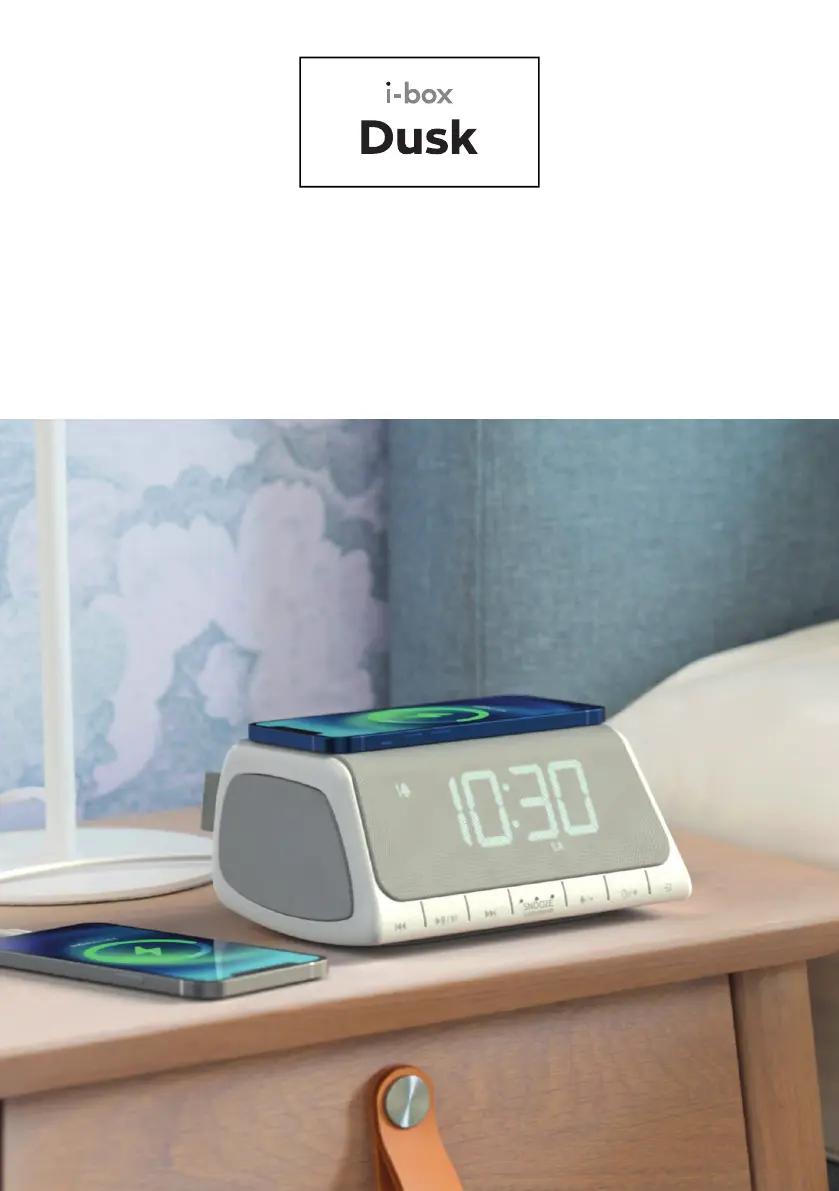
i-box Dusk
12 pages
Print Icon
To Next Page IconTo Next Page
Loading...
Dusk | 01
Radio Alarm Clock
with Wireless Charging

Questions and Answers

  • A
    Amanda ParkerAug 6, 2025
    Why is wireless charging not working on my i-box Dusk Alarm Clock?
    • A
      andrelloydAug 6, 2025
      If the wireless charging isn't working on your i-box Alarm Clock, make sure your smartphone is centered on the charging pad, although some phones may need to be placed slightly off-center. Also, remove your smartphone from its case if it's thicker than 5mm or contains metal. Note that charging time varies and the components may heat up during charging.
  • E
    Erica CummingsAug 11, 2025
    What to do if there is no sound from my i-box Alarm Clock?
    • A
      Alexander ClarkAug 11, 2025
      If there is no sound coming from your i-box Alarm Clock, check the following: * Ensure the volume isn't turned down. * Increase the volume. * Verify the radio is switched on. * Try tuning to another radio station.
  • D
    Daniel HerreraAug 18, 2025
    How to improve radio reception on i-box Dusk?
    • S
      Shaun EdwardsAug 18, 2025
      If you're experiencing poor radio reception on your i-box Alarm Clock: * Extend the antenna fully to maximize signal strength. * Adjust the antenna direction to improve the signal. * Move the radio closer to a window. * Ensure the radio isn't near microwaves, fluorescent lights, or other equipment that may cause interference.
  • C
    christian07Aug 25, 2025
    What to do if my i-box Dusk does not turn on?
    • C
      Christopher RileyAug 25, 2025
      If your i-box Alarm Clock doesn't turn on, verify the power supply connections and ensure the mains socket is switched on.
  • T
    Tammy SerranoAug 30, 2025
    Why don't time and alarm settings reset on my i-box Dusk Alarm Clock after a power cut?
    • M
      maria05Aug 30, 2025
      If the time and alarm settings on your i-box Alarm Clock don't reset after a power cut, it could be due to the absence of a backup battery. Insert a CR2025 battery. If a backup battery is already installed, ensure it is correctly fitted according to the diagram.

Summary

Introduction

Caring for your Radio Alarm Clock

Controls & Features Overview

Operating Dusk using App

Downloading and Installing the App

Guides users through downloading and installing the i-box Connect application on iOS and Android devices.

Signing Up and Signing In

Details the process for creating an i-box account and signing in to use the Connect app.

Powering and Initial Setup

Powering your Radio Alarm Clock

Instructions on connecting the power adapter and setting up the device's primary power source.

Battery Backup Installation

Explains how to install the CR2025 battery for backup power to retain time and alarm settings.

Setting the Clock and Calendar

Step-by-step guide to setting the current time and date on the radio alarm clock.

Wireless Connection and Alarms

Wireless Connection Mode and Pairing

Details on enabling wireless mode and pairing the device with Bluetooth-enabled devices.

Standby Mode and Mode Select

Instructions on navigating device modes, including standby, FM radio, Bluetooth, and natural sound.

Alarm Setting Procedures

Comprehensive guide to setting alarm times, frequencies, sources, and managing multiple alarms.

Radio and Playback Functions

Stopping and Snoozing the Alarm

Explains how to stop or snooze the alarm using the dedicated button.

FM Radio Mode Operations

Details on tuning, searching, and saving FM radio stations.

Wireless Playback Mode

Instructions for playing audio from connected Bluetooth devices, including volume and track control.

Advanced Features

White Noise;Natural Soundtrack Mode

Guide to selecting and playing from the 10 available nature sound tracks.

Screen Dimmer Mode

Instructions for adjusting the display brightness through six different levels.

Sleep Timer Mode

Details on setting the sleep timer to automatically put the device into standby mode.

Wireless Charging Guide

Instructions for charging Qi-enabled smartphones on the device's charging panel.

Specifications and Troubleshooting

Technical Specifications

Lists key technical details including power input, audio output, FM frequency, and Bluetooth version.

Troubleshooting Common Issues

Provides solutions for common problems like poor radio reception, no sound, and wireless charging issues.

i-box Dusk Specifications

General IconGeneral
Brandi-box
ModelDusk
CategoryAlarm Clock
LanguageEnglish

Related product manuals